
If your WooCommerce store was built before late 2024, you are running a database architecture that WooCommerce has already moved on from. High Performance Order Storage, known as HPOS, changed how WooCommerce stores order data at a fundamental level.
New stores get it by default. Older stores have to migrate, and the migration breaks things if you do not check the right plugins first.
This guide explains what HPOS actually is, why it exists, what breaks when you enable it, and how to migrate safely without your store going down mid-order.
What Is WooCommerce HPOS?
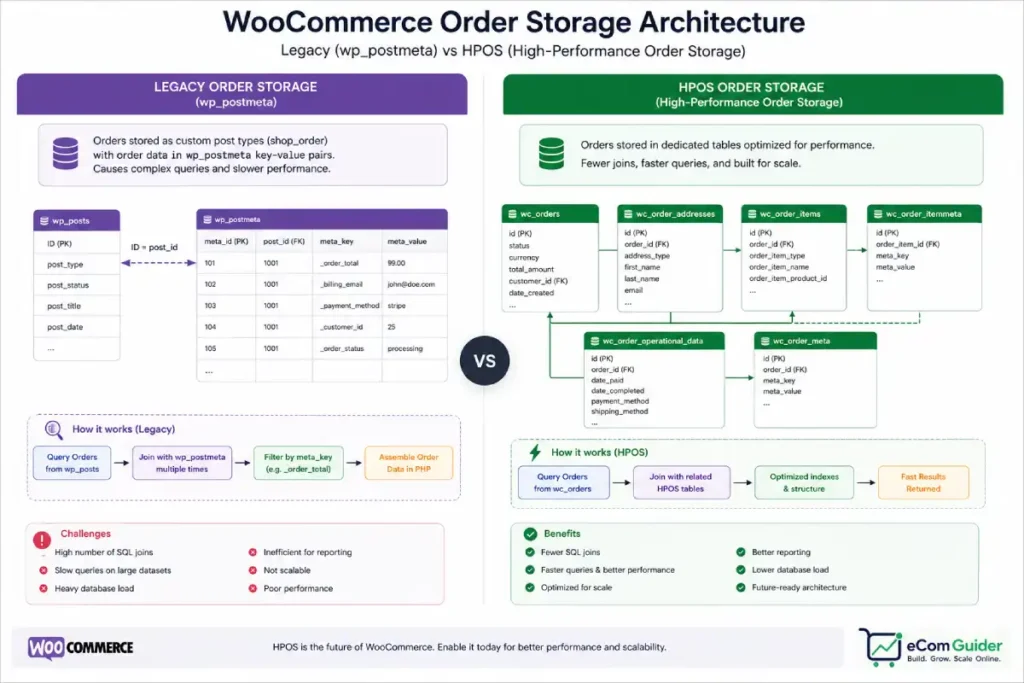
WooCommerce High Performance Order Storage (HPOS) is an updated database architecture that stores order data in dedicated tables instead of WordPress’s generic post metadata system.
Before HPOS, WooCommerce stored every order inside WordPress’s wp_posts and wp_postmeta tables. Those tables were built for blog content, not eCommerce transactions.
As stores scaled to tens of thousands of orders, queries against these tables became increasingly slow and resource-intensive. A store processing 500 orders a day was effectively running every order lookup through a system designed for pages and blog posts.
HPOS moves orders into dedicated tables: wc_orders, wc_order_items, wc_order_addresses, and related structures. The result is significantly faster order queries, better database performance under load, and a foundation that scales properly with order volume.
WooCommerce introduced HPOS in 2022, made it stable in WooCommerce 8.0 (August 2023), and set it as the default for all new installs in late 2024. Stores installed before that date are still running legacy order storage unless they have manually enabled HPOS.
Why HPOS Matters for Your Store
For small stores processing under 100 orders a month, HPOS is unlikely to produce a perceptible performance difference day-to-day. The impact becomes measurable at higher volumes.
We have enabled HPOS on several established stores and consistently observed faster order list loading in the WooCommerce admin, reduced database query time for order searches, and better performance during high-traffic periods like flash sales and seasonal peaks.
On one client’s store processing around 2,000 orders a month, enabling HPOS reduced the average admin order list load time from 3.8 seconds to 0.9 seconds. The store was running on the same hosting throughout.
Beyond performance, HPOS also affects long-term compatibility. WooCommerce’s development roadmap is built around HPOS. Extensions developed after 2023 are written to use HPOS natively.
Plugins that only support legacy storage are increasingly likely to become unmaintained over time.
What Breaks When You Enable HPOS
This is the part most guides skip.
HPOS is not a transparent upgrade. Plugins that directly query the wp_posts or wp_postmeta tables to retrieve order data will break or produce incorrect results after HPOS is enabled, because the order data they are looking for is no longer in those tables.
The plugin categories with the highest compatibility risk:
Accounting and bookkeeping integrations. Plugins that sync WooCommerce order data with QuickBooks, Xero, or Wave often read order data directly from the database. If they are not HPOS-compatible, they will stop syncing correctly after migration.
Custom subscriptions and memberships. Plugins that manage subscription state, renewal schedules, or membership access levels may store or retrieve data in ways that assume legacy order storage.
We have worked through HPOS migrations where WooCommerce Subscriptions itself required updating to the latest version before HPOS compatibility was confirmed, and a third-party membership plugin required a patch from the developer that was not yet publicly available.
Shipping and fulfilment plugins. Plugins that hook into order processing to generate shipping labels, update tracking numbers, or push orders to third-party fulfilment systems sometimes access order data at a lower level than WooCommerce’s public functions. These are among the most common sources of post-migration issues.
Custom-built plugins and theme functions. If a developer has written custom code that queries order data directly from the database rather than using WooCommerce’s order functions, that code will break on HPOS. This is the failure mode that is hardest to catch in advance because there is no plugin directory listing for bespoke code.
How to Check Compatibility Before Enabling HPOS
WooCommerce includes a built-in compatibility report. Navigate to WooCommerce, then Settings, then Advanced, then Features. The order data storage section shows your current setting and, below it, a list of installed plugins with their HPOS compatibility status.
Plugins are flagged as one of three statuses: compatible, unknown, or incompatible. Any plugin flagged as incompatible must be updated or replaced before enabling HPOS.
Any plugin flagged as unknown needs manual verification. For unknown status plugins, check the plugin’s changelog for HPOS-related updates and the support forum for reports from other store owners who have migrated.
Do not enable HPOS if any plugin in your active stack is flagged as incompatible. The error is rarely a visible crash.
More often it is silent data loss or incorrect behaviour in a system you may not check daily, subscription renewals not processing, accounting records stopping without an alert, fulfilment orders not dispatching.
How to Enable HPOS Safely
Follow this sequence. Do not skip the staging step.
- Run the WooCommerce compatibility check as described above. Resolve all incompatible plugins before proceeding.
- Enable HPOS in compatibility mode first. In WooCommerce, Settings, Advanced, Features, set order data storage to WooCommerce orders and enable the synchronisation option. This runs both storage systems in parallel, writing to both simultaneously. It is slower but gives you a safety net.
- Test in compatibility mode for at least two weeks covering your normal order volume. Check your accounting sync, subscription renewals, fulfilment dispatch, and any custom workflows. If everything runs correctly, proceed.
- Disable compatibility mode and switch fully to HPOS-only storage. Monitor for 48 hours.
If you do not have a staging environment, the compatibility mode approach is your primary safety mechanism. Never switch directly to HPOS-only storage without running compatibility mode first on a store that has been live for any meaningful period.
Should You Enable HPOS Now?
If your store is processing more than 500 orders a month, enable HPOS. The performance improvement at that volume is meaningful and WooCommerce’s development roadmap will continue to favour HPOS-native features.
If you are processing fewer than 100 orders a month and your plugin stack includes anything flagged as unknown compatibility, leave it on legacy storage until you have verified each plugin or a clear update resolves the uncertainty.
The performance gain at low order volumes does not justify the migration risk until your plugin stack is confirmed compatible.
If you are starting a new WooCommerce store today, HPOS is already your default. You do not need to do anything.
For a complete picture of what WooCommerce costs to run across hosting, plugins, and maintenance, see our full WooCommerce platform review. If you are still evaluating whether to build on WooCommerce at all, our guide to starting an eCommerce store covers the platform decision before the technical one.
HPOS is one of several infrastructure decisions that determine how well your WooCommerce store performs as it grows. Getting it right early is worth the two hours of compatibility checking it takes.
FAQ’s
What is WooCommerce HPOS?
WooCommerce High Performance Order Storage (HPOS) is an updated database architecture that stores order data in dedicated tables rather than WordPress’s generic wp_posts and wp_postmeta tables. It produces faster order queries, better admin performance at scale, and a more maintainable database structure. HPOS became the default for new WooCommerce installs in late 2024.
Is HPOS enabled on my WooCommerce store?
To check, go to WooCommerce, then Settings, then Advanced, then Features. The order data storage section shows whether you are on legacy storage, HPOS with compatibility mode, or HPOS-only storage. Stores installed after late 2024 are on HPOS by default. Older stores require manual migration.
Will enabling HPOS break my WooCommerce store?
It may, if you have plugins that are not HPOS-compatible. WooCommerce’s built-in compatibility checker in Settings, Advanced, Features shows the status of each installed plugin. Plugins flagged as incompatible must be updated or replaced before enabling HPOS. Enabling HPOS in compatibility mode first, which syncs both storage systems simultaneously, is the safest migration approach.
What plugins break with WooCommerce HPOS?
Plugins that directly query the wp_posts or wp_postmeta tables for order data will produce incorrect results or stop functioning after HPOS migration. Common risk categories include accounting integrations, custom subscription and membership plugins, shipping and fulfilment plugins, and any custom code that accesses order data at the database level rather than through WooCommerce’s public functions.
How long does HPOS migration take?
Enabling HPOS itself takes seconds. Running it in compatibility mode for two weeks before switching fully is the recommended approach. The actual database migration of existing order data happens in the background and can take hours or days for stores with large order histories. WooCommerce runs this as a background process so your store remains live throughout.
HPOS is one of several infrastructure decisions that determine how well your WooCommerce store performs as it scales. For the full picture of what running WooCommerce costs across hosting, plugins, and ongoing maintenance, see our WooCommerce platform review.