
Shopify’s export screen looks complete. Products, customers, orders, discount codes, financial reports, all download as CSV files in a few clicks.
What that screen does not tell you is that your analytics history, abandoned cart data, and customer journey insights never leave Shopify at all, not because the export is broken, but because that data was never designed to be portable in the first place.
This direction of migration has its own real challenges, distinct from moving the other way. WooCommerce has no native order importer.
Product images referenced from Shopify’s CDN break the moment you cancel your Shopify account unless you rehost them first.
This playbook covers what actually transfers, what to grab before you lose access, and every step in order.
Key Takeaways
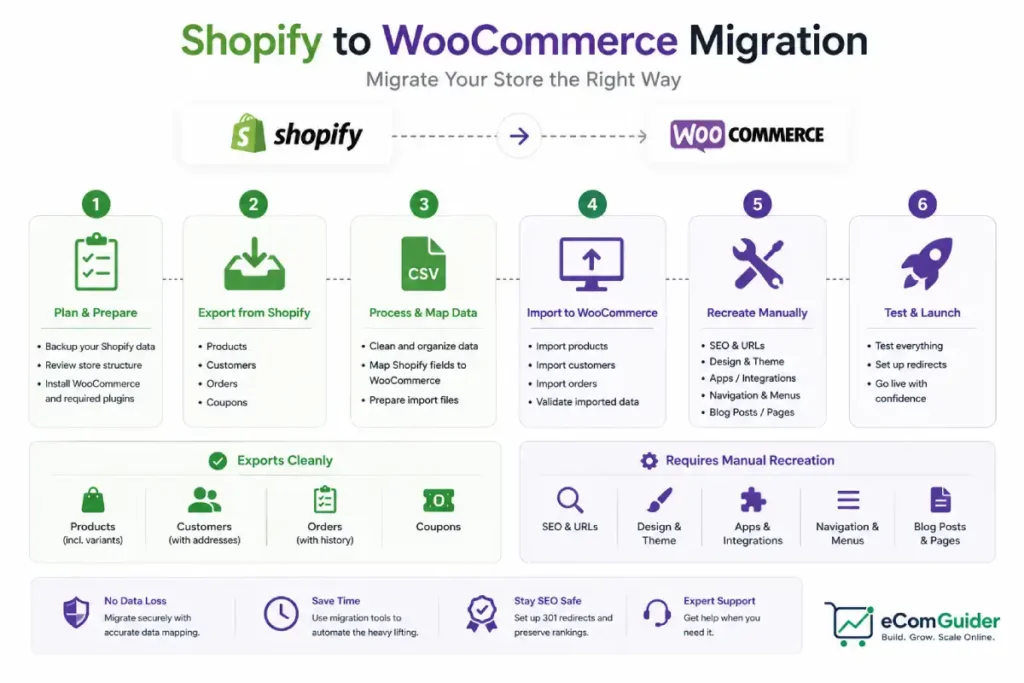
- Shopify exports products, customers, orders, discount codes, and financial reports as CSV. Analytics history, abandoned cart data, and customer journey insights are not exportable at all, and are lost permanently once you cancel.
- WooCommerce has no native order importer. You need a plugin like WP All Import with the WooCommerce add-on, or a dedicated migration tool, since manually recreating order history is not realistic at any real scale.
- Product images referenced from Shopify’s CDN work temporarily during import but break once your Shopify account is canceled. They need to be rehosted on your new WordPress site, not just linked.
- Customer passwords cannot migrate, Shopify hashes and never exposes them. Every customer needs a password reset email after the move, planned in advance, not as an afterthought.
- Your Shopify theme is not reusable. You can download the theme code for reference, but it runs on Liquid, and WooCommerce needs a real WordPress theme built or configured separately.
Why This Direction, and What It Actually Costs to Wait
A mid-sized store on Shopify Basic paying around 2 percent in transaction fees loses roughly $4,000 a year to the platform before a single hosting bill is paid.
WooCommerce’s ongoing cost is primarily hosting and any premium plugins chosen deliberately, without that recurring platform-side cut.
The data-lock problem also gets worse the longer you wait. A store typically runs for three to five years before considering a platform switch, and every month on Shopify adds more behavioral and analytics history that stays locked in the platform permanently once you leave.
If a move is inevitable, earlier costs less in lost data than later.
Choosing Your Migration Method
| Method | Best For | Real Trade-off |
|---|---|---|
| Manual CSV export and import | Small catalogs, under 500 products, technical comfort | Free, but order history requires a separate plugin regardless, and content pages need manual recreation |
| Dedicated migration app (Cart2Cart, LitExtension) | Most real migrations, larger catalogs | Handles the full connector between platforms via API, costs money, still cannot recover Shopify’s locked analytics data |
| Managed agency migration | Large stores, custom Shopify functionality, no internal technical capacity | Highest cost, lowest personal effort, worth the same data-loss verification yourself regardless |
The Pre-Migration Checklist
Do every item on this list before you consider canceling Shopify. Several of these cannot be recovered once your subscription ends.
- Export every available Shopify CSV. Products, customers, orders, and discount codes, all from their respective admin sections, before doing anything else.
- Download your theme code for reference. Go to Online Store, then Themes, click the three-dot menu on your active theme, and select Download theme file. You cannot use this file on WooCommerce directly, but it is a useful visual reference while rebuilding.
- Manually copy your page and blog content. About, Contact, FAQ, policy pages, and blog posts do not export cleanly through automated tools. Copy the actual text now, while you still have access.
- Export your product reviews separately. The export path depends completely on your review app, Shopify Product Reviews, Judge.me, Loox, or Yotpo each have their own export process. Grab this while the app is still active.
- Note your complete current URL structure. This is what your 301 redirect map will be built from later, and it is far easier to capture now than to reconstruct after the fact.
- Keep three separate backups, not just one: your Shopify CSV exports, your Shopify theme zip file, and a snapshot of your fresh WordPress install before any data import begins. A bad field mapping mid-import is exactly when you need a clean rollback point.
What Does Not Transfer, No Matter Which Tool You Use
This is the part most migration guides gloss over, and it matters more going this direction than the reverse.
- Analytics history. Shopify’s own historical reporting data does not export and is not accessible once you leave the platform
- Abandoned cart data. The record of who added to cart and did not complete checkout is not exportable
- Customer journey and behavioral insights. Any data Shopify’s own systems generated about how customers moved through your store stays locked inside Shopify permanently
- Customer passwords. Hashed and never exposed by Shopify, on any export path, for any tool
- Your theme, as usable code. The downloaded Liquid theme file is reference material only, not something WooCommerce can run
Step-by-Step Migration
Every step is labeled by where it happens.
Step 1: Export Your Products (Shopify)
- Go to Shopify Admin, then Products
- Click Export
- Select All products and choose CSV format
- Save the file, note that Shopify’s export splits product variants into separate rows connected by a parent handle field, this matters during the WooCommerce import mapping step later
Step 2: Export Your Customers (Shopify)
- Go to Shopify Admin, then Customers
- Click Export
- Select All customers and choose CSV format
- Save the file, it includes names, emails, addresses, and marketing opt-in status, but not order history, which exports separately
Step 3: Export Your Orders (Shopify)
- Go to Shopify Admin, then Orders
- Click Export
- For stores under roughly 20,000 orders, export everything in a single file
- For larger stores, export in monthly batches to keep individual CSV files manageable
Step 4: Set Up WordPress and WooCommerce (WooCommerce)
- Set up a fresh WordPress installation on your chosen host, most managed hosts offer a one-click install
- Go to Plugins, then Add New, and search for WooCommerce
- Install and activate WooCommerce, completing its initial setup wizard
- Build this on a staging environment first if your host supports it, doing the domain cutover only at the end, not during active setup
Step 5: Import Your Products (WooCommerce)
- Use WooCommerce’s native product importer, found under Products, then Import
- Upload your Shopify product CSV
- Use the column mapping screen to match Shopify’s field names to WooCommerce’s expected fields
- Check the Variable Products option so the importer correctly rebuilds variant structures from Shopify’s parent handle format
- Run the import and review the results screen for any skipped or failed rows
Step 6: Import Your Customers (WooCommerce)
- Install a plugin such as Import Users from CSV or WP All Import
- Map fields including email address, first name, last name, and billing address
- Run the import
Step 7: Import Your Orders (WooCommerce)
- Since WooCommerce has no native order importer, install a plugin such as WP All Import with its WooCommerce add-on, or Order CSV Importer
- Map order IDs, line items, customer references, and payment statuses carefully
- Verify customer references match correctly, a mismatch here breaks the order history link on the customer’s account without necessarily throwing an obvious error
Step 8: Rehost Your Product Images (WooCommerce)
- Confirm whether your import process pulled images directly or only referenced Shopify’s CDN URLs
- If images are only referenced, not rehosted, they will work temporarily but break the moment your Shopify subscription ends
- Rehost every product image on your WordPress media library before canceling Shopify, not after
Step 9: Send a Password Reset Campaign (WooCommerce)
- Since customer passwords cannot migrate under any circumstance, plan a customer communication now, before launch
- Use your email marketing tool, Klaviyo, Mailchimp, or similar, to automate a password reset email to every migrated customer once the new store is live
- Frame this as a we’ve-moved announcement alongside the practical password reset instructions, not just a cold security notice
Step 10: Recreate Your Pages and Blog Content (WooCommerce)
- Using the content you copied during the pre-migration checklist, recreate your About, Contact, FAQ, and policy pages directly in WordPress
- Import or manually recreate your blog posts, matching URLs exactly where possible to avoid unnecessary redirects
- Reference your downloaded Shopify theme file for visual and content structure, even though the code itself is not reusable
Step 11: Rebuild Your Theme (WooCommerce)
- Choose or build a WordPress theme matching your brand’s design intent
- Recreate your key page layouts, homepage, product pages, category pages, using your Shopify theme download as a visual reference only
- Reinstall any functionality your Shopify apps previously handled, checking for a genuine WooCommerce plugin equivalent for each one
Step 12: Set Up 301 Redirects (WooCommerce)
- Using the URL structure you documented in the pre-migration checklist, map every Shopify URL to its new WooCommerce equivalent
- Set these up through a WordPress redirect plugin, since Shopify’s own URL structure will not match WooCommerce’s default permalink format without explicit mapping
- Test a representative sample of redirects directly before considering this step complete
Step 13: Test Everything Before Launch (Both Platforms)
- Place a real test order through the new WooCommerce store, confirming payment processing and order confirmation emails work correctly
- Spot-check a sample of migrated products, customers, and orders against your original Shopify counts
- Confirm rehosted images display correctly and are not still pointing at Shopify’s CDN
Step 14: Go Live (Both Platforms)
- Update your domain’s DNS to point to your new WordPress hosting
- Send your planned password reset and we’ve-moved email campaign
- Keep your Shopify subscription active for a short window after launch specifically as a rollback option, do not cancel immediately on cutover day
The Rollback Plan
- Do not cancel Shopify on launch day. Keep the subscription active for at least two to four weeks while you confirm the new store is stable through a full order cycle
- Your three backups from the pre-migration checklist are what make a clean rollback possible if a field mapping error surfaces after go-live, not just before
- If redirects or orders show real problems, revert DNS back to Shopify while you diagnose, rather than attempting a live fix on the new store under pressure
- Once you do cancel, remember the data-lock is final, analytics and behavioral data already gone during the export phase cannot be recovered afterward regardless of what happens next
Real Migration Timeline
| Store Size | Data Migration | Content Recreation and Testing | Total |
|---|---|---|---|
| Under 500 products | A few days | 1 to 2 weeks | Roughly 2 to 3 weeks |
| 500 to 5,000 products | 1 to 2 weeks | 2 to 4 weeks | Roughly 1 to 2 months |
| 5,000+ products, custom Shopify apps | 2+ weeks, often agency-assisted | 4+ weeks | 2+ months, sometimes longer |
FAQ’s
Can I export everything from Shopify before I cancel?
No. Products, customers, orders, discount codes, and financial reports all export as CSV, but analytics history, abandoned cart data, and customer journey insights are not exportable through any tool, and are lost permanently once you leave.
Does WooCommerce have a built-in order importer?
No. Unlike products, which import natively through WooCommerce’s own tool, orders require a plugin such as WP All Import with the WooCommerce add-on, or a dedicated migration service, since there is no built-in path for this specifically.
Will my product images still work after I migrate?
Only if you rehost them. Images referenced directly from Shopify’s CDN work temporarily during and after import, but break permanently once your Shopify subscription is canceled. Rehost every image on your WordPress media library before canceling.
Can I reuse my Shopify theme on WooCommerce?
No, not as functional code. Shopify themes run on Liquid, a templating language WooCommerce cannot use. You can download the theme file for visual reference while rebuilding, but the actual design needs to be recreated in a real WordPress theme.
Do customer passwords transfer to WooCommerce?
No, on any migration path. Shopify hashes passwords and never exposes them for export. Plan a password reset email campaign, ideally through your existing email marketing tool, to send immediately after your new store goes live.
How much does staying on Shopify actually cost compared to switching?
A mid-sized store on Shopify Basic paying around 2 percent in transaction fees loses roughly $4,000 a year to the platform before hosting costs. WooCommerce’s ongoing cost is primarily hosting and any plugins chosen deliberately, without that recurring platform-side fee.