
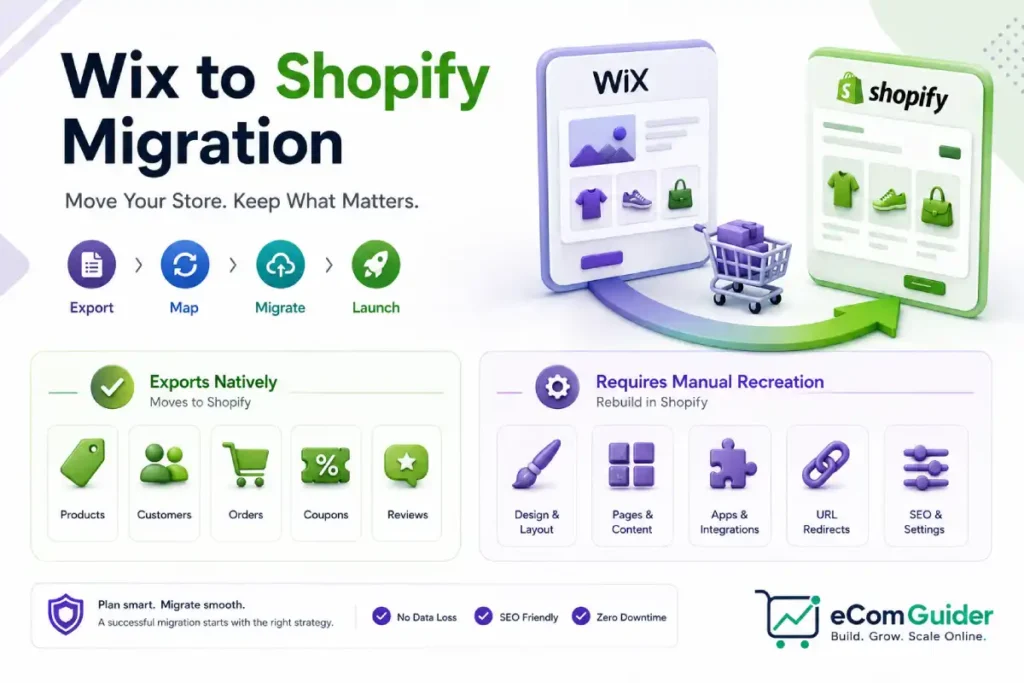
Wix does let you export your products as a CSV file. What it does not tell you upfront is that the export barely maps onto Shopify’s format, handles a maximum of 3 of the 6 possible variant options Wix allows, and applies product descriptions only to the first row of each product, not the variant rows beneath it.
Blog posts, pages, and digital products do not export at all, through any tool, at any price.
This is the real shape of the problem, not a missing export button but a friction-heavy one that looks more complete than it is.
This guide covers why stores actually make this move, what actually does and does not transfer, and every step in order.
Key Takeaways
- Wix’s product CSV export is real but needs real editing before import. Column names need renaming, product descriptions apply to the first row and need careful handling for multi-variant products specifically, and variant options beyond Shopify’s native limit need to become metafields.
- Wix can export order history, Shopify’s native import just does not accept it directly. A third-party migration app is typically required to bridge this gap, it is not that the data cannot be exported at all.
- Wix has no native bulk export for blog posts or pages. Depending on your migration method, some content may still require manual recreation, this is not an absolute zero-export situation across every possible tool.
- Customer passwords cannot migrate from Wix to Shopify specifically. This is a real limitation for this particular pairing, though it is not a universal rule true of every platform migration.
- Shopify now offers its own official Store Migration app for Wix, in early access, worth checking directly alongside Matrixify, LitExtension, or Cart2Cart before choosing a method.
Why Stores Actually Switch
Three reasons come up consistently, more than general platform preference.
- Digital product handling. Wix’s digital product support is basic, with no native export path, most stores recreate digital products fresh on Shopify using an app like Sky Pilot or SendOwl rather than migrating them.
- URL and SEO structure. Shopify’s URL structure is not universally more flexible, product and collection URLs carry fixed prefixes like /products/ and /collections/ that cannot be removed, but many store owners still find Shopify’s overall SEO controls easier to work with day to day than Wix’s defaults.
- The export friction itself. A platform where migrating data out requires real editing work, by itself, is a reason some store owners decide to leave sooner rather than later.
What Actually Exports vs What Needs a Workaround
On Wix
- Products export natively as CSV
- Path: Store Products, then Products, then Export
- File produced: WixProductDownload.csv
- Fields included: titles, descriptions, prices, SKUs, weights, inventory, and image URLs
- Contacts export natively
- Path: Contacts, then More Actions, then Export Contacts
- Fields included: names, emails, phone numbers, and some order reference data
- Order history can be exported from Wix
- Shopify does not import this directly through its native tools
- A third-party migration app is typically required to bring order data across correctly
- Blog posts and pages have no native bulk export
- Depending on your migration method, some content may still transfer or require only partial manual recreation
- Confirm this directly with your specific tool rather than assuming a total gap
- Digital products have no native export
- Wix’s own digital product feature set is limited enough that this is commonly rebuilt fresh on Shopify
On Shopify
- The standard product importer handles a limited number of variant options natively
- Wix allows more options than Shopify’s native importer accepts directly
- Anything beyond that limit needs to become a metafield instead of a native variant option
- Product images can import directly from publicly accessible URLs in many cases
- Manual downloading and re-uploading is only necessary if the source URLs will not remain reliably accessible, or if your specific migration method requires it
- Confirm which applies to your situation before assuming a full manual re-host is required
- URL structure is fixed, not fully customizable
- Prefixes like /products/ and /collections/ cannot be removed
- This is a real trade-off, not a universal upgrade in flexibility over Wix
- No native reviews, live chat, or built-in email marketing
- These are features Wix includes by default
- Each one needs a Shopify app equivalent installed separately
What This Means in Practice
The products themselves are the easiest part of this migration, not the hardest, and Shopify provides an official column mapping reference to guide the CSV edits. Order history, blog content, and digital products are where a workaround, not a simple export, is actually needed.
Choosing Your Migration Method
| Method | Best For | Real Trade-off |
|---|---|---|
| Shopify’s own Store Migration app (early access) | Store owners wanting Shopify’s first-party option | Newer offering, confirm current feature coverage directly before relying on it for a complex store |
| Manual CSV reformatting | Small catalogs, under 500 products, comfortable with spreadsheet work | Free, but the column editing and variant limit work is real, hands-on effort |
| Matrixify | Larger catalogs, more reliable field mapping | Handles bulk import more cleanly than Shopify’s default importer, supports a dry-run import to catch errors first |
| LitExtension or a migration agency | Large catalogs, complex Wix setups using Bookings, Forms, or Velo code | Highest cost, handles the mechanical transfer, custom Velo functionality still commonly needs real redevelopment regardless |
The Pre-Migration Checklist
- Audit your full Wix content inventory. List every product, collection, blog post, CMS page, and custom page, this becomes your actual migration scope.
- Note every Wix-native feature in use. Wix Bookings, Wix Forms, Members Area, Wix Blog, Wix Email Marketing, and any custom Velo code each need a specific plan, custom Velo implementations in particular commonly need real redevelopment, not just installing a comparable app.
- Crawl your live Wix site for a complete URL list. A tool like Screaming Frog, free up to 500 URLs, catches product, collection, page, and blog URLs a memory-based list would miss.
- Choose your Shopify plan before you need it. Most Wix migrants fit Basic at $39 a month or Grow at $105 a month, reserve Plus at $2,300 or more monthly specifically for native B2B needs.
- Decide how you will bring order history across. Since Wix can export it but Shopify does not accept it natively, confirm which of your chosen tools actually bridges this gap before you need the data.
Step-by-Step Migration
Step 1: Set Up Your Shopify Store First (Shopify)
- Create your Shopify account and select your plan
- This happens before exporting anything from Wix, having your destination ready first is the recommended sequence
- Choose and configure a starting theme, there is no design import from Wix, this is a rebuild
Step 2: Export Your Products (Wix)
- Go to Store Products, then Products
- Click More Actions, then Export
- This generates WixProductDownload.csv, save it somewhere outside Wix
Step 3: Export Your Contacts (Wix)
- Go to Contacts under Customers & Leads
- Click More Actions, then Export Contacts
- Save the resulting file with your product export
Step 4: Export Your Order History (Wix)
- Export your order data from Wix’s orders section
- Save this file separately, it will need a third-party migration app to actually reach Shopify, since Shopify’s native tools do not import order history directly
Step 5: Manually Copy Content With No Native Bulk Export (Wix)
- Open every blog post and page identified in your content audit
- Copy the text content into a document, confirming first whether your chosen migration method already covers any of this
- Preserve your heading structure, H1, H2, H3, and internal links exactly as they appear, these carry real SEO value into the rebuild
Step 6: Reformat Your Product CSV (Planning)
- Match Wix’s exported column names to Shopify’s format, using Shopify’s own official column mapping reference as your guide
- Verify the Handle column is consistent across all variant rows for the same product
- For products using more Wix variant options than Shopify’s importer handles natively, decide which become native Shopify options and which become metafields
- Confirm product descriptions appear correctly across variant rows for multi-variant products specifically, this is a Shopify CSV formatting requirement worth handling carefully during the edit, not a defect in Wix’s export
Step 7: Import Your Products (Shopify)
- Go to Products, then Import
- Upload your reformatted CSV, or run it through Matrixify or Shopify’s Store Migration app with a dry-run import first if using one
- Review the import summary carefully, mismatched columns show up here before they show up as missing data on the live store
Step 8: Confirm Your Product Images (Shopify)
- Check whether your product images imported correctly from Wix’s CDN URLs directly, this often works if the URLs remain publicly accessible
- If images are not displaying correctly, or your migration method specifically requires it, download and re-upload them into Shopify’s media library instead
- Confirm images display correctly either way before moving on
Step 9: Import Your Contacts (Shopify)
- Go to Customers, then Import
- Upload your formatted contact export
- Plan a password reset communication now, since customer passwords cannot migrate from Wix to Shopify
Step 10: Bring Your Order History Across (Shopify)
- Using the third-party migration app identified in your pre-migration checklist, import the order data exported from Wix in Step 4
- Verify a sample of imported orders against your original Wix records for accuracy
Step 11: Recreate Your Content (Shopify)
- Using the content you copied in Step 5, rebuild your blog posts and pages directly in Shopify, for anything your migration method did not already cover
- Match your heading structure and internal links to what you preserved during the copy step
Step 12: Replace Wix-Native Features (Shopify)
- Using your feature inventory from the pre-migration checklist, install the Shopify app equivalent for each Wix-native feature in use, Bookings, Forms, Members Area, and email marketing
- For custom Velo functionality specifically, plan for real redevelopment rather than assuming an app installs the same behavior
- Install these after your data migration is confirmed complete, not during
Step 13: Set Up Your Redirect Map (Shopify)
- Using your crawled URL list, map every Wix URL to its Shopify equivalent
- Set up 301 redirects for every mapped URL
- Confirm your domain’s DNS is fully configured, including the AAAA record Shopify recommends for IPv6 support on third-party domains
Step 14: Test Everything Before Launch (Both Platforms)
- Place a real test order, confirming payment processing and order confirmation
- Test a representative sample of redirects directly in a browser
- Confirm recreated content pages match the original heading structure and internal links
Step 15: Go Live (Both Platforms)
- Update your domain’s DNS to point to Shopify
- Send a single, clear customer email announcing the change, with password reset instructions included
- Keep Wix active for at least 30 days, this is your source for recovering content or metadata you discover you missed
The Rollback Plan
- Do not cancel Wix on launch day, keep it active for the full 30-day minimum regardless of how stable the new store looks immediately after cutover
- The 30-day window is your remaining source for product descriptions, blog structure, and page metadata once Wix access ends, anything not already copied is gone after that point
- If redirects show real problems, revert DNS back to Wix while diagnosing, rather than troubleshooting live on the new store under pressure
Wix to Shopify Migration Questions Answered
Does Wix let you export your products?
Yes, natively, through Store Products, then Products, then Export. The real problem is not the export’s existence but its quality, the format does not map cleanly to Shopify, and it handles only 3 of Wix’s possible 6 variant options without manual work.
Can I export my Wix blog posts and pages?
No, there is no bulk export option for blog posts or pages on Wix, through any native tool or third-party service. This content must be copied manually, page by page, before you cancel your Wix account.
Do digital products migrate from Wix to Shopify?
Not through any export path, Wix’s digital product export does not exist. Most stores rebuild digital products fresh on Shopify using a dedicated app rather than attempting to migrate them.
Why does my Shopify product import miss some descriptions?
Wix’s CSV export applies the product description only to the first row of each product, not to variant rows beneath it. Confirm descriptions display correctly across all variants before finalizing your import.
How long should I keep my Wix account active after migrating?
At minimum 30 days after your DNS cutover. This is your only remaining source for recovering content, descriptions, or metadata you discover you missed, once Wix is canceled that data is not recoverable.
What is the AAAA record and why does it matter for this migration?
A DNS record required alongside the standard A record and CNAME for Shopify’s own documented setup. Missing it does not always break your site outright, but it causes intermittent SSL provisioning failures specifically for visitors on IPv6 connections.