
Every other migration guide in this series says the same thing about customer passwords, they never transfer, plan a reset email.
This migration is the exception.
Because PrestaShop and WooCommerce are both self-hosted, open platforms with accessible databases, LitExtension’s own PrestaShop-to-WooCommerce plugin specifically claims it can migrate passwords along with products, orders, and customers, something no Shopify-paired migration in this cluster can do.
That single difference sets the tone for the rest of this migration.
Moving between two open, self-hosted platforms is a fundamentally different task than moving to or from a closed one, more of your data is technically reachable, but custom modules and third-party integrations become the real friction point instead.
Key Takeaways
- This is the one migration where customer passwords may actually transfer. LitExtension’s dedicated plugin claims full password migration since both platforms use accessible, open database structures. Treat this as a real possibility to verify, not a guarantee, and have a reset email ready as a fallback regardless.
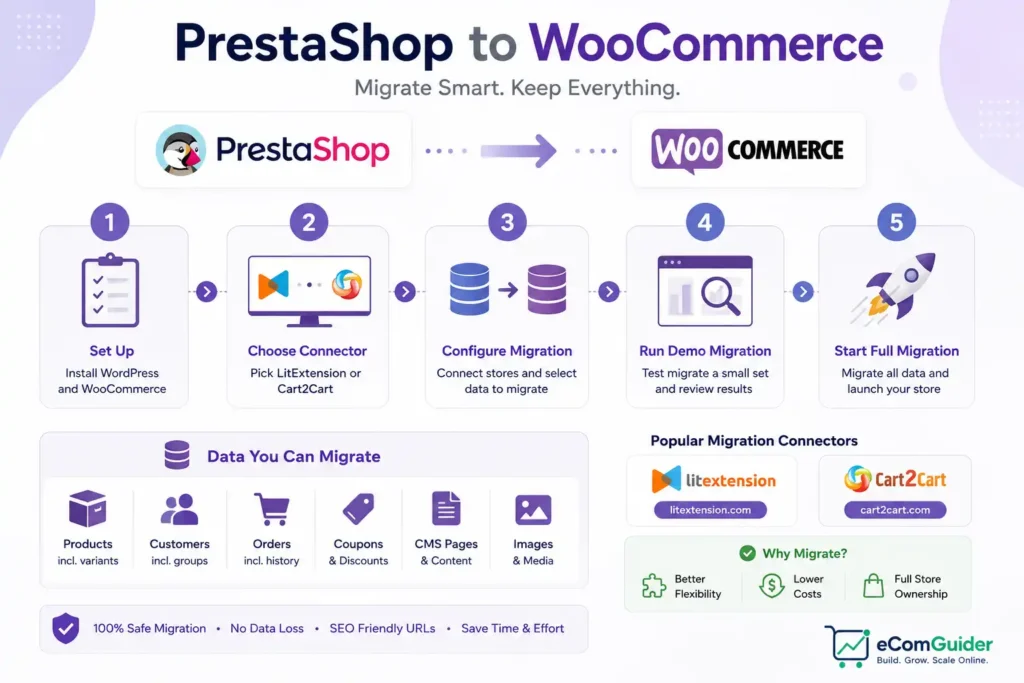
- Two dedicated migration tools dominate this specific path: LitExtension, using a connector uploaded to both stores, and Cart2Cart, using a PrestaShop-specific connection bridge module.
- Custom modules and third-party integrations, not core data, are the real risk in 2026. A phased migration strategy is increasingly recommended over a single big-bang cutover specifically because of this.
- A small store with a few hundred products can migrate in a few hours using an automated tool. Larger stores with real customization commonly take several days.
- Database and file backups are simple on both platforms, since both give you direct access, unlike a closed platform where you are limited to whatever the vendor’s export tool provides.
How Password Migration Actually Works
Worth understanding correctly before relying on it.
- The mechanism is a dedicated plugin, LitExtension’s WooCommerce Password Migration Plugin, built specifically to handle password compatibility for supported source carts
- Open, self-hosted databases alone do not make this possible. The plugin does the real work of bridging password hash formats between platforms
- This capability exists for other supported platforms too, not only PrestaShop, so this is a genuine plugin feature, not a special exception unique to this one migration pairing
- Verify compatibility with your specific store configuration before relying on this working for every account, some configurations may fall outside what the plugin supports
Choosing Your Migration Method
| Method | Best For | Real Trade-off |
|---|---|---|
| Manual CSV export and import | Small catalogs, comfortable with WordPress and spreadsheet work | Free, but customer passwords, order history, and SEO metadata all need separate, deliberate handling |
| LitExtension | Most real migrations, includes real password migration support for this pairing through its dedicated plugin | Paid, requires proper setup including WordPress credentials or API connection, not just a simple file upload |
| Cart2Cart | Comparable to LitExtension, uses a PrestaShop-specific connection bridge | Paid, similar capability, compare current pricing and support directly |
| FG PrestaShop or a similar WordPress plugin | Store owners wanting the import handled from the WooCommerce side directly | Fewer entity types supported than a dedicated cross-platform tool |
The Pre-Migration Checklist
- Back up your PrestaShop database
- Log into your hosting account’s database manager
- Select all tables and export
- Save the resulting SQL file locally, not just on the server
- For a large store, this can be a truly time-consuming, operationally involved step, not a quick task, plan real time for it if your database runs into tens or hundreds of gigabytes
- Back up your PrestaShop files
- Connect via FTP to your public_html folder
- Download your complete site files to your own machine
- Confirm the download completed fully before moving on
- Audit your custom modules and third-party integrations
- This is the real friction point for PrestaShop migrations specifically
- List every module in active use
- Check whether each one has a genuine WooCommerce equivalent, do not assume it does
- Decide between manual migration and a dedicated tool
- Base this on your catalog size, technical comfort, and whether you need password migration support
- Choose deliberately, not by default
- Set up your WooCommerce environment in advance
- Install WordPress
- Activate WooCommerce
- Complete basic configuration before your migration tool needs a destination to write to
Method A: Manual CSV Migration
Follow this path completely if you chose manual migration. Do not mix in tool-specific steps from Method B.
A1: Export Your PrestaShop Data
- Export your product catalog, including categories, attributes, and pricing
- Export customer account data separately
- Export order history as its own data set
- Note that passwords, SEO metadata, and order-to-customer associations all require deliberate handling in a manual export, none of this transfers as a bundled default
A2: Format and Map Your Data
- Match PrestaShop’s exported field structure to WooCommerce’s expected CSV format
- Map product attributes and categories to their WooCommerce equivalents
- Document your final mapping before importing
A3: Import Your Data
- Use WooCommerce’s native product importer for product data specifically
- Use a dedicated customer and order import plugin for those data sets, WooCommerce has no native importer for either
- Verify counts against your original PrestaShop numbers
A4: Handle SEO Metadata Manually
- Since manual CSV migration does not carry meta titles and descriptions automatically, export this data from your PrestaShop SEO settings separately
- Enter it into your SEO plugin’s fields on the WooCommerce side for your highest-traffic pages first
A5: Set Up Password Reset
- Manual migration does not include password migration, plan a reset communication for every customer at launch
Method B: LitExtension or Cart2Cart Workflow
Follow this path completely if you chose a dedicated migration tool. Do not mix in manual CSV steps from Method A.
B1: Set Up Your Tool Account and Cart Connections
- Create an account with your chosen tool
- Start a new migration, selecting PrestaShop as your source cart and entering your store’s URL
- Select WooCommerce as your target cart, entering your destination store’s URL, this single setup step covers both source and target configuration together, not two separate repeated actions
B2: Connect Both Stores Properly
- For PrestaShop, download and install the connector or bridge module your tool provides, uploading it to your PrestaShop store’s root folder
- For WooCommerce, follow your tool’s specific connection requirements, this commonly involves WordPress credentials or an API connection, and is not always as simple as uploading a file to the root folder, check your tool’s current documentation directly
B3: Configure Migration Options, Including Passwords and SEO
- Select which entity types to migrate: products, categories, customers, and orders
- If you want password migration, install LitExtension’s WooCommerce Password Migration Plugin specifically, selecting the password option alone in the migration settings is not sufficient on its own
- Check whether your tool supports SEO metadata migration for this cart pairing, and select it directly if so, do not assume metadata is lost by default, some tools do carry this over when configured
- Configure language and order status mapping if your store uses either
B4: Run a Demo Migration First
- Start the demo migration option before committing to a full run
- Review product data, categories, and customer records against your original PrestaShop store
- Do not skip this step
B5: Run the Full Migration
- Once demo results check out, start the full migration
- Monitor progress and review the completion summary for any entities that failed to migrate
- Cross-check your recorded counts from the pre-migration checklist against what arrived in WooCommerce
B6: Verify Password Migration Directly
- Test a real account login using original PrestaShop credentials on the new WooCommerce store
- Confirm the Password Migration Plugin actually worked for your specific configuration, do not assume success store-wide from one test alone
- Have a password reset email ready as a fallback for any accounts where it did not transfer cleanly
Both Methods Converge Here
Rebuild Custom Module Functionality
- Using your pre-migration module audit, find WooCommerce plugin equivalents for each PrestaShop module in active use
- For modules without a direct equivalent, decide whether to rebuild the functionality, find an alternative approach, or accept the feature gap
- Test each replacement individually
Rebuild Your Storefront Design
PrestaShop themes cannot be converted into WordPress themes, there is no transfer path for this, it is a full rebuild.
- Choose a WordPress theme matching your brand
- Recreate key page layouts and navigation structure from scratch
- Reference your original PrestaShop design for content and visual direction, even though none of the underlying code carries over
Set Up Post-Migration SEO
- Export your complete PrestaShop URL list before considering the migration finished
- Map every PrestaShop URL to its new WooCommerce equivalent
- Set up 301 redirects for every mapped URL using a WordPress redirect plugin
- Confirm whether your migration method already transferred meta titles and descriptions, if using a tool that supports this, verify it worked, if migrating manually, this needs the deliberate handling covered in Method A
- Resubmit your sitemap to Google Search Console once the new store is live
Continue Standard Self-Hosted Security Practices
Security responsibility does not newly begin because you moved to WooCommerce, since PrestaShop was self-hosted too, you already owned this.
- Keep WordPress, WooCommerce, plugins, and your theme updated on a regular schedule
- Confirm your hosting provider’s server-level security and backup practices meet your standards
- Continue whatever server security and backup discipline you already practiced on PrestaShop, carried forward rather than started fresh
Test Everything Before Launch
- Place a real test order, confirming payment processing and order confirmation
- Test a representative sample of redirects directly
- Confirm customer login works, whether through migrated passwords or a reset flow
Go Live
- Update your domain’s DNS to point to your WooCommerce hosting
- Keep your PrestaShop environment fully intact for a defined rollback window
- Monitor Search Console closely for the first two to four weeks for indexing or redirect issues
Real Migration Timeline
| Store Size | Typical Migration Time | Notes |
|---|---|---|
| A few hundred products, minimal customization, automated tool | A few hours | This fast timeline applies specifically to small, low-customization stores using a migration tool, not manual migration or larger catalogs |
| Moderate catalog, some custom modules | 1 to several days | Module audit and replacement adds real time beyond the data transfer itself |
| Large catalog, extensive customization | Several days to weeks | Consider whether a staged approach, migrating and verifying in parts rather than one full cutover, fits your specific complexity, this is reasonable advice for highly customized stores rather than an established universal practice |
PrestaShop to WooCommerce Migration Questions Answered
Can customer passwords actually migrate from PrestaShop to WooCommerce?
Possibly, this is actually different from most platform migrations. LitExtension’s dedicated plugin for this specific pairing claims password migration support since both platforms use open, accessible database structures. Verify this directly with a real test login rather than assuming it worked for every account.
What is the best tool for PrestaShop to WooCommerce migration?
LitExtension and Cart2Cart are the two dedicated tools most commonly used for this specific pairing, both using a connector or bridge module installed on each store. Compare current pricing and support directly, since capability is broadly comparable between them.
Do I need to back up my PrestaShop store before migrating?
Yes, as standard practice, even though some migration tools state they do not modify your source store during the process. Export your database as a SQL file and back up your site files via FTP before starting, regardless of which tool you use.
What is the biggest risk in a PrestaShop to WooCommerce migration?
Custom modules and third-party integrations, not the core product or customer data. PrestaShop stores commonly rely on modules without a direct WooCommerce equivalent, audit these before migrating rather than discovering the gap after cutover.
Should I migrate everything at once or in phases?
For a store with real customization, a phased migration is increasingly the recommended approach over a single full cutover, since it lets you verify and fix issues at each stage rather than discovering everything at once after a complete transfer.
How long does a PrestaShop to WooCommerce migration take?
A small store with a few hundred products and minimal customization can migrate in a few hours using an automated tool. Larger, more customized stores commonly take several days, with module replacement often adding more time than the data transfer itself.