
Google Merchant Center powers your free Shopping listings and paid Shopping ads from the same product data. A disapproved product is not shown at all, in either place, it does not enter any auction regardless of your bid.
Accurate product data matters just as much for Google Merchant Center as it does for your site’s own search visibility.
If you are also working on organic rankings, this cluster’s SEO guide covers how structured data, technical SEO, and product page optimization work together.
This guide covers the actual setup steps, the specific feed requirements that cause most rejections, and the settings worth checking before you submit a feed, not after.
Key Takeaways
- Price mismatch is one of the most common disapproval causes. Even a small gap, $19.99 in your feed versus $20.00 on the actual page, triggers this, your feed and your live site need to update together.
- Missing or invalid GTINs are another common cause. Confirm every product has one before you submit, not after Google flags it.
- A real, upcoming image requirement change matters now. A universal 500×500 pixel minimum takes effect January 31, 2027, Google has been issuing warnings since April 2026, fix this before it becomes a disapproval.
- Needs attention is the actual starting point for every fix. Go to Products, then Needs attention, do not try to diagnose from the raw feed file directly.
- Fix timelines differ by disapproval type. Data issues like price mismatches commonly resolve in 24 to 48 hours after resubmission, policy-related disapprovals needing manual review take 1 to 3 business days.
Creating Your Merchant Center Account
- Go to merchants.google.com and sign in with a Google account, ideally one dedicated to your business, not a personal account
- Enter your business information, name, website URL, and country, exactly as it appears on your actual site
- Verify and claim your website URL, Google requires proof you actually own the domain, commonly through a meta tag, HTML file upload, or Google Analytics or Search Console connection
- Confirm your business details in Settings, then Business information, this needs to match your actual site, not placeholder information
Connecting Your Product Feed
- Go to Products, then Data sources, and click the plus icon to add a new feed, Google renamed feeds to data sources as part of its Merchant Center Next redesign
- Choose your feed method, a scheduled fetch from a hosted file, a direct API connection, or a Google Sheets feed for smaller catalogs
- If using Shopify or WooCommerce, use their native Google Shopping integration where available, this generates and updates the feed automatically rather than requiring manual uploads
- Set your feed update schedule to match your actual catalog size, hourly for a large, fast-moving inventory, every few hours for a mid-size catalog, daily is commonly enough for a smaller store with stable stock
Supplemental feeds, worth knowing about
A supplemental feed lets you update specific attributes, titles, custom labels, promotions, or seasonal information, without replacing your entire primary feed.
This is actually useful when your platform cannot natively generate every attribute you want to submit, layer a supplemental feed on top rather than trying to force everything through one source.
Automatic item updates
Merchant Center can automatically update price and availability specifically, using structured data it finds directly on your website, this reduces some temporary mismatches between your feed and your live site.
This is actually limited in scope, it does not cover titles, descriptions, GTIN, images, or category data, those still depend completely on your actual feed being correct.
Treat this as a real safety net for two specific fields, not a general substitute for a properly synchronized primary feed.
Understanding Product Status
A product in Merchant Center commonly shows one of these statuses.
- Active, approved and eligible to show in Shopping ads and free listings
- Pending or Under review, still under initial review, this is normal for a newly submitted product and resolves on its own
- Limited performance, showing, but with reduced visibility, commonly due to missing recommended attributes like GTIN or brand rather than a policy violation
- Disapproved, not showing at all, a real error that needs a specific fix before the product can enter any auction
- Expiring, approaching the point where it needs to be resubmitted to remain active, feeds refreshed regularly rarely hit this
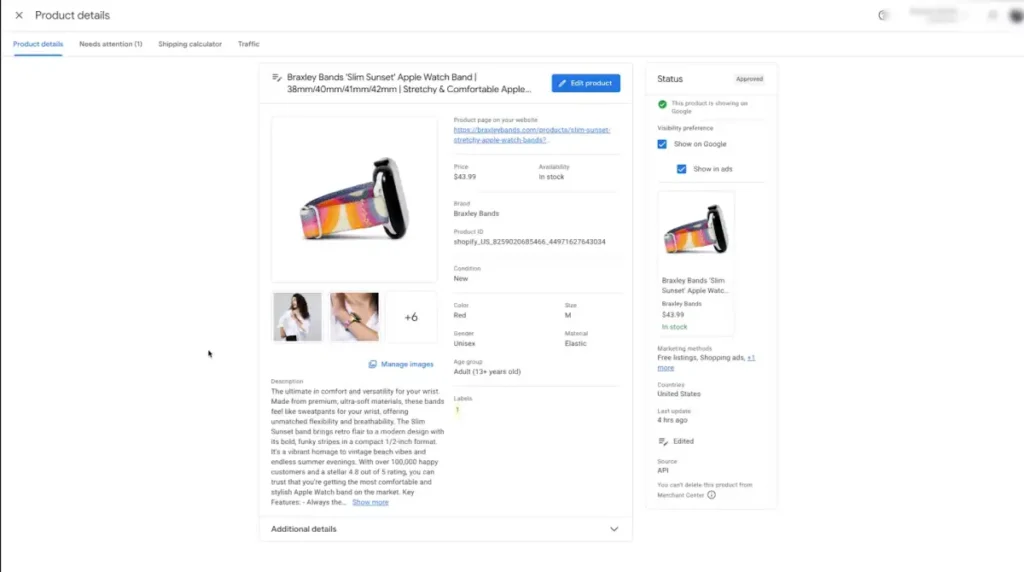
Check Products, then All products, and use the Issues column to see the actual status and reason for any product not showing as Active.
Account-level suspension is a separate, more serious issue
A product-level disapproval affects one item. An account suspension affects your entire store, every product stops showing at once, regardless of individual product data quality.
This is triggered by account-level policy violations, not a single bad product, misrepresentation issues, a verification problem, or repeated serious policy violations across your catalog.
If your entire store disappears from Shopping at once, check your account status directly, not individual product diagnostics, the cause and the fix are both different from a normal disapproval.
If a product actually has no GTIN
This applies specifically when no GTIN was ever assigned by the manufacturer, not as a general option. Submit brand and MPN instead where applicable.
For actually one-of-a-kind items, handmade, custom, vintage, or private label products that were never assigned a manufacturer identifier at all, set the identifier_exists attribute to false, this tells Google directly that no identifier exists rather than leaving the field blank and generating a missing-attribute warning.
Never invent or guess a GTIN, an incorrect identifier is worse than a missing one, it can trigger an actual policy violation rather than just a missing-attribute warning.
The Real Reasons Products Get Disapproved
Most rejections trace back to a handful of specific, avoidable issues.
Price mismatch, one of the most common causes. Google’s crawlers regularly check your actual landing pages to confirm the price in your feed matches what a customer actually sees. Even a small gap triggers disapproval. Make sure your feed pulls price directly from your live product data, or that both update on the same schedule, not separately.
A price mismatch often has nothing to do with the feed itself being wrong, page caching, a CDN serving a stale version of the page, or a scheduled feed update running out of sync with a live website price change can all cause this even when your actual configuration is correct.
A currency mismatch causes the same real problem, submitting a price in the wrong currency for the target country reads as a price mismatch even when the numeric value is otherwise correct. Check where the delay or mismatch is actually coming from before assuming the feed logic itself is broken.
Missing or invalid GTIN, another common cause. The actual rule is narrower than most guides state, a GTIN is required when the manufacturer actually assigned one to the product, not universally.
If a real GTIN exists and you omit it, that is the common, avoidable error. If no GTIN actually exists for a product, submitting a fabricated one causes worse problems, a mismatched or invalid identifier is treated as a policy issue, not a simple missing-attribute warning.
Image policy violations, consistently the most common and most avoidable disapproval category. Real specific causes include:
- Promotional text or overlays on the image itself, Sale, 50% Off, or a watermark
- Images below the current minimum resolution, 100×100 pixels for most categories, 250×250 pixels for apparel
- The product not clearly visible, or only partially shown
- Multiple different products shown in a single image
- A busy or distracting background that competes with the product, not a categorical ban on any specific background type
Policy violations beyond images, misleading promotional claims, and missing required information like your actual return policy.
Fixing Disapprovals, Step by Step
- Go to Products, then Needs attention, this is the actual starting point for every fix, do not try to diagnose issues from your raw feed file directly
- Review the Item issues section, click into each specific error to see exactly which products are affected and why
- Fix errors before warnings, an error means the product is completely invisible in Shopping, a warning means it is showing with reduced visibility, prioritize accordingly
- Correct the actual issue, in your feed, on your live site, or both, price mismatches specifically require both sides to agree
- Resubmit your feed, data-related fixes like price mismatches commonly resolve within 24 to 48 hours, policy-related disapprovals requiring a manual review can take 1 to 3 business days
Do not stop at product-level issues. Many merchants fix individual product errors while missing account-level warnings sitting elsewhere, website verification status, shipping setup, tax configuration, and broader policy issues can all suspend actual visibility even when your individual products look fine.
Check your account-level status in Needs attention as well, not just the product list.
Keep Your Product Identifiers Consistent Everywhere
Google pulls product information from more than one source to build confidence in a listing, your feed, your product schema, and your actual live product page. Keep the following identical across all three.
- Brand
- GTIN
- MPN
- SKU
Inconsistent values across these sources actually reduce Google’s confidence in a listing, this can trigger warnings or make product matching less reliable, even when no single source is technically wrong on its own. If you update a brand name or SKU format, update it everywhere at once, not just in the location you happened to be editing.
Configure Shipping and Returns Before You Submit
Merchant Center checks shipping and return information as part of product eligibility, this is easy to overlook during initial setup and can quietly limit visibility later.
- Set up your shipping services and rates under Settings, then Shipping and returns
- Add accurate delivery time estimates, not a placeholder range
- Add your actual return policy, missing or vague return information can reduce eligibility even when the rest of your feed is fully compliant
Merchant Promotions
A sale price alone does not create a promotional badge on a listing. Special offers and promotional badges require Merchant Promotions specifically, set up separately from your standard price and sale price fields.
A Real Change Coming to Image Requirements
This is a actually current, dated change most older guides will not mention. The image resolution floor is moving from 100×100 pixels, 250×250 for apparel, to a universal 500×500 pixel minimum, enforced starting January 31, 2027.
Google began issuing warnings in Merchant Center’s Needs attention view on April 14, 2026, if you are currently meeting the old minimum but submitting images below 500×500, you are already seeing these warnings.
Google has said it will auto-upscale some images using AI as a safety net, this is not a substitute for actually submitting compliant images, an upscaled image is a real quality compromise, not a genuine fix.
Check your actual image dimensions now, before this becomes a real disapproval wave rather than a warning.
Feed Optimization for Better Shopping Performance
- Write specific product titles, not generic category names, include the actual brand, key attributes, and model where relevant, this is what Google matches against an actual search query
- Keep your sale price history compliant, US Shopping ads require your item to have shown at a higher price for at least 5 of the last 30 days, or 15 of the last 200, to legitimately display a strikethrough comparison price
- Sync your feed, promotions, and price data well before a peak season, review periods are not accelerated during Black Friday or holiday weekends, a disapproval during peak traffic has no fast recovery, prepare weeks in advance, not days
- Fill in recommended, not just required, attributes, GTIN and brand specifically affect auction eligibility even when not strictly required, a product missing these can show with real, limited performance rather than full visibility
Real image practices beyond avoiding a policy violation
- A clean white or neutral background performs consistently well for most categories, Google does not mandate white specifically, the actual requirement is that the background not distract from the product
- For apparel specifically, Google actually recommends showing the product on a model as the main image, a lifestyle or on-model shot is preferred over a flat lay for this category, not something to avoid
- For most other categories, save a lifestyle or in-use shot for a secondary image, keep the primary image a clean product shot
- Let the product actually fill most of the frame, roughly 75 to 90 percent, rather than leaving excessive empty space
- Google now recommends images near or above 1500×1500 pixels for the best performance across all listing formats, well above the minimum required to avoid disapproval, treat the minimum as a floor, not a target
- Submit multiple angles using additional images where your platform supports it, this actually helps a shopper decide, not just Google’s approval process, and each color variant needs its own image showing that actual color, not one image reused across every variant
Custom labels for campaign structuring
Custom labels let you tag products for use in Shopping campaign segmentation later, High Margin, Best Seller, Clearance, or Seasonal are common real examples.
Set these up in your feed now even if you are not running Shopping ads yet, retrofitting labels onto an existing feed later is avoidable extra work.
Monitor Search Console alongside Merchant Center
Search Console surfaces feed and schema problems that Merchant Center alone does not always flag clearly. Check these reports on a regular basis, not only when something already looks wrong.
- Merchant listings, shows how your free listings are actually performing
- Product snippets, confirms your structured data is being read correctly
- Page indexing, catches a product page that silently stopped being crawled
- Crawl stats, flags a crawling problem before it becomes a bigger visibility issue
Track real performance, not just approval status
Getting a product to Active is the floor, not the goal. Track impressions, clicks, click-through rate, conversions, which specific products are actually driving revenue, and your overall disapproval rate over time, a rising disapproval rate is often an early signal of a feed or website change that broke something upstream.
Common Mistakes
- Waiting for a disapproval notice instead of checking Needs attention proactively. Review Products, then Needs attention regularly, not only after ads stop performing
- Fixing the feed but not the live site, or the reverse. A price mismatch requires both sides to actually agree, not just one
- Assuming a warning is not urgent. A warning today on image size is a real disapproval once the 500×500 minimum takes effect
- Submitting feed changes during peak season and expecting fast review. Review timelines do not speed up during high-traffic periods, prepare in advance
Quick Troubleshooting Reference
| Problem | Likely Cause |
|---|---|
| Price mismatch | Feed and live site update on different schedules |
| Missing GTIN | Product data actually incomplete |
| Image warning | Resolution below the current or upcoming minimum |
| Limited performance | Missing recommended attributes like GTIN or brand |
| Disapproved | An actual policy violation, not just a data gap |
| Reduced free listing visibility | Check account-level shipping, tax, or verification status, not just product data |
| Entire store disappears at once | Account-level suspension, not a product issue, check account status directly |
FAQ for Setting Up Google Merchant Center
What is a common reason products get disapproved in Merchant Center?
Price mismatch is one of the most common causes, where the price in your feed does not match what a customer actually sees on your landing page. Even a small discrepancy triggers this, confirm both update on the same schedule.
How long does it take to fix a disapproved product?
It depends on the cause. Data-related issues like price mismatches commonly resolve within 24 to 48 hours after you resubmit a corrected feed. Policy-related disapprovals requiring manual review take 1 to 3 business days.
What is changing with Google’s image requirements?
A universal 500×500 pixel minimum takes effect January 31, 2027, up from the current 100×100 or 250×250 minimums. Google has been issuing warnings for non-compliant images since April 2026, fix this before it becomes an actual disapproval.
What is the difference between a disapproved product and an account suspension?
A disapproved product affects one item specifically. An account suspension affects your entire store at once, every product stops showing regardless of individual data quality, and is triggered by account-level issues like verification problems or repeated policy violations, not a single bad listing.
Do I need a GTIN for every product?
A GTIN is required specifically when the manufacturer actually assigned one, not for every product universally. If a real GTIN exists, omitting it is a common, avoidable error. If none actually exists, use the identifier_exists attribute rather than submitting a fabricated number.
Where do I actually start diagnosing a disapproved product?
Products, then Needs attention, inside Merchant Center directly. This shows the specific issue per product, do not try to diagnose problems from your raw feed file alone.
Should I submit feed changes right before Black Friday?
No. Review periods are not accelerated during peak season, a disapproval during high-traffic periods has no fast recovery. Sync your feed, pricing, and promotions weeks before your actual peak window, not days.