
PrestaShop’s installer documents a 256MB minimum memory limit. It does not actually check for it before running, it simply crashes partway through if the server falls short, with an error message that rarely points back to memory at all.
That gap between what is documented and what is enforced is the single most common cause of a failed PrestaShop install.
The real cost of this gap is diagnostic time, not the fix itself. Once you know memory_limit is the actual cause, raising it takes minutes.
Most people spend hours first, re-uploading files, recreating the database, assuming the download was corrupted, because the installer never tells them what actually failed.
The same pattern shows up elsewhere in PrestaShop’s setup. Required PHP extensions, a specific server setting for payment processing, and version-specific requirements that differ between PrestaShop releases all produce failures that look generic on the surface but trace back to one identifiable cause underneath.
This guide covers real server requirements, how to choose hosting that will not fight you later, the full installation, and the specific configuration details most tutorials skip.
Key Takeaways
- PrestaShop 9 needs PHP 8.1 to 8.4 and MySQL 5.7+ or MariaDB 10.4+. PrestaShop 8 and older stores have different, lower requirements, do not blindly copy PS9’s PHP version onto an older store or its modules may break.
- The documented 512MB memory recommendation is not enforced by the installer. PrestaShop’s own team has an open report on this exact gap, a server falling short crashes the install rather than showing a clear memory error.
- allow_url_fopen must be explicitly enabled in PHP, it is required for payment processing and is easy to miss since it is not always on by default.
- PrestaShop provides an official system requirements checker tool you can run against your own server before installing, most tutorials never mention it exists.
- Required PHP extensions include cURL, DOM, GD, Intl, JSON, Mbstring, OpenSSL, PDO/MySQL, SimpleXML, and ZIP, a missing extension produces a specific, identifiable error rather than a vague failure.
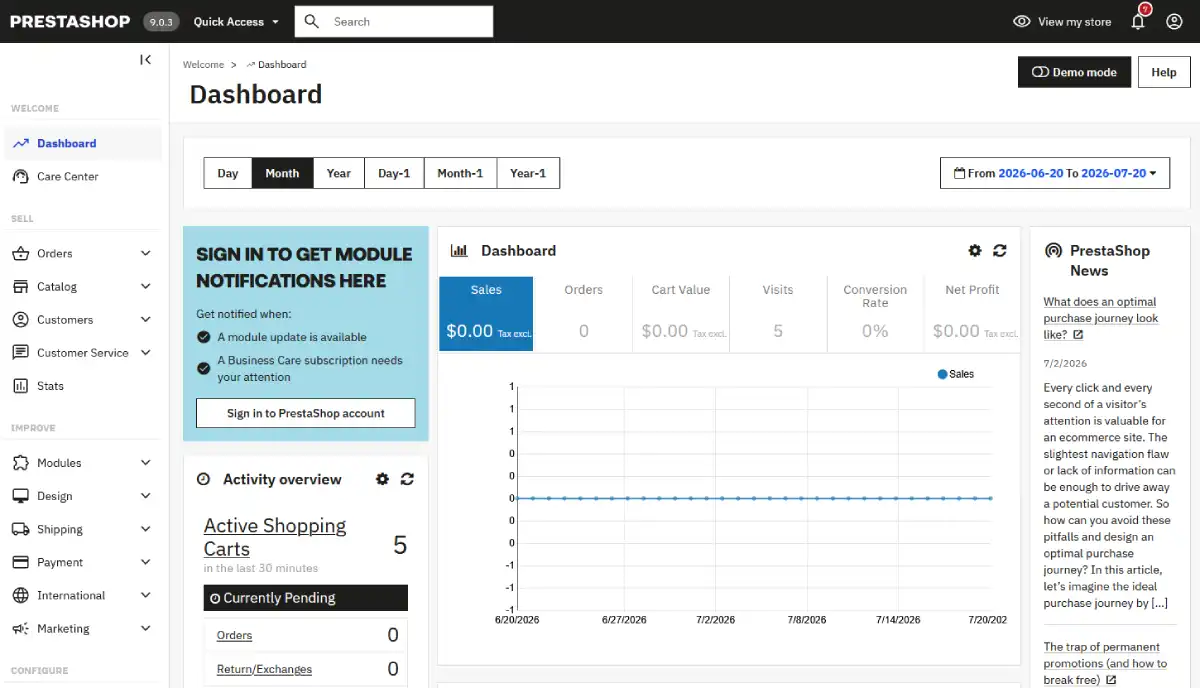
Server Requirements, Confirmed
| Requirement | Minimum | Recommended |
|---|---|---|
| PHP version | 8.1 | 8.3 to 8.4 |
| Database | MySQL 5.7 | MariaDB 10.4 or a recent MySQL release |
| Memory limit | 256MB (not enforced by installer) | 512MB |
| Web server | Apache 2.4 or Nginx 1.18+ | Either, Apache is simpler for .htaccess-based rules |
| Required PHP extensions | cURL, DOM, Fileinfo, GD, Iconv, Intl, JSON, Mbstring, OpenSSL, PDO/MySQL, SimpleXML, ZIP | Same, all enabled before install |
| Critical PHP setting | allow_url_fopen enabled | Confirm directly, not always on by default |
These figures apply to PrestaShop 9, the current release.
If you are installing or maintaining a store on PrestaShop 8 or an older 1.7 release, check that specific version’s requirements separately, PHP 8.1+ is not automatically safe for an older store’s installed modules.
Run the Official Requirements Check First
PrestaShop publishes a small diagnostic script, commonly named phppsinfo.php, that checks your actual server environment against every requirement above before you commit to an install.
Download it, upload it to your hosting account, and open it in a browser to see a clear pass or fail on each requirement, PHP version, extensions, memory, and more, in one place.
Running this before installing catches the exact gaps a failed install would otherwise hide behind a generic error message.
Choosing Hosting That Will Not Fight You
Shared Hosting
- Works for a small to mid-sized catalog, roughly under 500 products, without real strain
- Only viable if the host explicitly supports PHP 8.1 or higher
- Must let you adjust memory_limit yourself, either through a PHP selector in the control panel or by editing php.ini directly
- Confirm both of these before purchasing, not after an installation fails
VPS or Cloud Hosting
- The more reliable choice once a store is real, not just testing
- Root or near-root access means you set memory_limit yourself
- You can enable allow_url_fopen directly rather than requesting it
- Every required PHP extension can be confirmed and installed without depending on a support ticket
Managed PrestaShop Hosting
- A smaller category than managed WordPress hosting, but real options exist if you search directly
- PHP and server configuration are handled for you
- Confirm explicitly that the host supports PrestaShop’s current specific requirements, not just generic PHP hosting
Quick Verdict
I recommend shared hosting only for a truly small catalog under real testing, and only once you have confirmed PHP 8.1+ and adjustable memory_limit directly with the host.
For anything past that, VPS gives me the direct control that avoids the exact memory_limit crash covered above, without waiting on a support ticket to fix it.
| Hosting Type | Best For | Real Trade-off |
|---|---|---|
| Shared hosting | Small catalogs, testing, tight budget | Configuration control depends completely on the host, confirm before buying |
| VPS or cloud | Real stores, larger catalogs, anyone who wants direct control | Costs more, requires comfort with basic server configuration |
| Managed PrestaShop hosting | Store owners who want configuration handled for them | Fewer providers to choose from, confirm PrestaShop-specific support directly |
What to Check Before Choosing a Host for PrestaShop
I go through this exact list with clients before they sign up for any hosting plan, since fixing a wrong choice after the fact costs far more time than checking it up front.
- Confirm PHP 8.1 or higher is supported, not just PHP in general
- Confirm you can adjust memory_limit yourself, or ask the host to confirm it is already set to 512MB or higher
- Confirm allow_url_fopen is enabled, or that you have the access to enable it
- Confirm every required extension from the table above is installed, cURL, DOM, GD, Intl, JSON, Mbstring, OpenSSL, PDO/MySQL, SimpleXML, ZIP
- Ask directly whether the host has an Auto Installer or one-click PrestaShop install, it saves real setup time if available. If you are weighing PrestaShop against OpenCart, a comparable self-hosted open-source cart with similar PHP and MySQL requirements, the same hosting checklist applies to both
- Confirm the host’s backup frequency and whether database backups are included, not just file backups
| What to Verify | Why It Matters | How to Confirm |
|---|---|---|
| PHP 8.1+ support | PrestaShop 9 will not install correctly below this | Ask directly, do not assume from “PHP supported” marketing copy |
| Adjustable memory_limit | Prevents the exact installer crash covered earlier in this guide | Check for a PHP selector in the control panel, or ask support |
| allow_url_fopen access | Required for payment processing to function | Confirm you can toggle this yourself or that it is already on |
| Required PHP extensions | Missing extensions cause specific, identifiable install failures | Run PrestaShop’s own requirements checker tool against the server |
| Backup coverage | A failed update or bad module should not mean starting over | Confirm database backups specifically, not just file backups |
Hosting Options Worth Considering
Hostinger supports PHP 8.1 and higher with an adjustable PHP version selector in its control panel, and includes a dedicated Auto Installer covering PrestaShop directly.
For a store that needs direct server access to configure memory_limit and PHP extensions without a support ticket, Kamatera offers cloud VPS hosting with root access. InMotion Hosting is a comparable option for developer-friendly VPS hosting with full LAMP stack control.
For simple shared hosting at a lower budget while testing a smaller catalog, Namecheap runs standard cPanel hosting, confirm its current PHP version support meets PrestaShop 9’s 8.1 minimum before committing.
Manual Installation Steps
Database privileges are the most common point where a self-managed install stalls before it even reaches the visible installer, confirm full read and write access now rather than mid-setup.
Step 1: Prepare Your Database
- In your hosting control panel, create a new MySQL database
- Create a database user with a strong, unique password
- Assign that user full privileges on the new database
- Note the database name, username, password, and host, usually localhost, for the installer
Step 2: Confirm PHP Settings Before Uploading Files
- In your hosting control panel, confirm PHP is set to 8.1 or higher
- Set memory_limit to at least 512MB if your host allows it
- Confirm allow_url_fopen is enabled
- Confirm every required extension from the table above is active
Doing this before upload, not after a failed install, is what actually avoids the memory_limit crash covered above.
Step 3: Upload PrestaShop Files
- Download the current release directly from PrestaShop’s official site, never a third-party mirror
- Upload the files to your hosting account, typically public_html or a subfolder
- Extract the archive if it was uploaded compressed
Step 4: Run the Installer
- Visit your domain in a browser, the installer launches automatically
- Work through the requirements check screen, it will now largely pass since you configured PHP settings in Step 2
- Enter your database details from Step 1
- Set your admin account details
- Complete the installer
Step 5: Remove the Install Directory
- Locate the install folder once setup finishes
- Delete it completely, PrestaShop will not allow full admin access while it still exists, and leaving it is a real security risk
How This Actually Looks on Hostinger
I used Hostinger to walk through this section because its Auto Installer flow is clear and well documented, not because it is the only option that works.
Almost every host with a one-click app installer, cPanel, Plesk, or a custom panel like this one, follows a nearly identical sequence: create the site, pick the app, fill in credentials, install.
If you are on a different host, expect the same steps under slightly different menu names.
Step 1: Create the website.
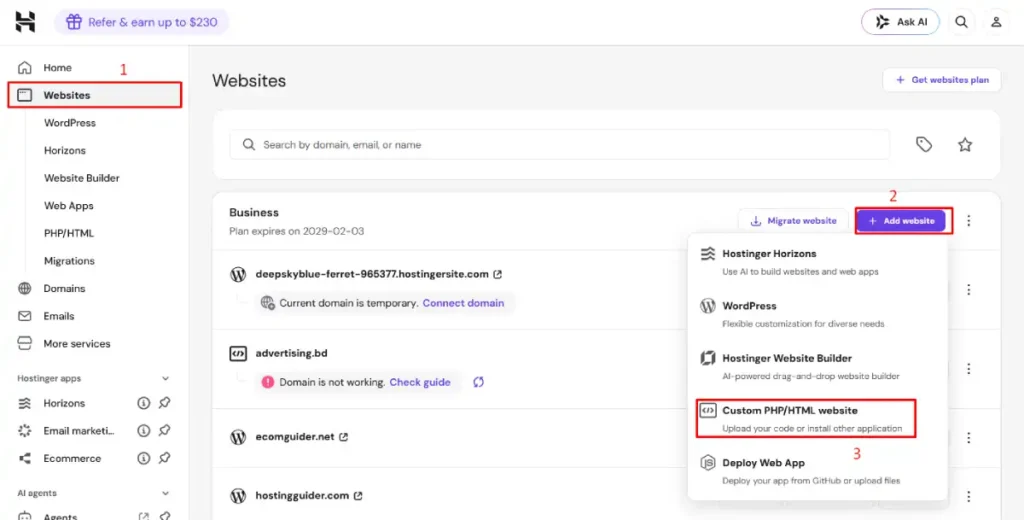
- Log into hPanel and go to Websites
- Click Add website
- Select Custom PHP/HTML website from the dropdown, since PrestaShop is a standard PHP application
Step 2: Choose a domain.
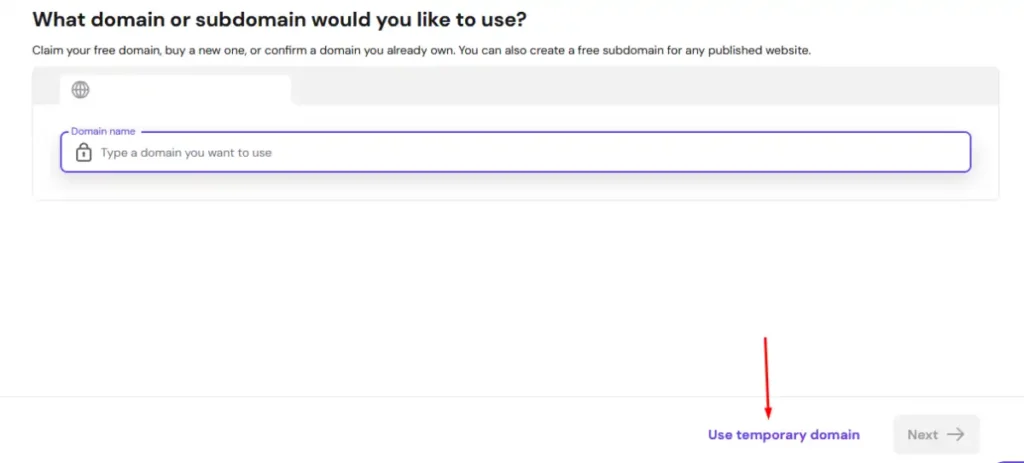
- Type a domain you already own, or click Use temporary domain for testing
- A real domain can be connected to the site later
I recommend the temporary domain for this first pass specifically. Verifying PHP settings, running the requirements checker, and confirming the install actually completes are all things worth doing before pointing a real domain and its DNS at the site.
If something needs to be reinstalled partway through, you are not also untangling a domain connection at the same time.
Step 3: Wait for initialization.
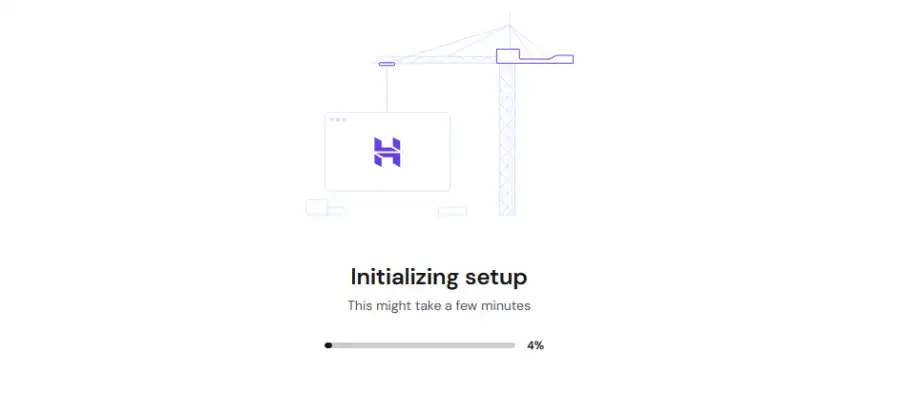
- Hostinger provisions the new site automatically, an Initializing Setup progress screen displays for a few minutes
Step 4: Open Auto Installer.
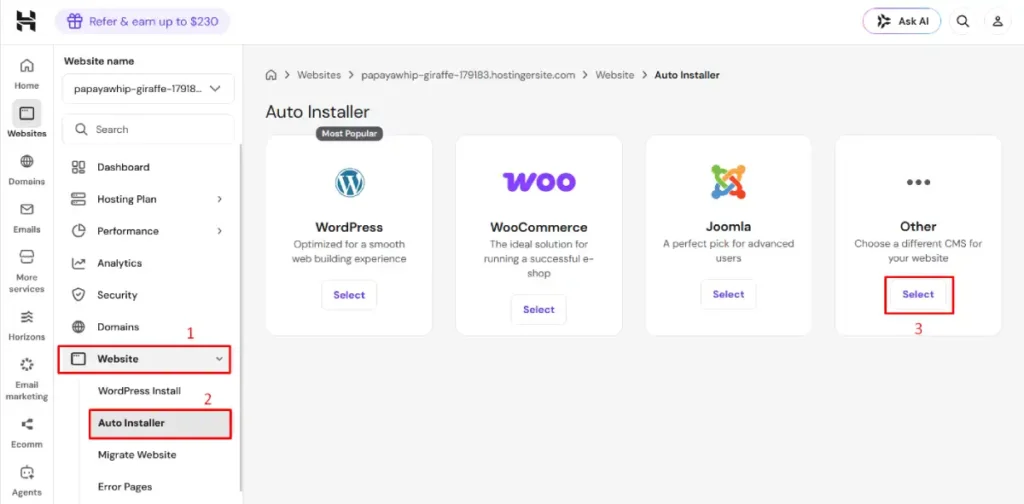
- In the new site’s own dashboard, go to Website, then Auto Installer
- Click Select under Other, since PrestaShop is not one of the three featured application cards
Step 5: Search for PrestaShop.
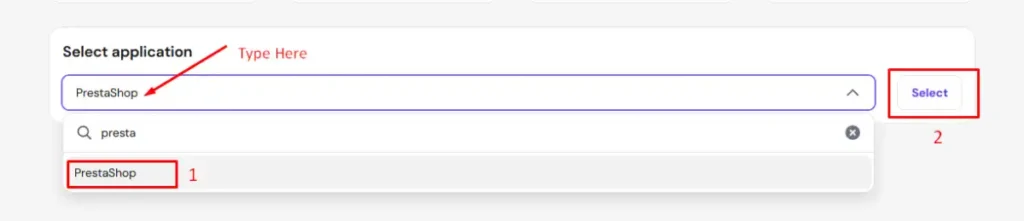
- In the Select application search field, type Presta
- PrestaShop appears as a result
Step 6: Select and confirm.
- Click PrestaShop from the list
- Click the Select button to confirm
Step 7: Enter your store’s credentials.
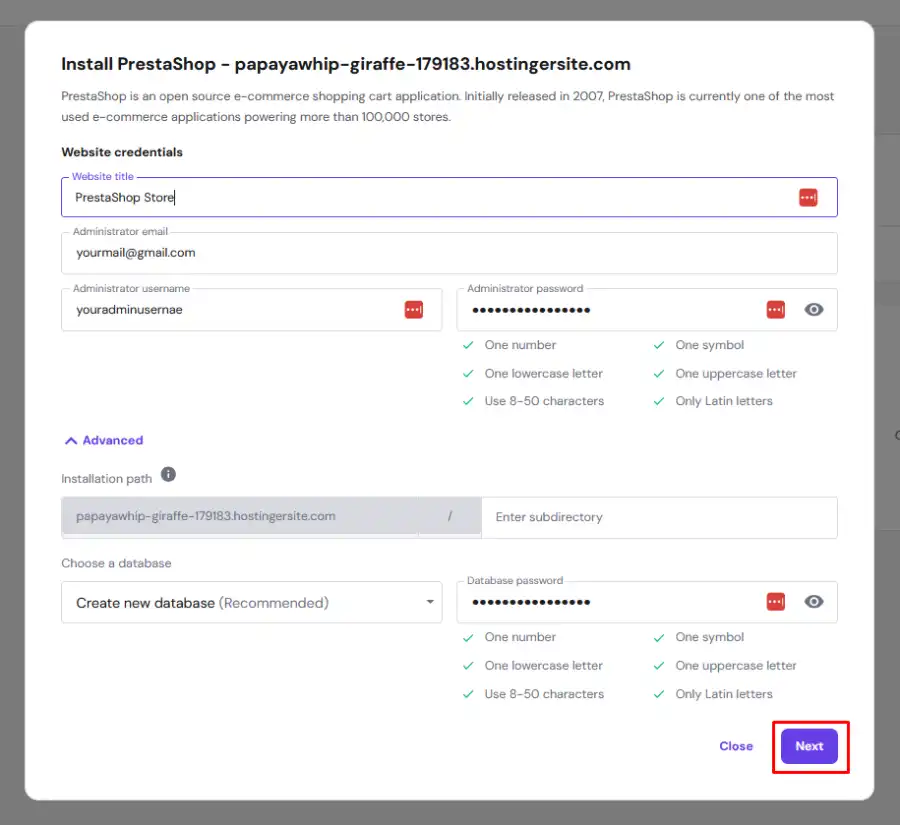
- Fill in your website title, administrator email, username, and password
- Expand Advanced and confirm the installation path
- Leave Choose a database set to Create new database (Recommended)
- Click Next
Step 8: Confirm version and update settings.
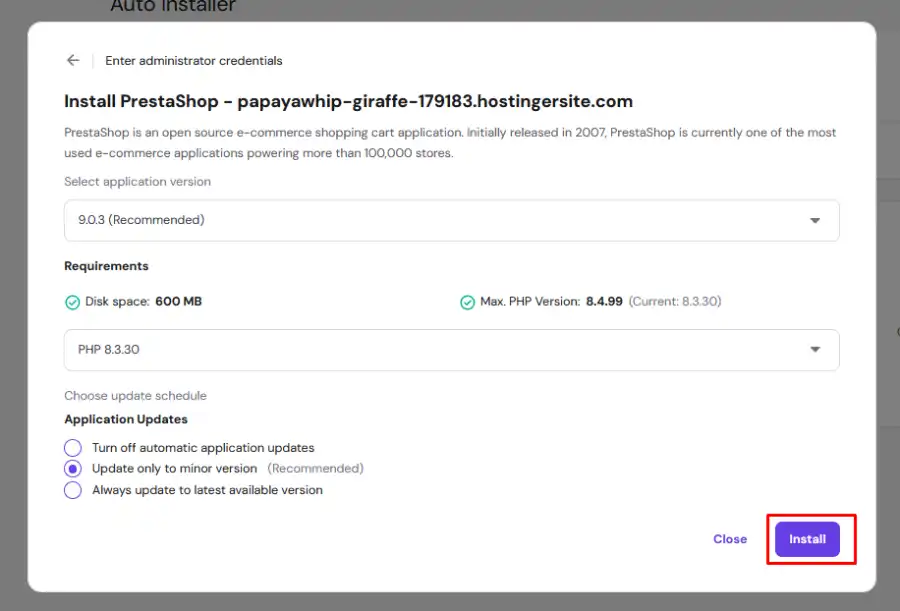
- Confirm the recommended PrestaShop version and language
- Review the requirements check, Hostinger’s environment should already meet PHP and memory requirements by default
- Choose your update schedule, Update only to minor version is the safest default
- Click Install
Step 9: Confirm the install succeeded.
- The Auto Installer page shows an Installed Applications table with PrestaShop listed and a clickable live URL
Step 10: Visit your live store.
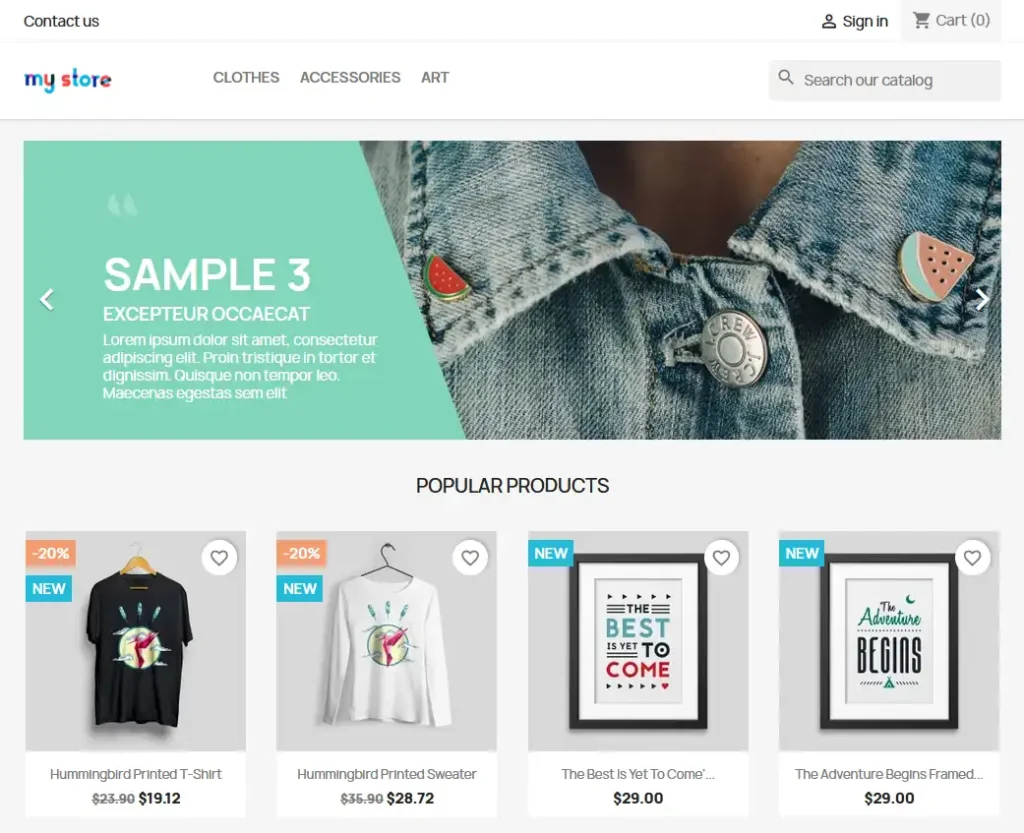
- Click the URL, your PrestaShop store loads with its default demo catalog and theme, ready for you to log into the admin panel and begin replacing the sample products with your own
Performance by Catalog Size
| Catalog Size | Practical Hosting Tier | Real Consideration |
|---|---|---|
| Under 500 products | Shared hosting with PHP 8.1+ support | Fine as long as memory_limit is adjustable |
| 500 to 5,000 products | Managed hosting or entry-level VPS | Product listing and search pages benefit from more memory and caching |
| 5,000+ products | VPS or dedicated resources | Bulk product imports and catalog-wide operations need real headroom beyond the 512MB minimum |
PrestaShop’s back office, particularly bulk editing and large imports, is noticeably more memory-intensive than the storefront itself.
A store comfortable on 512MB for browsing can still hit memory ceilings during a large product import specifically, worth testing before a real catalog migration, not during one.
Hosting is one line item in a larger store startup cost, worth weighing against the catalog size table above before committing to a tier that turns out to be more or less than what the business actually needs.
Launch Checklist Before Going Public
A store that installs successfully is not automatically ready to sell. The same discipline applies whether you are running PrestaShop or a WooCommerce store on the same kind of self-hosted setup, a working install and a store ready for real customers are two different milestones.
- Secure the admin panel. Change the default admin folder name if your PrestaShop version still uses one, and use a strong, unique password separate from any used during testing.
- Confirm HTTPS is fully enforced. Check both the storefront and admin panel load over SSL with no mixed-content warnings.
- Set up real payment and shipping methods. Replace any test-mode payment gateway with live credentials, and configure real shipping carriers or rates before announcing the store.
- Fix email delivery. Confirm PrestaShop is sending order confirmations through a proper SMTP connection rather than a default mail function that many hosts flag as spam.
- Set up automated backups. Confirm your host backs up both files and the database automatically, and test a restore at least once.
- Run one complete real checkout. Place an actual test order through the live store, confirm the order appears correctly in the back office and the confirmation email arrives.
PrestaShop Hosting Questions Answered
What PHP version does PrestaShop need?
PrestaShop 9 requires PHP 8.1 to 8.4, with 8.3 to 8.4 recommended. Older PrestaShop 8 or 1.7 stores have different, lower requirements, confirm your specific version before assuming PS9’s PHP requirement applies to an existing store.
Why does my PrestaShop installation crash without a clear error?
Often an insufficient memory_limit. PrestaShop’s own requirements document a 256MB minimum and recommend 512MB, but the installer does not actually enforce this check, so a server falling short crashes rather than showing a specific memory error.
Does PrestaShop have an official tool to check server requirements?
Yes, a script commonly named phppsinfo.php. Upload it to your server and open it in a browser to see a clear pass or fail against every actual requirement before running the full installer. Other PrestaShop users have asked for clearer error messages during this exact check, worth knowing before assuming a vague failure means something is broken.
What is allow_url_fopen and why does PrestaShop need it?
A PHP setting that allows the server to access remote files, required for payment processing among other functions. It is not always enabled by default on shared hosting, confirm it directly in your PHP configuration before installing.
Is shared hosting good enough for PrestaShop?
For a smaller catalog, yes, if the host supports PHP 8.1 or higher and lets you adjust memory_limit. A larger catalog, especially one doing bulk imports or heavy back-office use, benefits from VPS-level resources and direct configuration access.
How much memory does PrestaShop actually need?
256MB is the documented minimum, though not enforced by the installer, and 512MB is the practical recommendation for a real production store. Bulk product imports and large catalog operations in the back office often need more than the storefront itself requires.