
We’ve built and audited Shopify Flow setups across more than 60 stores over the past three years. The pattern that shows up every single time: stores have two or three workflows that actually run their business in the background, and seven or eight they set up once, never looked at again, and would be embarrassed to admit haven’t run in months.
Most guides about Shopify Flow tell you everything it can do. This one tells you what’s actually worth doing, what stores waste time building, and the three mistakes we fix in almost every audit we run.
What Shopify Flow Actually Is (and What It Isn’t)
Shopify Flow is a free automation tool built into Shopify’s infrastructure. Per Shopify’s official Flow documentation, it’s available on Basic, Grow, Advanced, and Plus plans with no separate charge. It watches your store for events, an order placed, inventory hitting a threshold, a customer reaching a spend milestone, and responds with a defined set of actions without you being involved.
You install it from the Shopify App Store and it lives in your admin under Apps.
What it isn’t: a replacement for your email platform, a CRM, or a full warehouse management system. Flow is exceptional at automating logic-based responses to Shopify events. It’s not built for conversations with customers, deep segmentation, or operations that happen outside the Shopify ecosystem.
The reason we’re flagging this upfront: the most common mistake we see in Flow setups is stores trying to use it as an email marketing tool.
They build elaborate customer tagging workflows expecting Flow to handle what Klaviyo is already doing better, then wonder why their Klaviyo results aren’t improving.
Flow is backend logic. Your email platform is customer communication. They work together; Flow doesn’t replace the other.
The 3 Workflows We Build First for Every Client
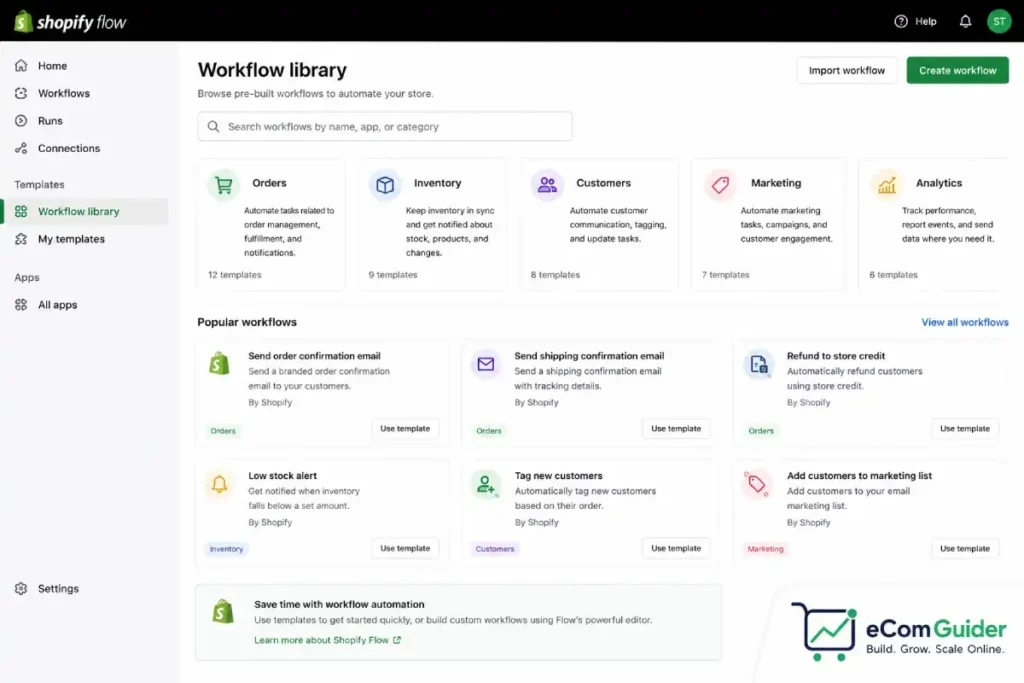
After setting up Flow across stores ranging from 20 orders a day to 3,000, these three consistently have the highest immediate ROI and the lowest failure rate in production.
Fraud Order Auto-Triage
What it replaces: 45 minutes to 2 hours of daily manual order review, depending on volume.
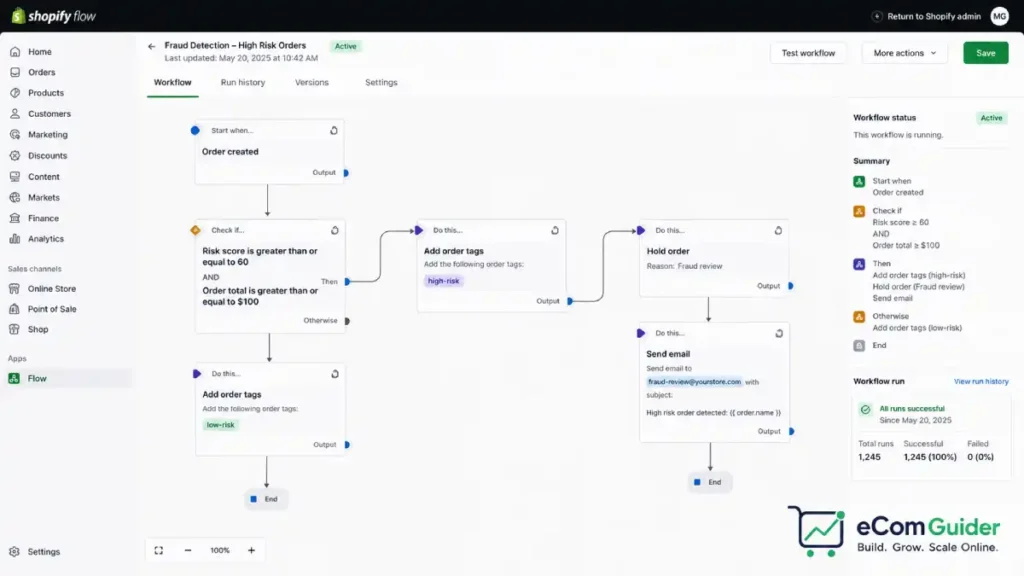
Here’s the workflow structure we use: when an order is created and Shopify’s fraud analysis assigns a High risk rating, Flow immediately tags the order with a fraud-review label, sends a Slack notification to whoever handles operations (with the order number and value in the message body), and adds the customer email to a suppression list to prevent loyalty program enrollment.
The 24-hour auto-cancel piece is where most tutorials go wrong. They recommend adding a step that automatically cancels high-risk orders after a delay. We removed that from our default setup after it cancelled a $2,400 legitimate order for a client selling outdoor equipment to a customer who happened to be using a VPN. The risk score fired on the VPN, not actual fraud.
Our current version: Flow flags and notifies. A human makes the cancellation decision. The time savings come from eliminating the need to manually scan every order for risk signals, Flow surfaces only the ones that need a decision. For a brand doing 400 orders a day, that dropped the review time from 90 minutes to under 15.
Inventory Threshold Alerts by Location
What it replaces: discovering stockouts when customers complain.
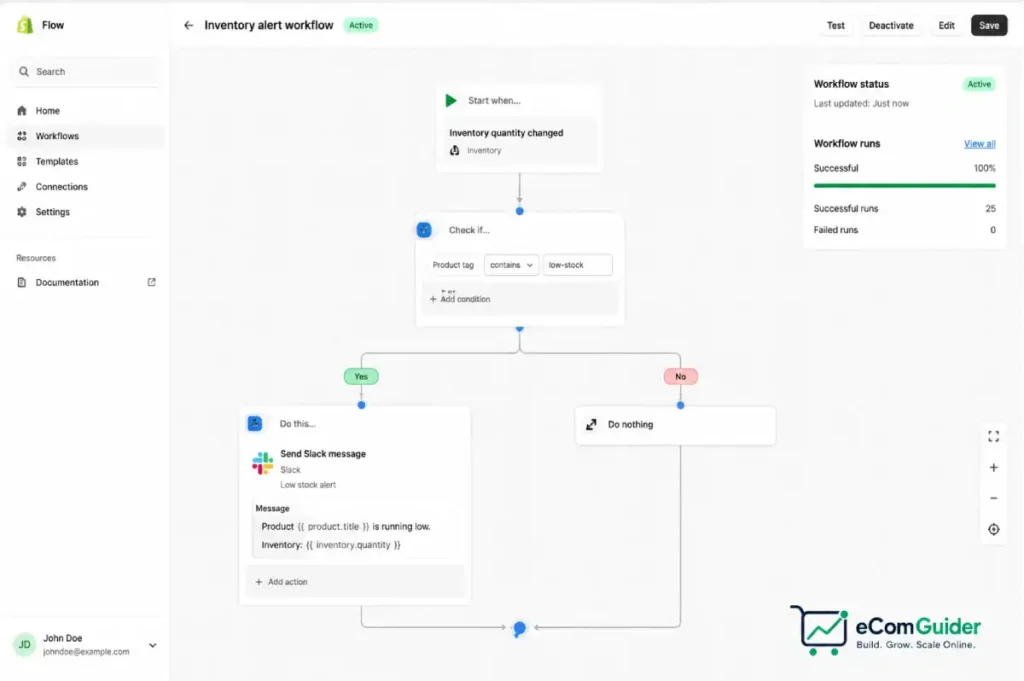
The workflow: when inventory for a tracked variant drops below a number you set, Flow sends an email or Slack notification with the product name, variant, current stock level, and location. We add a condition that filters by a product tag so the workflow doesn’t fire for products intentionally kept at low stock (samples, B-grade inventory, clearance SKUs tagged as depleted-ok).
The filter condition is the part most guides skip. Without it, you’ll get alerted on SKUs you don’t care about and start ignoring the notifications. Once you start ignoring them, the workflow is useless. The 10 minutes you spend adding a tag condition to exclude low-priority SKUs is what determines whether this workflow is actually used six months from now.
One client, a supplements brand shipping around 800 orders a month, had three stockouts in one quarter before we set this up. After the workflow went live, they’ve had zero in eight months. The suppressed revenue from those three stockouts was estimated at roughly $14,000 based on their average order value and typical restock timelines.
VIP Customer Tagging at Order Completion (Not Order Placement)
What it replaces: monthly manual exports of customer lists sorted by lifetime value.
Most VIP tagging tutorials use the Order Created trigger. We don’t, and here’s why: Order Created fires the moment someone hits buy, before the payment clears, before fulfillment, before anything. For stores with a return rate above 15%, tagging customers as VIP at order creation means you’ll have VIP customers who never actually paid you that much.
We use Order Paid as the trigger instead. When cumulative spend crosses your VIP threshold, Flow adds the tag. Klaviyo or whatever email platform you’re using picks up the tag and fires the VIP welcome sequence automatically.
The adjustment sounds minor. For one apparel client with a 28% return rate, switching from Order Created to Order Paid removed 340 incorrectly tagged VIP customers from their top-tier segment in the first 90 days. That was 340 people receiving VIP discount codes they hadn’t earned, directly affecting margin.
The Workflows Most Stores Build That Don’t Work
This is the part we never see in other guides.
Abandoned Cart Notifications via Flow
Every Flow tutorial mentions abandoned cart as a top use case. In practice, we turn this workflow off for most clients. Here’s the issue: Flow’s abandoned cart trigger has a 10-hour minimum delay.
Klaviyo, Omnisend, and most email platforms fire an abandoned cart email within 1 to 4 hours.
If you already have an email platform running abandoned cart sequences, adding Flow on top doesn’t recover more carts. It sends a second notification hours later to someone who has already converted, been emailed twice by Klaviyo, or decided they don’t want the product. The one scenario where Flow’s abandoned cart trigger adds value: you want to trigger an internal alert for high-value abandoned carts (say, over $300) so a sales team member can do a personal follow-up. For the automated email use case, let your email platform handle it.
Welcome Email Sequences
Same logic as above. Flow can trigger a welcome email when a customer account is created, but every email platform already does this natively and does it better, with A/B testing, conditional branching, and send-time optimization. Building a welcome sequence in Flow means maintaining it in two places and losing the analytics your email platform would otherwise provide.
Review Request Automation
Flow can trigger a review request message after an order is fulfilled. The gap: it can send a notification, but it can’t personalize the message beyond basic order data, it doesn’t integrate with review platforms like Okendo or Yotpo at the content level, and it doesn’t handle the follow-up sequence if someone doesn’t respond. Your review app almost certainly handles this better already. Flow is adding complexity, not capability.
The 3 Mistakes We Fix in Every Flow Audit
When we audit an existing Flow setup, three issues show up in nearly every store regardless of size or category.
Workflows with no naming convention. We’ve opened admin panels where the workflows are labeled things like New Automation 3, Test – don’t delete, and Copy of flow 1. Nobody knows what these do, nobody wants to delete them in case they’re important, and they accumulate.
Set a naming convention before you build your first workflow: [Category] – [Trigger] – [Action]. Fraud – High Risk Order – Slack Alert. That’s what the workflow does, readable by anyone on your team six months from now.
Tags that never get cleaned up. Flow is good at adding tags. Almost no stores build the corresponding workflow to remove tags when they’re no longer relevant. A customer tagged vip-tier-1 two years ago might have churned, returned everything they ever bought, or had their account merged with another. Stale tags feed bad data into your email platform segments. Build a removal workflow for every tagging workflow you create.
Testing in production. Flow workflows activate on live store events. There is no sandbox mode unless you’re on Plus with a development store. The number of times we’ve seen a test workflow accidentally email 6,000 customers because someone forgot to turn it off is not zero. Use the workflow’s condition block to restrict test runs to your own email address or a test tag before turning anything on for real.
When Flow Isn’t the Answer
Flow works best for automating responses to Shopify events within the Shopify ecosystem. If your operational problem falls outside that, a different tool will serve you better.
If you need to automate tasks across platforms that don’t have Shopify app integrations, a legacy warehouse system, a custom ERP, your own database, you’ll need Zapier, Make, or a developer-built webhook. Flow’s Send HTTP Request action (available on Grow plan and above, not Basic) can talk to external APIs, but it’s not built for complex data transformations or multi-step external workflows.
If your automation needs involve reasoning, reading the content of a customer message and deciding how to respond, AI tools or a customer support platform like Gorgias are better suited. Flow acts on structured event data; it can’t interpret unstructured text.
If you’re on Basic plan and need to connect to external services, you’ll hit the plan restriction before you hit Flow’s capability ceiling. That’s worth knowing before you design a workflow that requires Send HTTP Request, because you’ll need to upgrade or use a different tool.
For a clear picture of what actually changes between Shopify plan tiers in practice, see our Shopify vs Shopify Plus comparison, specifically the automation and API access sections.
How to Audit Your Existing Flow Setup
If you already have Flow active, run this check before you add anything new.
Open Flow and sort your workflows by Last Run date. Any workflow that hasn’t run in 90 days is either broken, triggered by an event that never fires in your store, or solving a problem you no longer have. Turn it off. If nothing changes in two weeks, delete it.
Check your customer and order tags in Shopify Admin under Customers. Filter by each Flow-generated tag and look at whether the tagged customers match who you’d expect to be tagged. Stale data in your tags means stale data in every segment, email list, and report that pulls from those tags.
Review whether each workflow has a corresponding cleanup or expiry condition. If there isn’t one, add it.
This process typically takes two hours for a store with fewer than 20 active workflows. For stores we’ve audited with 30-plus workflows built up over several years, it commonly surfaces three to five workflows that were actively doing something wrong, firing on events they shouldn’t, sending duplicate notifications, or tagging customers incorrectly.
For a broader look at areas where Shopify’s built-in tools underperform and where you’re better served by third-party apps, see our Shopify hidden downsides, it covers the areas most Shopify guides won’t touch.
FAQ’s
Is Shopify Flow actually free?
Shopify Flow is free to install and use on Basic, Grow, Advanced, and Plus plans. There is no per-workflow or per-execution charge. The one plan-gated restriction is the Send HTTP Request action, which lets workflows communicate with external services outside Shopify. That feature requires Grow plan or above.
Which Shopify plan do you need for Flow?
Flow is available on all paid Shopify plans starting from Basic. The difference between plans is one specific action: Send HTTP Request, which connects Flow to external APIs and services, is available on Grow, Advanced, and Plus. If your automations stay within Shopify and its native app ecosystem, Basic plan is sufficient.
Can Shopify Flow replace Zapier?
For workflows that stay within Shopify and connected Shopify apps, Flow replaces Zapier for most common tasks at no additional cost. For workflows connecting Shopify to external platforms that don’t have Shopify app integrations, Zapier or Make is still the right tool. We’ve replaced active Zapier workflows with Flow for several clients and removed the Zapier subscription, but only for the workflows that kept everything inside the Shopify ecosystem.
Why is my Shopify Flow workflow not running?
The most common reasons, in order: the trigger event isn’t occurring as frequently as expected (check Shopify’s analytics to confirm the event is actually happening), the condition is filtering out all events before any action fires, or the workflow was built on a trigger that requires a plan your store isn’t on. Open the workflow’s Run History in Flow to see whether it’s been triggered but blocked by a condition, or whether it simply hasn’t been triggered at all.
Should I use Shopify Flow or Klaviyo for customer automation?
Use both, for different things. Flow handles backend logic inside Shopify: tagging customers when they reach spend thresholds, flagging orders, managing inventory alerts, routing fulfillment tasks. Klaviyo handles customer-facing communication: email sequences, SMS, A/B-tested campaigns. Flow tags the customer; Klaviyo sees the tag and sends the message. Trying to use Flow for email sequences or Klaviyo for order-level logic mismatches the tools with the jobs.
How many workflows should a store have?
There’s no right number, but we’ve found that stores with more than 15 active workflows almost always have at least five that are redundant, broken, or no longer relevant. Fewer, well-maintained workflows outperform more workflows that nobody is monitoring. Build for the specific operational problem you have today, not for every possible event you might want to automate.
What is the difference between Shopify Flow and Shopify Scripts?
Shopify Scripts was a Plus-only tool for customizing checkout logic, discounts, shipping, payment methods, using Ruby code. Shopify deprecated Scripts in June 2025 and replaced it with Shopify Functions, which runs at the same checkout layer but uses a modern API and is available to all plans. Flow handles store operations and marketing logic. Shopify Functions handles checkout logic. They’re complementary, not overlapping.