
WooCommerce multisite is pitched as centralized management for multiple stores. That pitch has a gap most guides skip.
WooCommerce itself requires full, separate configuration on every site, products, payment gateways, shipping zones, tax rules, regardless of whether it runs on a multisite network or ten completely separate installs.
The network shares a codebase. It does not share your store setup.
This guide walks through the full setup, the plugin conflicts that actually happen once real plugins hit a real network, and an honest framework for when multisite is worth the complexity versus running separate installs.
Key Takeaways
- Multisite shares WordPress core, themes, and plugins across a network. It does not share WooCommerce’s own store configuration, each site still needs its own products, gateways, shipping, and tax setup.
- Not all plugins are built for multisite. Settings can fail to save per site, admin interfaces can appear in the wrong place, and network-wide activation can break functionality that worked fine per site.
- WooCommerce stopped selling bulk multi-site plugin license discounts to new customers. Licensing a premium plugin across five sites now often costs close to what five separate licenses would.
- Elementor Pro and several other page builders charge more for multisite licensing than for the equivalent number of individual site licenses.
- A single compromised or conflicting plugin on a multisite network can affect every site at once, since plugins usually activate network-wide.
- Multisite is the right call when stores share a team, a similar catalog structure, and a codebase worth maintaining once. Separate installs are the right call when stores need different plugin stacks, different growth trajectories, or independent uptime.
What WooCommerce Multisite Actually Shares
| Shared Across the Network | Configured Separately, Per Site |
|---|---|
| WordPress core and core updates | Products and catalog |
| Theme files (if network-activated) | Payment gateways |
| Plugin files (if network-activated) | Shipping zones and rates |
| Server and hosting resources | Tax settings |
| User accounts (a login can access multiple sites) | Store-specific settings, currency, checkout fields |
The efficiency multisite actually delivers is at the infrastructure and codebase level: one WooCommerce install to update, one set of plugin files to maintain, one hosting bill.
It does not reduce the work of setting up each store’s actual commerce configuration. Anyone marketing multisite as a shortcut to running five stores with one setup process is skipping that part.
Complete Setup Walkthrough
Step 1: Back Up Before You Start
Converting an existing WooCommerce site into a multisite network is not reversible without a backup. Take a full site and database backup before touching wp-config.php.
Step 2: Enable Multisite in wp-config.php
Open wp-config.php in your site’s root directory and add this line just above the line that reads /* That's all, stop editing! */:
define( 'WP_ALLOW_MULTISITE', true );
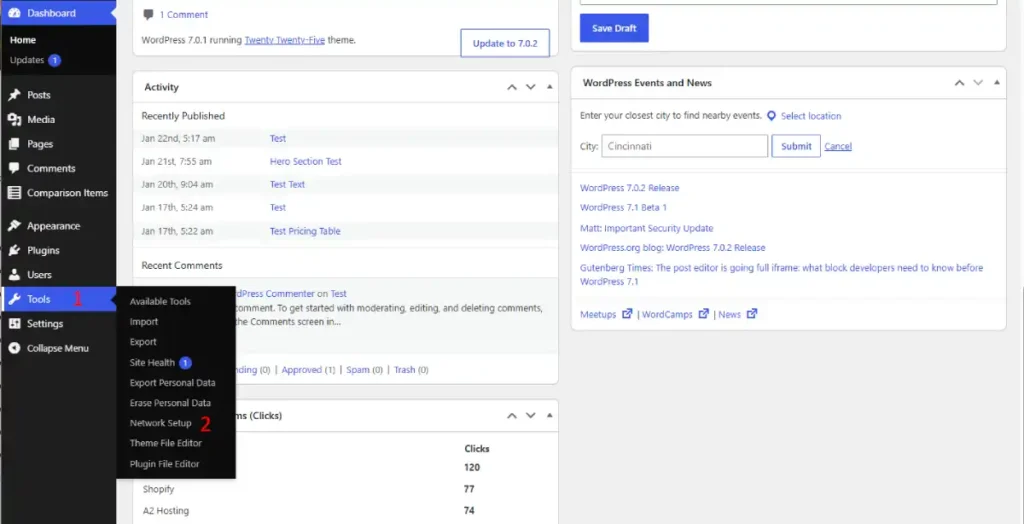
Save the file and reload your WordPress admin. A new Network Setup option now appears under Tools.
Step 3: Run Network Setup
Go to Tools, then Network Setup. Choose between two site structures:
- Subdomains (site1.yourdomain.com, site2.yourdomain.com), which requires wildcard DNS configured with your host before setup
- Subdirectories (yourdomain.com/site1, yourdomain.com/site2), which works without any DNS changes
Subdirectories are simpler to set up and are the practical default unless you specifically need each store on its own subdomain for branding reasons.
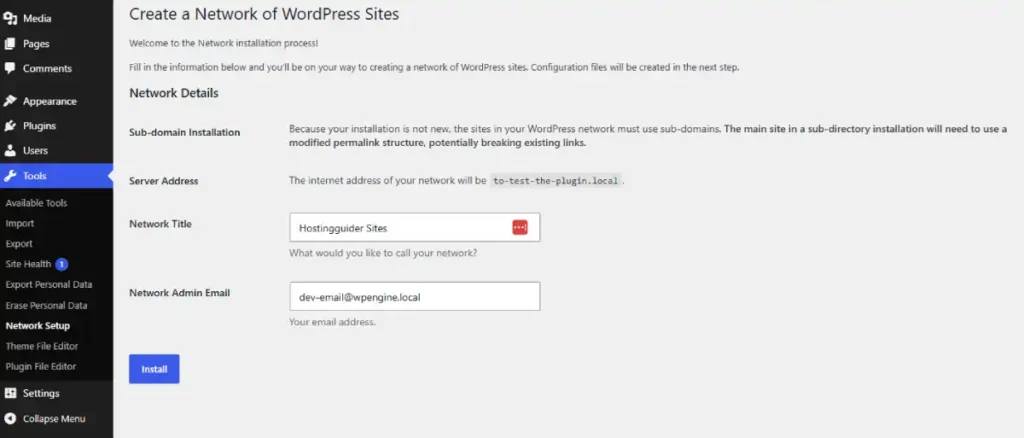
Complete the network setup form. WordPress generates code to add to wp-config.php and .htaccess. Add both exactly as shown before continuing, the network will not function correctly without them.
Step 4: Log Back In to Access Network Admin
After adding the generated code, log in again. A new Network Admin option appears in your admin toolbar, this is the control panel for managing every site on the network.
Step 5: Add Your First Additional Site
- Go to Network Admin, then Sites, then Add New
- Enter the subdomain or subdirectory name for the new store
- Enter the site title and admin email
- Click Add Site
Repeat for each store you are adding to the network.
Step 6: Install and Activate WooCommerce
You can network-activate WooCommerce (available on every site automatically) or activate it per site individually.
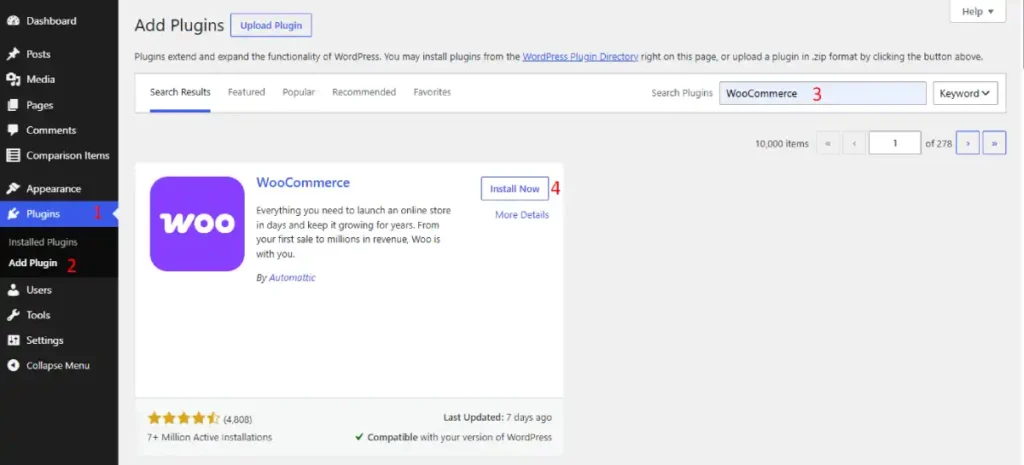
For most multi-store setups, network-activate WooCommerce itself under Network Admin, then Plugins, so every site has it available without a separate install.
Activate store-specific extensions per site rather than network-wide, since not every store needs every extension, and per-site activation avoids one of the most common multisite plugin conflicts.
Step 7: Map a Custom Domain to Each Store (Optional but Common)
Most real multi-store operations do not want customers seeing site2.yourdomain.com or yourdomain.com/site2 in the address bar. Each store typically needs its own branded domain, storename1.com, storename2.com, even though they share one WordPress install behind the scenes.
To map a custom domain to a subsite:
- Buy or already own the domain you want to map (storename1.com)
- In your domain registrar, point that domain’s DNS A record to your hosting server’s IP address, the same IP your multisite network runs on
- In your WordPress admin, install a domain mapping plugin, WordPress does not include this natively. WP Engine, Kinsta, and several managed hosts include domain mapping in their own multisite tooling instead of requiring a plugin, check your host’s documentation first
- Add the mapped domain to the correct subsite through your host’s tool or the mapping plugin’s settings
- Wait for DNS propagation, typically a few hours, then test the domain loads the correct store
Repeat this for every store that needs its own branded domain. A store left on the default subdomain or subdirectory still works fine for internal or staging use, mapping is purely for the public-facing brand.
Step 8: Set Up SSL for Every Mapped Domain
Each custom domain needs its own SSL certificate, a certificate covering your primary domain does not automatically cover a separate mapped domain.
Most managed hosts (Kinsta, WP Engine, and similar) provision free SSL automatically for any domain added to the account, including mapped multisite domains, through Let’s Encrypt integration in their control panel.
Confirm this is active for each mapped domain individually after adding it, do not assume it applied automatically.
A store showing a security warning at checkout because SSL was missed on that specific domain is one of the most common launch-day mistakes on a new multisite network.
Step 9: Apply Distinct Branding Per Store
A shared theme file does not mean every store has to look identical. Most themes support per-site customization through the WordPress Customizer (Appearance, then Customize), which saves settings independently per site even when the theme itself is network-activated.
Set these independently for each store:
- Logo and site icon
- Color scheme and typography, if your theme supports it
- Homepage layout and featured content
- Footer content, including business name, address, and support contact for that specific brand
If stores need visual differences beyond what the Customizer supports, consider network-activating the theme but installing a child theme per site for deeper customization, or using per-site page builder content rather than modifying the parent theme’s core files.
Step 10: Configure Each Store Independently
This is the step that undercuts the centralized-setup pitch. Switch to each site individually (My Sites, then the site name, then Dashboard) and complete WooCommerce’s setup wizard for that specific store: address, currency, payment gateway, shipping zones, and tax settings.
There is no way to configure this once and apply it across the network. Each store’s commerce settings are actually independent.
Step 11: Set Up Cross-Network User Management
If staff need to manage multiple stores with one login, go to Network Admin, then Users, then add the user, then grant them access to each relevant site individually under that site’s Users screen. A single WordPress account can hold different roles on different sites in the network.
Switching between stores as an admin is done through the My Sites menu in the top admin toolbar, which lists every site the logged-in user has access to.
Staff managing several stores do not need to log out and back in, they select the store from that menu and land directly in its dashboard.
Step 12: Decide Your Inventory Strategy
Multisite does not share product inventory between stores by default, each site’s product catalog and stock levels are independent, the same as everything else covered in this walkthrough.
If two stores sell overlapping products and need shared stock counts, or a single cart that lets customers buy from multiple stores in one checkout, that requires a dedicated plugin.
WP Global Cart is one option built specifically for this, starting around $120/year for a single network license, with a one-time developer license covering unlimited networks available at a higher upfront cost.
Most multi-brand operations do not need shared inventory or a shared cart, each brand has its own catalog and its own checkout. Confirm this is actually true for your stores before adding sync-plugin complexity that a truly separate catalog does not need.
Step 13: Test Every Site’s Checkout Independently
Place a test order on each store separately. A payment gateway or shipping configuration working on one site does not confirm it is working on another, since these settings are per-site, not network-wide.
Test the mapped domain directly, not just the underlying subdomain or subdirectory address, since domain mapping and SSL are two of the most common launch-day failure points on a new multisite network.
Plugin Compatibility: What Actually Breaks
This is where multisite guides written by vendors go quiet. Real conflicts happen, and they follow predictable patterns.
The Core Problem
Plugins built without multisite specifically in mind were not tested against a network environment. Settings can fail to save correctly per site.
The plugin’s admin screen can appear in the wrong place, network-wide instead of per-site, or vice versa. Functionality that works when a plugin is activated per site can break when the same plugin is network-activated instead.
A specific and common failure: some plugins store settings in the wp_options database table without a site-specific prefix.
Configuration entered on one site can bleed into another site’s settings, since the plugin never distinguished between them.
Plugin Categories With the Highest Conflict Risk
| Plugin Type | Common Issue |
|---|---|
| Page builders (Elementor, Divi, WPBakery) | Licensing costs more for multisite; some store settings without site-specific prefixes |
| Contact form plugins | Settings and submissions can fail to separate correctly per site |
| SEO plugins | Sitemap and schema settings sometimes apply network-wide when per-site behavior is expected |
| Custom field and metadata plugins | Data can bleed across sites if the plugin was not built with multisite in mind |
| Licensing-model plugins generally | Per-network pricing is frequently higher than the sum of per-site licenses |
The Real Licensing Cost Problem
WooCommerce stopped selling bulk multi-site license discounts to new customers. Existing bulk subscriptions kept their original pricing, but anyone licensing a premium WooCommerce extension across a new multisite network today pays close to full per-site price for each site, the bulk discount that once made multisite meaningfully cheaper for plugin licensing is gone for new purchases.
Elementor Pro follows a similar pattern from the other direction: its multisite license costs more than buying the equivalent number of individual site licenses would.
Before assuming multisite saves money on plugin costs, check the specific licensing terms for every premium plugin your stores will need. The savings some guides describe from a few years ago are no longer guaranteed.
How to Diagnose a Plugin Conflict
- Deactivate all plugins network-wide
- Reactivate them one at a time, testing functionality after each
- When the conflict reappears, you have identified the plugin
- Check that plugin’s documentation for explicit multisite compatibility
- If it does not mention multisite, contact the developer before assuming a fix exists
Before purchasing any premium plugin for a multisite network, check its documentation for an explicit multisite compatibility statement.
If none exists, contact the vendor first, if they never built for multisite, they may not be able to help troubleshoot multisite-specific issues later.
Performance, Hosting, and Security
A multisite network concentrates traffic and database load onto one shared install. What happens on one store affects the server resources available to every other store on the network.
Caching becomes more important, not less, as store count grows. A caching plugin (WP Rocket or a free alternative) or a host with built-in caching handles the added database query load from multiple active stores better than an unoptimized network will.
Security risk compounds with network-wide plugin activation. If a plugin activated across the whole network has a vulnerability, every store on that network is exposed simultaneously, not just the one where the issue was introduced.
A layered defense, updates, a firewall, two-factor authentication, matters even more on a multisite network than on a single store.
Not every hosting plan supports WordPress multisite, and support quality varies significantly between hosts that do.
Kinsta and WP Engine both support multisite on their higher-tier managed plans, confirm the specific plan supports it before signing up, since entry-level tiers on many hosts do not.
Hostinger is worth checking against your specific store count and traffic expectations before committing.
Budget shared hosting tends to struggle with multisite’s concentrated resource demands faster than it struggles with a single store.
When Multisite Makes Sense vs Separate Installs
| Factor | Favors Multisite | Favors Separate Installs |
|---|---|---|
| Team structure | One team manages all stores | Different teams or owners per store |
| Catalog similarity | Similar product types and structure across stores | Wildly different catalog types or business models |
| Plugin needs | Similar plugin stack across all stores | Different payment processors, tax logic, or country-specific requirements per store |
| Growth plans | Stores are expected to stay together long term | Any store might be sold, spun off, or need to scale independently |
| Uptime requirements | Shared downtime risk is acceptable | One store’s issue must never affect another’s availability |
| Budget | One hosting bill is a priority | Plugin licensing cost difference is now minimal, so this matters less than it used to |
The clearest disqualifying factor for multisite is a store that might need to be sold, spun off, or migrated independently in the future.
Extracting one site from a multisite network into a fully standalone install is real migration work, not a quick export.
This matters more if a store might later move to Shopify or a different platform altogether, since that migration compounds on top of the multisite extraction.
If there is a reasonable chance any one brand needs full independence later, running it as a separate install from day one avoids that migration completely.
The starting a store cost breakdown is worth checking against a shared network’s hosting savings before deciding.
The clearest case for multisite is the opposite: several storefronts under one company, one team, similar catalog structure, no plans to separate them, where the shared codebase and single hosting bill are a genuine, lasting benefit rather than a short-term convenience.
FAQ’s
What is WooCommerce multisite?
WooCommerce multisite runs multiple WooCommerce stores from a single WordPress installation using WordPress’s built-in Multisite network feature. Each store shares WordPress core and can share themes and plugins, but requires its own independent product catalog, payment gateway, shipping, and tax configuration.
Does multisite save money on WooCommerce plugins?
Less than it used to. WooCommerce and several other plugin vendors removed bulk multi-site license discounts for new purchases. Licensing a premium plugin across multiple sites in a network now often costs close to what separate licenses for separate installs would cost.
Can I convert an existing WooCommerce store into a multisite network?
Yes, with a full backup taken first. Enable multisite in wp-config.php, run Network Setup under Tools, and your original site becomes the primary site on the new network. Additional stores are added afterward through Network Admin.
Are all WooCommerce plugins compatible with multisite?
No. Many plugins were never tested against a multisite environment. Common issues include settings not saving correctly per site, admin screens appearing in the wrong place, and functionality breaking when a plugin is network-activated instead of activated per site.
Should I network-activate WooCommerce extensions or activate them per site?
Activate store-specific extensions per site rather than network-wide, since not every store needs every extension and per-site activation avoids one of the most common multisite plugin conflicts. Network-activating WooCommerce core itself is generally safe and convenient.
Is WooCommerce multisite good for a multi-brand business?
It depends on whether the brands share a team, similar catalog structure, and no plans for independent futures. Multisite suits closely related storefronts managed together long term. Separate installs suit brands with different plugin needs, different growth trajectories, or any real chance of being sold or spun off independently.
Does multisite affect WooCommerce store performance?
It can, since a multisite network concentrates database and traffic load onto shared server resources. Caching becomes more important as store count grows, and not every hosting plan or tier supports multisite well, confirm this specifically before committing to a host.