
WooCommerce gives you genuine technical control, but almost nothing is configured for you by default, this guide covers the actual setup, the platform’s own native duplicate content problem, and the strategy to grow a catalog on top of it.
Quick answer: WooCommerce is one of the most SEO-friendly ecommerce platforms because it gives you full control over URLs, schema markup, metadata, internal linking, and technical optimisation.
Combined with the right SEO plugin and fast hosting, it can compete with any ecommerce platform in Google Search.
Ecommerce SEO is unforgiving in a specific way most content sites never face, a product page competing on search intent and price at the same time, a category page trying to rank for a broad term while also converting a browsing shopper into a buyer.
WooCommerce adds its own layer to that, genuine flexibility, but nothing is configured for you automatically the way a simpler, more locked-down platform handles it.
This guide is for a store owner or the person managing SEO for a real WooCommerce store, whether you are setting up a new store or auditing one that has been live for years and never had its technical foundation checked.
You will leave with a working setup sequence, the platform’s own native duplicate content problem fixed, and a strategic layer for structuring a growing catalog, not just a list of settings to toggle.
The core principles covered in the eCommerce SEO guide still apply, but this guide focuses on the WooCommerce-specific setup, optimization, and technical considerations.
Table of Contents
Key Takeaways
- This is a sequence, not a checklist. Hosting and your plugin come first, everything else assumes those are already working correctly.
- RankMath includes WooCommerce schema free, Yoast does not. RankMath’s free tier ships Product schema with price, availability, and review data built in. Yoast requires a separate paid WooCommerce SEO add-on for the same coverage.
- Variable products create real duplicate content by default. A t-shirt in 3 colors and 4 sizes can generate 12 competing URLs, stores with heavy variation matrices show 67 percent higher duplicate content ratios than simple product stores.
- Every step below includes the specific navigation path, the menu names and button labels, not just what to accomplish.
- Verification is not optional. A setting that looks configured is not the same as a setting that works, check every fix directly.
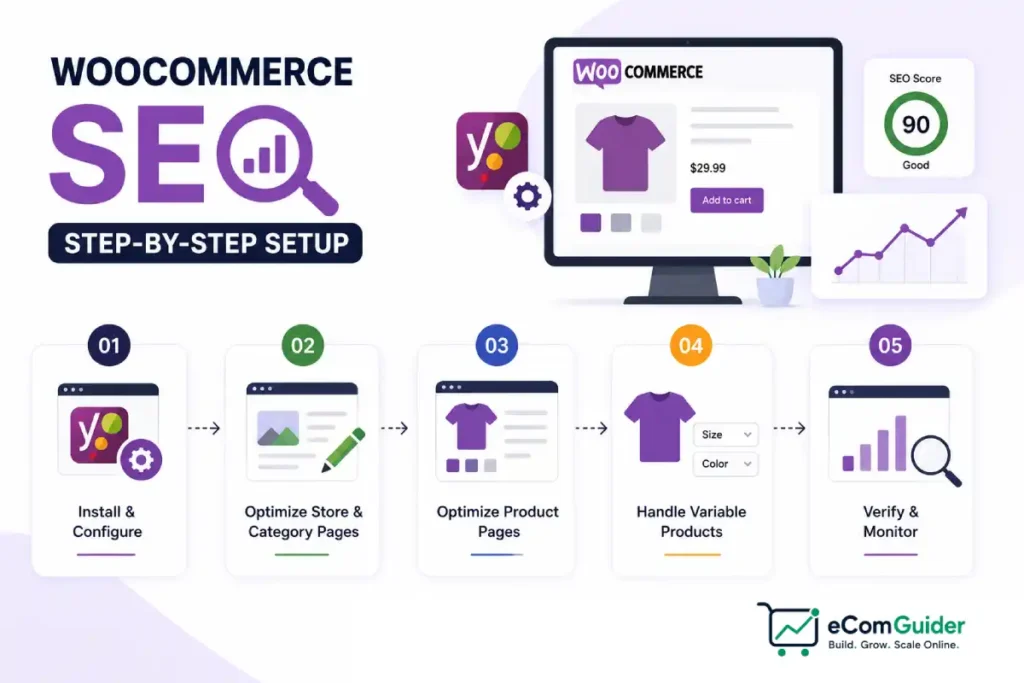
What is WooCommerce SEO?
WooCommerce SEO is the process of optimizing a WooCommerce store to improve its visibility in Google Search. It includes keyword research, technical SEO, schema markup, product optimization, Core Web Vitals, internal linking, and site architecture to attract more organic traffic and sales.
Why WooCommerce Is Good for SEO
WooCommerce is built on WordPress, giving store owners significantly more SEO control than many hosted ecommerce platforms. Unlike platforms that restrict URL structures or advanced customization, WooCommerce allows you to optimize almost every technical and on-page SEO element.
Key advantages include:
- Complete control over URL structure and permalinks
- Full access to titles, meta descriptions, robots directives, and canonical tags
- Flexible schema implementation through plugins like Rank Math or Yoast SEO
- Unlimited content creation using WordPress pages and blog posts
- Easy internal linking between products, categories, and buying guides
- Large ecosystem of SEO, caching, image optimization, and performance plugins
- No platform-imposed limits on technical SEO customization
The trade-off is that WooCommerce does not configure these settings automatically. Better rankings depend on proper setup, ongoing maintenance, and regular technical audits.
WooCommerce SEO Ranking Factors
Google uses hundreds of signals to rank ecommerce pages, but these factors have the greatest impact on WooCommerce stores:
- Fast loading pages that pass Core Web Vitals
- Unique product and category content
- Proper Product schema and structured data
- Clean URL structure and canonical tags
- Strong internal linking
- Mobile-friendly page experience
- Secure HTTPS hosting
- High-quality product images with descriptive alt text
- Helpful customer reviews and trust signals
- Backlinks from relevant, authoritative websites
Improving these factors consistently has a much greater impact than changing individual SEO settings in isolation.
Who This Guide Is For
This guide is designed for anyone responsible for improving the search visibility and organic growth of a WooCommerce store, including:
- New WooCommerce store owners launching their first ecommerce website
- Existing stores looking to increase organic traffic and product sales
- SEO professionals performing WooCommerce technical audits
- Marketing teams managing ecommerce SEO campaigns
- Agencies optimizing client WooCommerce stores
- Businesses migrating from Shopify, Magento, BigCommerce, or another ecommerce platform to WooCommerce
Whether you’re setting up a brand-new store or improving an established one, the steps in this guide will help you build a stronger technical SEO foundation and create pages that are easier for both search engines and customers to navigate.
WooCommerce SEO Checklist
Use this checklist before launching a new WooCommerce store or auditing an existing one.
- Fast WooCommerce hosting configured
- CDN enabled for product images and static assets
- Rank Math or Yoast installed and fully configured
- WooCommerce Product Schema validated using Google’s Rich Results Test
- XML sitemap generated and submitted to Google Search Console
- Clean permalink structure configured before launch
- Product canonical tags verified, especially for variable products
- Product attribute archives set to noindex unless they have proven search demand
- Robots.txt reviewed to avoid blocking important product and category pages
- Category pages optimised with unique content, metadata, and internal links
- Product pages optimised with unique titles, descriptions, images, and structured data
- Product images compressed and served in WebP or AVIF format
- Image filenames, alt text, width, and height attributes properly configured
- Core Web Vitals meet Google’s recommended thresholds (LCP, INP, and CLS)
- Google Merchant Center connected and product feed verified
- Internal links added between blog posts, categories, and product pages
- Redirects created for any changed or removed URLs
- Google Search Console monitored for indexing, crawl errors, and Core Web Vitals
- Duplicate content checked across product variations, filters, and supplier descriptions
- SEO settings reviewed after major WooCommerce, WordPress, theme, or plugin updates
Keyword Research for WooCommerce, Before You Set Anything Up
Technical setup makes your pages crawlable. Keyword research determines what those pages target, and it works differently at different levels of your store.
- Product-level keywords target a shopper who already knows roughly what they want, research the exact product name and its close variations, how a customer searches, not your internal naming
- Category-level keywords target a shopper still comparing options within a type of product, these commonly have meaningfully higher search volume than any single product term, and are often the most underoptimized pages on a store as a result
- Informational, commercial-intent keywords target a shopper still deciding, a buying guide, a comparison, a how-to, these belong on your blog, not forced onto a product or category page
Prioritize this research on your best-selling and highest-margin products and categories first, not your full catalog at once.
Estimated Setup Time
The exact time depends on your store size and current SEO setup, but most WooCommerce stores can expect:
- Basic WooCommerce SEO setup: 2–4 hours
- Complete technical optimization: 1–2 days
- Large catalog SEO audit (1,000+ products): Several days
- Ongoing monthly maintenance: 1–3 hours
If you’re launching a new store, completing these steps before indexing your website can prevent many common SEO issues later.
Before You Start
Before making SEO changes to your WooCommerce store, make sure you have the following in place:
- Administrator access to your WordPress dashboard
- A complete website backup or staging environment
- Google Search Console connected and verified
- Google Analytics or another analytics platform installed
- An SEO plugin such as Rank Math or Yoast SEO installed
- Access to your hosting control panel or server settings
- SSL (HTTPS) enabled across your entire website
Making major SEO changes without a backup or staging environment can lead to unnecessary downtime or indexing issues. Testing significant updates before deploying them to your live store is always recommended.
Step 1: Fix Your Hosting Before Anything Else
WooCommerce’s database queries for cart and product data put meaningful load on your server that a generic shared plan was not built for. Do this before anything else in this guide, a slow host undermines every fix that follows.
- Check your current host’s specifications against WooCommerce’s actual requirements, not just general WordPress hosting requirements
- If you are on generic shared hosting and running a genuine product catalog, move to hosting built specifically for WooCommerce’s database and caching needs
- Set up a CDN for your product images specifically, this matters more here than on a typical WordPress blog since a full catalog represents substantial page weight
Step 2: Install and Configure Your SEO Plugin
Choosing between RankMath and Yoast
| RankMath | Yoast | |
|---|---|---|
| WooCommerce product schema | Included free | Requires a separate paid add-on |
| Redirect manager | Included free | Requires Premium |
| Schema types in free tier | 15 to 17 types | Fewer, though FAQ and HowTo were added free in 2021 |
| Pro pricing | Roughly $69 to $84 a year | Roughly $99 to $128 a year, plus the separate WooCommerce add-on |
RankMath’s free tier includes full WooCommerce product schema, price, availability, and review data eligible for Google Shopping rich results, without an upgrade. Yoast’s core plugin does not include this, you need its separate WooCommerce SEO add-on, commonly priced around €178.80 a year on top of Yoast Premium itself.
Installing RankMath, step by step
- Go to Plugins, then Add New, search for RankMath, install and activate it
- The setup wizard launches automatically, walk through its 6 steps: Getting Started, Import, Your Site, Search Console, Sitemaps, and Optimization
- On the Your Site step, select Online Store as your site type, not Blog, this changes which settings the wizard recommends
- On the Search Console step, connect your Google Search Console account directly if you already have one set up
- On the Sitemaps step, confirm Include Products In Sitemap is set to On, and Include Categories In Sitemap is On with Include Empty Terms turned off
- After the wizard completes, go to Rank Math, then Dashboard, then Modules, and confirm the WooCommerce module is toggled on, this activates Product Schema, breadcrumbs, and enhanced product metadata specifically
Recommended settings worth changing from default
- Noindex Empty Category and Tag Archives, turn this on, an empty archive page adds nothing and can read as thin content
- Nofollow External Links, leave this off, external links are a genuine citation signal, not something to hide from Google
- Strip Category Base, turn this on, removes /category/ from your URLs for a cleaner structure
- Redirect Attachments, turn this on, prevents thin, unintentional attachment pages from being indexed
Common mistake: Choosing a plugin based on brand recognition alone. For a WooCommerce store specifically, RankMath’s free WooCommerce schema coverage is a quantifiable cost difference most guides do not spell out clearly.
What Product schema actually contains
Schema is not one thing, it is a genuine set of structured fields Google reads to build a rich result.
- Product, the base type, name, description, and image
- Offer, price, currency, and availability, in stock, out of stock, or preorder
- AggregateRating, your average star rating and total review count, this is what actually produces the visible stars in search results
- Review, individual customer reviews, feeding into the aggregate rating above
- SKU and GTIN, your internal and universal product identifiers, GTIN specifically matters for Google Shopping eligibility
- Brand, the manufacturer or brand name, missing this is a common, easy gap on multi-brand stores
RankMath populates most of this automatically from your existing WooCommerce product data, price and availability update automatically as your inventory changes. Confirm SKU and GTIN fields are filled in on your products, missing these specifically limits Google Shopping eligibility even when the rest of your schema is valid.
Keep Product Entities Consistent
Google uses product entities to understand exactly what you’re selling across Search, Shopping, and Merchant Center. Inconsistent product information can reduce trust and lead to feed errors or missing rich results.
For every important product, keep these fields consistent across your product page, structured data, and Merchant Center feed:
- Brand
- Manufacturer
- GTIN
- MPN
- SKU
- Product name
Avoid using different product names, identifiers, or brands in different systems. Consistent product entities help Google match your products correctly across Search, Shopping, and other Google surfaces.
Missing or invalid product schema means losing eligibility for rich results completely, star ratings, price, and availability badges simply do not show. Run every product template through Google’s Rich Results Test, not just one sample product, a theme or plugin update can silently break output across your whole catalog.
Step 3: Fix the Variable Product Duplicate Content Problem
This is the issue that is actually native to WooCommerce, not imported from general SEO theory, and most stores never notice it until it has already cost them traffic.
WooCommerce can generate parameter-based URLs for product variations, depending on your theme or variation plugin.
A t-shirt in three colors and four sizes can generate 12 separate URLs, all showing near-identical content, all competing against each other in search instead of one strong page.
A documented audit of hundreds of WooCommerce stores found extensive variation matrices show 67 percent higher duplicate content ratios than stores selling simple products, and common WooCommerce duplicate content issues reduce organic visibility by 25 to 40 percent in affected installations.
One filter implementation case study cited in that same audit found a 700-product site generating 11,000 indexed pages through appended filter parameters alone.
How to check this on your own store
- Open any variable product on your live site and select a specific variation, for example, the blue option
- Look at the URL, it should look like yourstore.com/product/t-shirt/?attribute_color=blue
- Right-click the page and select View Page Source, or use your browser’s developer tools
- Search the source for the word canonical, confirm the canonical URL listed points to the clean parent URL, yourstore.com/product/t-shirt/, not the variation URL itself
RankMath and Yoast with its WooCommerce add-on both handle this automatically in most standard configurations. If you use a custom variation URL structure or a third-party variation management extension, verify it directly rather than assuming it is correct.
Faceted navigation, WooCommerce’s version of a problem Google has documented directly
Attribute archive pages are WooCommerce’s specific form of faceted navigation, filters like color, size, and brand that generate their own URL for every combination. According to Google’s own guidance, this is by far the most common source of overcrawl issues site owners report, and in most cases it could have been avoided with better filter handling from the start.
Google’s official guidance recommends a layered approach, not one single fix, since the right setup depends on your specific catalog size and which filter combinations actually carry real search demand.
- In RankMath, go to Titles & Meta, then WooCommerce
- Find Product Attributes in the settings list
- For most WooCommerce stores, setting each attribute type, Color, Size, Material, and any others you use, to No Index is a reasonable default
- If using Yoast with its WooCommerce add-on instead, go to Search Appearance, then Taxonomies, then Product attributes, and turn off Show product attributes in search results
- Consider indexing a specific attribute value only if you have confirmed independent search demand for it, a color or size filter combination people actually search for directly, rather than applying one blanket rule to every attribute
Google’s own documentation notes that robots.txt alone only blocks crawling, not indexing, if a URL is already known to Google it can remain indexed unless paired with a noindex tag or canonical, blocking in robots.txt without also addressing indexing directly can leave the underlying problem in place.
Two more sources worth checking
- Your default /shop/ page commonly duplicates product listings already indexed on individual category pages, confirm it is not competing against your own categories
- If you sell products distributed by a supplier and use their description verbatim, dozens of other retailers using the same feed create the exact same duplicate content, write at least partially unique descriptions where this applies
Common mistake. Assuming variable product canonicals are handled correctly without ever checking. A custom variation setup can silently break this, verify directly in page source rather than assuming your plugin covers it.
Key takeaway. Keep product attribute archives on noindex unless they offer genuine, standalone value to a shopper searching that specific attribute. This reduces duplicate content and stops crawl budget being wasted on thin pages.
Step 4: Set Your Permalink Structure
Set this early, changing it later means genuine redirect work across your whole catalog.
- Go to Settings, then Permalinks, in your WordPress admin
- Under Common Settings, choose Post name or a custom structure, avoid the default Plain option which uses a query-string format
- Scroll to the WooCommerce-specific shop settings, decide whether to keep a shop base in your product URLs, removing it for a shorter URL is generally preferable
- Click Save Changes
Setting up redirects
- If using RankMath, its redirect manager is included free, go to Rank Math, then Redirections, to add a new redirect any time you change or remove a URL
- If using Yoast, the redirect manager requires Yoast Premium, factor this into your plugin decision if you expect to restructure URLs often
Common mistake: Leaving the default permalink structure in place because changing it feels risky. The actual risk is changing it later, once you have existing traffic and backlinks pointing at an unoptimized structure.
Step 5: Configure Your Sitemap and Indexing Settings
- Confirm your sitemap is live by visiting yoursite.com/sitemap_index.xml directly in your browser, both RankMath and Yoast generate this automatically once active
- Submit this URL in Google Search Console under Sitemaps, if you have not already
- For any page that should not be indexed, an internal search results page, a staging page, a thin auto-generated page, open that specific page or post in the editor and use your plugin’s per-page SEO settings to set it to noindex directly, no theme code required
- Confirm your robots.txt is not accidentally blocking pages you actually want indexed, both plugins let you view and edit this directly from their settings
Robots.txt rules worth setting specifically
- Block cart, checkout, account, and add-to-cart URLs, these have no indexable value
- For most WooCommerce stores, blocking variation parameters with a rule like Disallow: /*?attribute_pa_ is a reasonable default, confirm none of your own analytics show meaningful, independent traffic to these first
- Consider blocking sorting parameters like Disallow: /?orderby= and Disallow: /?sort=, these rarely carry unique search value, though check your own data before applying this broadly
- Do not block search results or pagination in robots.txt, these need noindex handling instead, not a crawl block, Google needs to crawl a page to see a noindex tag or canonical
Roughly 72 percent of ecommerce sites have robots.txt configurations blocking indexable content, with 38 percent blocking critical product pages by accident, per the same ContentGecko audit data.
Test your actual robots.txt in Google Search Console under Settings, then the robots.txt Tester, confirm product and category pages show Allowed while cart and checkout show Blocked.
Common mistake: Trying to fix duplicate content by blocking pages in robots.txt instead of using a canonical tag or noindex setting. Blocking a page in robots.txt prevents Google from ever seeing the actual fix on that page.
Step 6: Write Category and Product Page Content
Category pages
- Go to Products, then Categories, in your WordPress admin
- Click into a specific category, prioritize your highest-traffic categories first
- In the Description field, write 150 to 300 words of actually unique content, not boilerplate copied across every category
- Check how your theme displays this, some themes place it below the product grid by default rather than above it, adjust if needed
- Repeat for each category, working from highest to lowest traffic
Pagination handling for category pages
- Each paginated page, /category/mens/page/2/, needs its own self-referencing canonical, not a canonical pointing back to page 1, canonicalizing every page to page 1 tells Google the later pages are duplicates and should not be indexed
- For large catalogs specifically, consider indexing roughly the first 5 pages with self-referencing canonicals and applying noindex plus follow further into deep pagination, this is a common approach for preventing index bloat, not a fixed rule, a smaller catalog with only a few pages of pagination may not need this at all
- Add an FAQ section to your highest-traffic category pages specifically, answering the actual buying questions a shopper has before choosing between products in that category, this also makes the page eligible for FAQ schema
Product pages
- Open a product under Products, then All Products
- Replace any manufacturer or supplier boilerplate in the description with actually unique copy
- Confirm the Product Data panel has accurate attributes, since these feed directly into your schema output
- Use the Upsells and Cross-sells fields deliberately, curated relationships perform better than WooCommerce’s automatic suggestions in most themes
Beyond the description field
- Write your SEO title and meta description directly in your plugin’s snippet editor, not just the product title field, the SEO title can differ from your visible product name to include search-friendly phrasing
- Confirm your theme renders the product title as a real H1, not a banner or logo, check this the same way you checked category page headings
- Include genuine trust signals directly on the page, a specific shipping timeframe, your actual return policy, and genuine customer reviews, not just a star rating with no visible review text
- Link to actually related products and any relevant blog content directly from the product description, this is real internal linking value most stores leave on the table
Take a ceramic travel mug as an example. The on-page product title can stay simple, Ceramic Travel Mug, 12oz, while the SEO title in your plugin’s snippet editor carries more search-facing phrasing, Ceramic Travel Mug 12oz, Double-Wall Insulation. The meta description should sell the actual benefit, stays hot for 6 hours, cold for 12, dishwasher safe, rather than repeating the title.
The two do not need to match word for word, the on-page title stays clean for an actual visitor, the SEO title does the work in search results.
Image SEO, worth its own attention
Product images are one of the biggest opportunities most stores skip completely.
- Use descriptive filenames before upload, nike-air-max-270-black.webp, not IMG_93882.jpg
- Write specific alt text describing the actual image, black Nike Air Max 270 running shoes, not just the product name repeated
- Serve modern formats, WebP or AVIF, these compress meaningfully smaller than JPEG or PNG at equivalent visual quality
- Set explicit width and height attributes on every image, this directly prevents the layout shift that hurts CLS
- Enable lazy loading for images below the fold specifically, not your primary product image, which should load immediately
Internal Linking Strategy for WooCommerce
Internal links help Google discover pages, understand your site structure, and distribute authority across your store.
A good WooCommerce store should connect:
- Blog posts → relevant categories
- Categories → featured products
- Products → related products
- Products → buying guides
- Buying guides → collections
- Collections → supporting blog content
Avoid orphan product pages that are only accessible through search or filters. Every important product should be reachable within a few clicks from your homepage.
Product Collections: Create Landing Pages Beyond Categories
Categories organize your catalog, but collections let you target seasonal, promotional, and intent-driven searches that don’t fit your standard taxonomy.
Examples include:
- Gifts Under $50
- Summer Collection
- Eco-Friendly Products
- Best Sellers
- New Arrivals
Unlike product filters, well-built collection pages contain unique content, curated products, and a clear search intent. They can attract shoppers looking for themed product selections and often perform well for broader commercial keywords.
Treat important collections as permanent landing pages by giving them unique titles, descriptions, internal links, and structured navigation rather than generating them dynamically through filters.
Google Merchant Center, the Natural Next Step After Schema
Once your Product schema is valid, Google Merchant Center is worth setting up, it powers free product listings and Shopping results separately from your organic rankings.
- Create a free Merchant Center account and connect it to your site
- Confirm your product feed data matches your actual schema output, price, availability, and GTIN specifically need to stay consistent between the two
- Missing GTINs are a common, avoidable reason products get rejected from Merchant Center completely, confirm this field is filled in before submitting your feed
Step 7: Fix Core Web Vitals
- LCP, target under 2.5 seconds per Google’s own Core Web Vitals documentation, most commonly failed by unoptimized product gallery images, compress images before upload and serve modern formats like WebP or AVIF
- INP, target under 200 milliseconds, most commonly failed by payment gateway scripts and cart-update JavaScript loading site-wide, audit your active plugins and confirm scripts only load on the pages that need them
- CLS, target under 0.1, most commonly failed by product galleries and dynamically loaded reviews or upsell blocks, set explicit image dimensions rather than letting them load without them
Common mistake. Choosing hosting based purely on price without checking whether it is built for WooCommerce’s specific database load. A cheap generic WordPress host commonly becomes the actual bottleneck no plugin or theme choice can fix.
Step 8: Verify Every Fix Actually Worked
Do not assume a setting worked because you configured it, check each of these directly.
- Load a live product page and view its source, confirm the canonical tag points to the clean URL, not a variation or filter path
- Run that same product URL through Google’s Rich Results Test, confirm Product schema is present and valid
- Check a variation URL directly, confirm its canonical points back to the parent product
- Open Google Search Console’s Core Web Vitals report, confirm your actual pass rate, not just a single test result
- Search site:yourdomain.com in Google, scan for unexpected pages indexed, attribute archives, the /shop/ page ranking above your categories, anything that should not be there
Pro tip: Recheck your SEO setup after every major WooCommerce, WordPress, Rank Math, or theme update. Even minor plugin updates can change schema output, sitemap behaviour, or canonical settings without obvious warnings.
WooCommerce SEO Best Practices
Follow these best practices to maintain strong search performance as your store grows:
- Keep WordPress, WooCommerce, themes, and plugins updated.
- Review Search Console weekly for indexing or crawl issues.
- Publish unique product and category descriptions instead of supplier content.
- Optimize new product images before uploading them.
- Audit Core Web Vitals after major theme or plugin updates.
- Fix broken links and redirect deleted products.
- Review XML sitemaps regularly to ensure new products are indexed.
- Update older category pages with fresh content and FAQs.
- Monitor structured data using Google’s Rich Results Test.
- Perform a complete WooCommerce SEO audit every three to six months.
SEO is an ongoing process rather than a one-time setup. Regular maintenance helps preserve rankings as your catalog expands.
Optimizing WooCommerce for AI Search
Search is increasingly powered by AI-generated answers alongside traditional rankings. While the fundamentals of SEO remain the same, WooCommerce stores that provide clear product information and strong topical authority are more likely to appear in AI-powered search experiences.
To improve visibility:
- Publish unique product and category descriptions instead of manufacturer copy.
- Build buying guides that link naturally to products and categories.
- Use complete Product, Organization, and Breadcrumb schema.
- Keep Brand, GTIN, SKU, and other product entities consistent across your website and Merchant Center.
- Encourage authentic customer reviews and keep product information up to date.
- Organize your store with a logical category structure and descriptive internal links.
Rather than optimizing specifically for AI, focus on creating complete, trustworthy product pages that answer customer questions better than competing stores.
WooCommerce SEO vs Shopify SEO
Both WooCommerce and Shopify are capable of ranking well in Google Search, but they approach SEO differently.
| Feature | WooCommerce | Shopify |
|---|---|---|
| URL Control | Full control | Some URL structure limitations |
| SEO Plugins | Extensive ecosystem | Smaller app ecosystem |
| Schema Customization | Highly customizable | More limited without apps |
| Hosting | Choose your own | Managed by Shopify |
| Performance | Depends on hosting | Optimized out of the box |
| Technical SEO | Maximum flexibility | Easier for beginners |
WooCommerce generally suits businesses that want complete technical control and are comfortable managing hosting and plugins.
Shopify is often easier for beginners because many technical optimizations are handled automatically, although this comes with less flexibility over URL structures and advanced customization.
If your business relies heavily on content marketing, technical SEO, and custom functionality, WooCommerce usually provides greater long-term flexibility.
Recommended WooCommerce SEO Tools
The following tools can help you monitor, validate, and improve your WooCommerce store’s SEO performance.
| Tool | Best For |
|---|---|
| Google Search Console | Monitor indexing, search performance, crawl errors, and Core Web Vitals |
| Google Rich Results Test | Validate Product schema and other structured data |
| Google PageSpeed Insights | Analyse page speed and Core Web Vitals performance |
| Google Merchant Center | Submit product feeds for free Shopping listings |
| Screaming Frog SEO Spider | Crawl your store to identify broken links, redirects, duplicate content, and metadata issues |
| Rank Math SEO | WooCommerce SEO, schema markup, XML sitemaps, redirects, and metadata management |
| Yoast SEO | SEO optimisation, metadata management, XML sitemaps, and readability analysis |
| GTmetrix | Performance testing and waterfall analysis |
| Ahrefs Webmaster Tools | Identify technical SEO issues and backlink opportunities |
| Bing Webmaster Tools | Monitor indexing and search performance on Bing |
What Actually Makes WordPress and WooCommerce Strong for SEO
Your permalink structure is fully yours to set, no fixed prefix constraint exists the way it does on more locked-down platforms. Canonical logic, redirects, and noindex controls are all exposed directly through your SEO plugin’s settings, no theme code required for most of the fixes in this guide.
The real tradeoff is that none of this is automatic. There is no built-in CDN, no automatic schema, no managed hosting handling your infrastructure for you, you build every one of these yourself, through the plugin and hosting choices covered above. WordPress’s actual strength is what you can configure once you know what to configure, not a strong out-of-the-box default.
This flexibility carries a specific risk too, running more than one SEO-adjacent plugin at once, a schema plugin alongside your main SEO plugin, for example, can create silent conflicts where two plugins write competing schema for the same page. Keep your SEO responsibilities in one plugin, RankMath or Yoast, rather than layering multiple tools handling overlapping jobs.
WooCommerce SEO Strategy for Growing Stores
Configuration gets your pages crawlable and correctly tagged. It does not tell you how to structure a catalog as it grows, and that structure matters more than any single technical setting.
Category hierarchy, brand versus attribute
Two distinct structures compete for most stores, organize by brand, Nike, Adidas, Puma, or organize by product type and attribute, Running Shoes, then Men’s Running Shoes. Neither is universally correct.
A store where customers search by brand name first should lead with brand categories. A store where customers search by need first, running shoes specifically, not a brand, should lead with the product-type structure and treat brand as a filter within it, not the top of the hierarchy. Check your own search data, not a generic rule, before committing to either.
How many products belong on one category page
There is no fixed number that works everywhere. A category with 20 well-differentiated products may not need pagination at all, a category with hundreds does.
The real decision is not the exact count, it is whether your top category page loads fast and shows your actual best products first, not just whatever the default sort order surfaces. Pagination becomes a genuine problem specifically when deep pages get indexed with nothing to differentiate them from page 1, covered in the pagination section above.
Which filters deserve to be indexed, as a strategic question, not just a technical one
The technical answer is noindex most attribute combinations by default. The strategic question underneath that is which specific filter values have real, independent search demand, a size or color combination people actually search for directly, not just browse to. Check your own site search data and Search Console queries for this, index the ones with confirmed demand as real landing pages, leave the rest noindexed.
One product with variations, or separate products
A red t-shirt and a blue t-shirt of the same style should almost always be one variable product, not two separate listings, this is exactly what the variation system exists for. Splitting them recreates the duplicate content problem covered earlier in a different form.
The real exception is when the variants are different enough to attract actually different searches, a completely different material or a meaningfully different price point, where two customers searching for each would use different, unrelated terms.
Category pages target the broad term, products target the specific one
Your category page should target the broad term, running shoes. Your product page should target the specific one, a named model. Writing category-level content that tries to rank for a specific product name, or a product page that tries to rank for the broad category term, splits your own ranking signal against yourself for a term neither page is positioned to actually win.
Connecting blog content to the catalog as your store grows
A blog post should link to the specific category or product it is actually relevant to, not just exist as separate content. As a catalog grows past a few hundred SKUs, this connective structure matters more, not less.
New categories should get their own supporting content before they get significant ad spend, and a category that no longer has enough distinct products to justify its own page is a genuine candidate for merging into a broader one rather than staying thin indefinitely.
When to Hire a WooCommerce SEO Expert
Many WooCommerce stores can implement the fundamentals covered in this guide without outside help. However, professional SEO support often becomes worthwhile when a store grows in size or complexity.
Consider hiring an expert if:
- Your store has hundreds or thousands of products.
- Organic traffic has declined after a Google update.
- Duplicate content continues appearing despite canonical settings.
- Core Web Vitals remain poor after performance optimization.
- Google Search Console reports widespread indexing or crawl issues.
- You are migrating from another ecommerce platform.
- Your store depends heavily on organic search revenue.
An experienced WooCommerce SEO specialist can perform technical audits, resolve indexing problems, improve site architecture, optimize structured data, and develop a long-term content strategy that scales with your catalog.
Advanced WooCommerce SEO Tips
Once your technical foundation is complete, focus on improvements that help large WooCommerce stores scale.
- Build topic clusters by linking buying guides to relevant categories and products.
- Use descriptive breadcrumb navigation to strengthen your internal linking structure.
- Add Product, Breadcrumb, Organization, and FAQ schema where appropriate.
- Keep orphan pages to a minimum by ensuring every product is linked from at least one category or collection.
- Regularly review Search Console queries to identify new category and content opportunities.
- Merge or redirect thin product categories instead of leaving low-value pages indexed.
- Review crawl reports every few months to detect duplicate URLs, redirect chains, and indexing issues.
- Update older product descriptions and category pages as products, pricing, and search trends change.
Keep This Current
Revisit this setup every 3 to 6 months, and specifically after any major WooCommerce, WordPress, RankMath, or Yoast update, and after any confirmed Google Search algorithm update that touches product or ecommerce results. Settings that were correct at launch can silently drift, a theme update can alter heading structure, a plugin update can change default schema output. Treat this as maintenance, not a one-time project.
Monitor Your WooCommerce SEO Performance
Review your SEO performance regularly instead of waiting for rankings to decline.
In Google Search Console, monitor these reports regularly:
- Product snippets – Check for structured data errors that prevent rich product results.
- Merchant listings – Identify issues affecting free product listings in Google Shopping.
- Page indexing – Confirm important products and categories are indexed while unnecessary pages remain excluded.
- Core Web Vitals – Track loading performance and user experience across your store.
- Crawl stats – Monitor how Googlebot crawls your website and identify crawl inefficiencies.
- Performance – Review impressions, clicks, rankings, and search queries to discover new optimization opportunities.
Also keep an eye on:
- Organic traffic
- Redirects
- Broken links
- XML sitemap status
- Product schema validation
Running a technical WooCommerce SEO audit every three to six months helps identify problems before they affect rankings.ical SEO audit every three to six months helps identify issues before they affect rankings.
Common Mistakes
- Fixing schema or content before your hosting can serve pages fast. Nothing else fully works on a slow foundation
- Choosing an SEO plugin without checking its actual WooCommerce coverage. The Yoast versus RankMath gap on WooCommerce schema specifically is meaningful and affects both cost and setup time
- Assuming variable product canonicals are handled correctly without checking. Verify directly in page source, a custom variation setup can silently break this
- Leaving category pages empty. This is free, high-impact SEO work most WooCommerce stores simply skip
Final Thoughts
WooCommerce remains one of the most SEO-friendly ecommerce platforms because it gives you complete control over technical SEO, content, structured data, and site architecture.
That flexibility also means more responsibility. A fast hosting provider, a properly configured SEO plugin, clean URL structures, optimized product pages, and ongoing technical maintenance all work together to improve search visibility.
SEO is not a one-time setup. Continue monitoring indexing, Core Web Vitals, structured data, internal links, and category performance as your catalog grows.
Focus on delivering the best experience for both shoppers and search engines, and your WooCommerce store will be positioned for long-term organic growth.
FAQ for WooCommerce SEO
Is RankMath actually better than Yoast for WooCommerce specifically?
Yes, for WooCommerce specifically. RankMath includes full WooCommerce product schema and a redirect manager in its free tier, Yoast requires separate paid add-ons for the same coverage, a meaningful cost and setup difference for an ecommerce store.
What is the biggest WooCommerce-specific SEO problem?
Variable products creating duplicate content by default. A product with multiple colors and sizes can generate a dozen competing URLs unless canonical tags consolidate them back to the parent product, verify this directly in page source rather than assuming your plugin handles it.
What is the first step in setting up WooCommerce SEO?
Hosting, before anything else. A slow host undermines every technical fix that follows, confirm your hosting can handle WooCommerce’s actual database load before touching schema or content.
How do I check if my WooCommerce SEO settings actually worked?
View the page source on a live product page and confirm the canonical tag, run the URL through Google’s Rich Results Test, and check Google Search Console’s actual Core Web Vitals report rather than assuming a configured setting took effect.
Does running multiple SEO plugins improve WooCommerce SEO?
No, it commonly causes genuine problems instead. Two plugins handling overlapping jobs, schema output in particular, can silently conflict and produce invalid or duplicate structured data. Keep your core SEO responsibilities in one plugin.
What causes poor Core Web Vitals on WooCommerce specifically?
Cart and checkout scripts loading site-wide instead of only where needed, unoptimized product gallery images, dynamically loaded review or upsell blocks shifting layout, and hosting that is not actually built for WooCommerce’s database load.
Does WooCommerce automatically create an XML sitemap?
No, not without a plugin. Both RankMath and Yoast generate one automatically once activated, updating as your catalog changes, WordPress and WooCommerce core do not include this on their own.
Should product tags be indexed?
Generally no, unless a specific tag page has genuine search demand behind it. Most tag archive pages are thin, near-duplicate content, noindex them by default and only index a specific tag if you have confirmed search volume for it.
How many products can WooCommerce actually handle before SEO becomes harder?
There is no hard limit, but past a few thousand SKUs, collection architecture, faceted navigation, and crawl budget management become the actual priority, exactly as with any platform at that scale.
Is Rank Math Pro actually worth it for a WooCommerce store?
Often not immediately. The free tier already includes WooCommerce product schema and a redirect manager, the features most WooCommerce stores specifically need, evaluate Pro once you need its additional keyword tracking or advanced analytics specifically.