
Shopify’s native import tool handles products and customers cleanly. It does not touch your order history at all, and most store owners do not find that out until they are already mid-migration.
Your theme, your SEO metadata, and your entire URL structure do not transfer either, each one requires a separate, deliberate step.
None of this makes the migration risky if you know it in advance.
It makes it risky only when a store owner assumes the platforms map cleanly onto each other and finds out otherwise after launch, with search rankings and order history already gone.
This playbook covers every step, in the order that actually prevents that.
Key Takeaways
- WooCommerce has no native customer or order export. WordPress’s Tools, then Export screen handles content only, posts and pages in WXR format, not customer or user records. A dedicated plugin is required for both customers and orders, not merely helpful for finer control.
- Customer passwords cannot migrate from WooCommerce to Shopify directly. This is a real limitation specific to this pairing, not a universal rule true of every platform migration.
- SEO metadata migration depends on your tool. Shopify’s native importer does not carry this over, but Matrixify, LitExtension, and Cart2Cart can migrate SEO fields depending on configuration, verify with your specific tool rather than assuming manual re-entry is always required.
- Manual CSV migration and using a dedicated migration tool are separate workflows. This guide covers both completely and separately, rather than blending steps meant for one into a walkthrough meant for the other.
- Freezing new orders during cutover is one real approach, not the only one. Larger stores commonly use a delta migration instead, capturing orders placed after the initial export rather than pausing the store for hours.
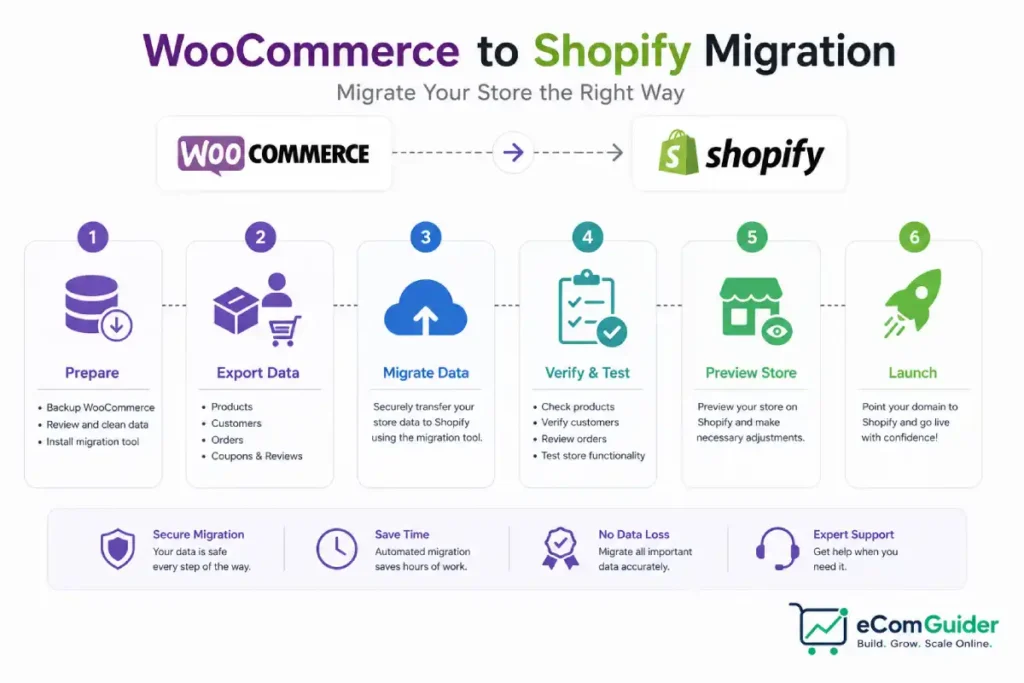
What Does Not Transfer Automatically, Accurately Stated
- Your page builder content. Elementor, WPBakery, Divi, and Gutenberg blocks have no Shopify equivalent, your pages export as static HTML, not editable content
- Your theme and design. Shopify runs on its own templating system, Liquid, and requires a real rebuild, not a transfer
- Your URL structure. Every WooCommerce URL needs a corresponding 301 redirect built manually, nothing maps this automatically
- SEO metadata, depending on your tool. Shopify’s own native importer does not carry this over, but some dedicated migration tools do support it directly, confirm with your specific tool before assuming a full manual re-entry is needed
- Plugin-specific data, depending on the plugin and tool. Custom fields, Advanced Custom Fields data, subscriptions, and membership data can sometimes migrate with the right tool or custom development, this is not a universal, simple no across every plugin
Choosing Your Migration Method
This is the fork point, and picking one path clearly avoids mixing steps meant for a different method.
| Method | Best For | Real Trade-off |
|---|---|---|
| Manual CSV export and import | Small catalogs, under 500 products, comfortable with WordPress and spreadsheet work | Free, but order history, customer export, and SEO metadata all need separate, deliberate handling |
| Matrixify | Larger catalogs, more reliable field mapping | Handles bulk import more cleanly than Shopify’s default tools, supports a dry-run import, and can migrate SEO metadata depending on configuration |
| LitExtension or Cart2Cart | Large catalogs, less manual work desired | Paid, handles products, customers, orders, and images in a more coordinated pass than separate manual exports |
Pick one path and follow it through completely.
The Pre-Migration Checklist
- Record your exact inventory counts. Products, variations, customers, orders, coupons, and categories. Screenshot the numbers so you can verify the import matches afterward.
- Export your complete URL inventory, not just your top pages. Every product, category, page, and blog post URL needs a place in your redirect map, use Google Search Console’s top-clicked pages to prioritize which URLs to test first, not to define the entire scope of what needs a redirect.
- Note your page builder. Elementor, WPBakery, Divi, or Gutenberg blocks, none of these migrate. Your product pages render to static HTML on export, and Shopify’s editor is a completely different system.
- Check your product data for issues before exporting. Duplicate SKUs, products missing images, products exceeding Shopify’s variant limits, and customer records missing required fields all cause import errors if not cleaned first.
- Decide your approach for orders placed during migration. Either pause new orders temporarily during final cutover, or plan a delta migration to capture orders placed after your initial export, larger stores commonly prefer the delta approach over freezing the store for hours.
Method A: Manual CSV Migration
Follow this path completely if you chose manual migration. Do not mix in migration-tool steps from Method B.
A1: Back Up Your Database (WooCommerce)
- Take a full database backup directly, not just the CSV exports coming in the next steps
- Store it somewhere completely outside your hosting environment
A2: Export Your Products (WooCommerce)
- In WordPress admin, go to Products, then All Products
- Click Export
- Leave all columns and product types selected
- Click Generate CSV
This produces a file with all your product fields, typically around 38 columns. WooCommerce’s built-in export handles this natively, no plugin required, this is the one entity type with a genuine native export.
A3: Export Your Customers (WooCommerce)
WooCommerce has no native customer CSV export built into core.
- Install a customer export plugin, such as Customer/Order/Coupon Export for WooCommerce or WP All Export, a plugin is required here
- Configure the export to include names, emails, addresses, and any custom fields your store collects
- Run the export and download the resulting CSV file
A4: Export Your Orders (WooCommerce)
WooCommerce provides no native CSV order export suitable for a Shopify migration either.
- Install an export plugin, such as Order Import Export Plugin for WooCommerce
- Select Orders as the data type
- Choose whether to include guest checkout orders
- Export as CSV
A5: Import Your Products (Shopify)
- Go to Products, then Import
- Upload your exported product CSV
- Confirm every product image URL is publicly accessible, or plan to download and re-upload any that are not, Shopify’s importer cannot fetch images it cannot reach
- Run the import and review results against your recorded inventory count
A6: Import Your Customers (Shopify)
- In Shopify admin, go to Customers, then Import
- Upload your formatted customer CSV
- Confirm field mapping, name, email, phone, and address fields map differently between the two platforms
A7: Import Your Orders (Shopify)
- Convert your exported order CSV to match Shopify’s import format, or use a plugin capable of writing directly to Shopify’s order structure
- Run the import and verify the order count against your pre-migration checklist
A8: Handle SEO Metadata Manually
- Since manual CSV migration does not carry meta titles and descriptions automatically, export this data from your Yoast or Rank Math settings separately
- Enter it into Shopify’s SEO fields for your highest-traffic pages first
Method B: Migration Tool Workflow
Follow this path completely if you chose Matrixify, LitExtension, or Cart2Cart. Do not mix in manual CSV steps from Method A.
B1: Set Up Your Shopify Store (Shopify)
- Create your Shopify account and complete basic store configuration
- Choose a starting theme, your migration tool will not transfer your WooCommerce design
B2: Configure and Run Your Migration Tool (Migration Tool)
- Connect your tool to your WooCommerce site, either via direct connection or by uploading your export, depending on your specific tool’s setup process
- Select which entities to migrate: products, customers, orders, and confirm directly whether images, SEO metadata, and specific plugin data like ACF fields or subscriptions are covered by your tool
- Run a demo or test migration first if the tool supports it
- Execute the full migration once results check out, most tools handle image downloading and re-hosting automatically as part of this process, confirm this with your specific tool rather than assuming manual work is required
B3: Verify the Results (Both Platforms)
- Cross-check migrated product, customer, and order counts against your pre-migration inventory
- Spot-check a real sample of each entity type
- Confirm whether SEO metadata transferred, some tools carry this over directly, verify rather than assume it needs manual re-entry
Both Methods Converge Here
Send a Bulk Password Reset
- Customer passwords cannot migrate from WooCommerce to Shopify directly, this is a real limitation specific to this pairing
- Immediately after customer import, before the store goes live, send a bulk password reset email to every migrated customer
Rebuild Your Theme
- Choose a Shopify theme matching your brand’s design intent, since your WooCommerce theme does not transfer
- Rebuild key pages using Shopify’s Liquid templating system
- Recreate any custom functionality your page builder previously handled, this is real development work
Set Up 301 Redirects
- Using your complete URL inventory from the pre-migration checklist, map every old WooCommerce URL to its new Shopify equivalent, covering products, categories, pages, and blog posts, not only your top-traffic pages
- Also check WooCommerce for any redirect rules already active, commonly managed through Yoast’s redirect manager, and rebuild those too
- Set up 301 redirects for each one, either through Shopify’s native URL redirect tool or a redirect app for larger catalogs
- Test a sample of redirects directly in a browser before considering this step complete
Test Everything Before Launch
- Place a real test order through the new Shopify store, confirm payment processing, order confirmation, and email delivery all work
- Spot-check a sample of migrated products, customers, and orders against your original WooCommerce counts
- Confirm redirects work correctly for your top URLs, not just the homepage
Go Live
- Update your domain’s DNS to point to Shopify
- Keep your WooCommerce site accessible on a temporary URL for a short period, in case a rollback becomes necessary
- Monitor Google Search Console closely for the first two to four weeks after launch for any indexing or redirect issues, incorrect redirects can significantly reduce organic traffic and revenue until indexing stabilizes
The Rollback Plan
- Lower your domain’s DNS TTL a few days before cutover, this reduces how long a rollback takes to propagate if you need one
- Keep your WooCommerce site fully intact and accessible on a subdomain or temporary URL for at least two to four weeks post-launch
- Do not delete your WooCommerce database or hosting until the new Shopify store has been stable through at least one full order cycle
- If redirects break or rankings drop sharply, the fastest fix is reverting DNS back to WooCommerce while you diagnose the issue
Real Migration Timeline
| Store Size | Data Migration | Design, Testing, and Launch | Total |
|---|---|---|---|
| Under 500 products | A few days | 1 to 2 weeks | Roughly 2 to 3 weeks |
| 500 to 5,000 products | 1 to 2 weeks | 2 to 4 weeks | Roughly 1 to 2 months |
| 5,000+ products, custom functionality | 2+ weeks, often agency-assisted | 4+ weeks | 2+ months, sometimes longer |
WooCommerce to Shopify Migration Questions Answered
Does Shopify’s import tool migrate order history?
No. Shopify’s native import handles products and customers, but order history requires a separate migration app such as Matrixify, LitExtension, or Cart2Cart. This is the single most common gap store owners discover mid-migration.
Do customer passwords transfer from WooCommerce to Shopify?
No, on any migration path. Send a bulk password reset email to every customer immediately after import and before launch, so no one arrives at checkout unable to log in.
Will I lose my Google rankings when I migrate?
Only if you skip the redirect step. Export your top 200 URLs from Google Search Console before migrating and set up a 301 redirect for each one. Skipping this causes a real 30 to 60 day revenue dip from lost rankings.
Does my WooCommerce theme transfer to Shopify?
No. Shopify runs on its own templating system, Liquid, and requires a genuine rebuild of your design, not a transfer. Budget real time for this, it is development work, not a settings change.
How long does a WooCommerce to Shopify migration take?
A small store under 500 products typically completes data migration in a few days, with 1 to 2 weeks total including design and testing. Larger or more complex stores take proportionally longer, sometimes over two months.
Should I use a migration app or do it manually?
A dedicated migration app is worth it for most real migrations, since manual CSV export does not handle order history or complex product types well. Manual migration only makes sense for a very small, simple catalog.
What should I do on the WooCommerce side, not just Shopify?
Back up your full database directly, not just CSV exports, and freeze new orders during the gap between your final export and going live. This closes the window where a real sale can otherwise get lost, since it happened after your export but before Shopify was live to catch it.