
Most WooCommerce plugin guides solve the wrong problem. They list 30+ plugins and call all of them “must-haves.” The real problem is that every plugin you add runs code on every page load, and the cumulative weight slows your store, creates update conflicts, and inflates your annual costs faster than you expect.
The right question is not “which plugins exist?” It’s “which plugins does my store actually need at this stage?” This guide answers that by splitting the field into three tiers: essential (install on day one), optional (only if your store has a specific need), and skip (common recommendations that aren’t worth the cost or performance hit for most stores).
In this guide, you’ll learn which WooCommerce plugins genuinely earn their place, what each one costs, what breaks without them, and which popular recommendations you can safely ignore without losing sales.
Key Takeaways
- Every active plugin adds load time to your site. The Baymard Institute’s research shows a 70.22% average cart abandonment rate across eCommerce, and slow checkout is one of the primary drivers.
- A production-ready WooCommerce store needs five to seven well-chosen plugins, not twenty. Most stores run fifteen or more.
- WooCommerce Subscriptions ($279/year from Automattic) is the most overinstalled paid plugin. Stores that don’t sell recurring products have no reason to run it.
- Three plugins that every WooCommerce store needs from day one: an SMTP mail plugin, a caching plugin, and a security plugin. Most guides bury these at the bottom of a 30-item list.
- Plugin renewal increases are a documented hidden cost. Several vendors raise renewal prices by 30-50% after year one. Budget for this from the start.
Quick Comparison: The Plugin Tiers
| Plugin | Tier | Cost | What It Does |
|---|---|---|---|
| WP Mail SMTP | Essential | Free / $49+/yr | Fixes order email deliverability |
| Wordfence | Essential | Free / $119/yr | Firewall and malware scanning |
| WP Rocket | Essential | $59/yr | Caching and performance |
| Yoast SEO | Essential | Free / $89/yr | SEO metadata and sitemaps |
| WooPayments / Stripe | Essential | Free (gateway fees apply) | Payment processing |
| UpdraftPlus | Essential | Free / $70/yr | Automated backups |
| MailPoet | Essential | Free / $10+/mo | Email marketing from your WordPress admin |
| Omnisend | Essential | Free / $16+/mo | Multi-channel email, SMS, and automation |
| WooCommerce Shipping | Essential | Free | Discounted shipping labels (US merchants) |
| WooCommerce Tax | Essential | Free | Automatic sales tax calculation |
| YITH WooCommerce Wishlist | Optional | Free | Wishlist functionality |
| CartFlows | Optional | $299/yr | Sales funnels and upsells |
| WooCommerce Subscriptions | Optional | $279/yr | Recurring payments |
| MonsterInsights | Optional | $99.50/yr | Google Analytics integration |
| YITH WooCommerce Product Reviews | Optional | Free / $79.99/yr | Review collection and display |
| Product sliders | Skip | Varies | Visual bloat, usually hurts conversions |
| Multiple page builders | Skip | Varies | Conflicts, heavy CSS/JS |
| Duplicate SEO plugins | Skip | Varies | Plugin conflicts, redundancy |
What Makes a Good WooCommerce Plugin?
The standard advice is to look at star ratings and active installation counts. That’s a useful starting point, but it misses the factors that actually determine whether a plugin belongs on your store.
Update frequency is the real quality signal. WooCommerce ships major updates that break compatibility with poorly maintained plugins. Before installing anything, check the “Last updated” date in the WordPress plugin directory.
A plugin that hasn’t been updated in six months on a platform that releases major versions quarterly is a liability waiting to trigger a white screen of death.
The second test is feature overlap. The most common plugin mistake is installing two tools that do the same thing: two SEO plugins, two caching tools, two form plugins. Overlapping functionality causes conflicts that are notoriously hard to diagnose, and WooCommerce’s own documentation confirms that plugin conflicts are one of the most common causes of unexplained site slowdowns.
Third, consider what a one-second loading delay actually costs your store. The Aberdeen Group found that a one-second load delay reduces conversions by 7%.
For a store generating $10,000 per month, that’s $8,400 of annual sales lost, before you even account for the SEO ranking drop that slow Core Web Vitals cause.
Every plugin you install has to earn its place against that threshold.
Most guides recommend installing a plugin by category (“you need an SEO plugin, you need a caching plugin”).
This guide recommends installing by need: what specific problem does this solve, and is the plugin solving it without overlapping with something you already have?
How We Evaluated These Plugins
For this guide, we evaluated plugins across five criteria: active installation count (proxy for community support), update recency (within 90 days of a major WooCommerce release), known conflict history, performance impact measured by HTTP request count and asset weight, and total annual cost of ownership including renewal pricing.
To keep recommendations grounded in real WooCommerce store costs, we compared plugin pricing against the budget benchmarks outlined in our WooCommerce Pricing Guide and fee insights from our WooCommerce Payment Gateways Guide.
Gateways with documented compatibility issues, unresolved conflicts, or signs of abandoned development were excluded.
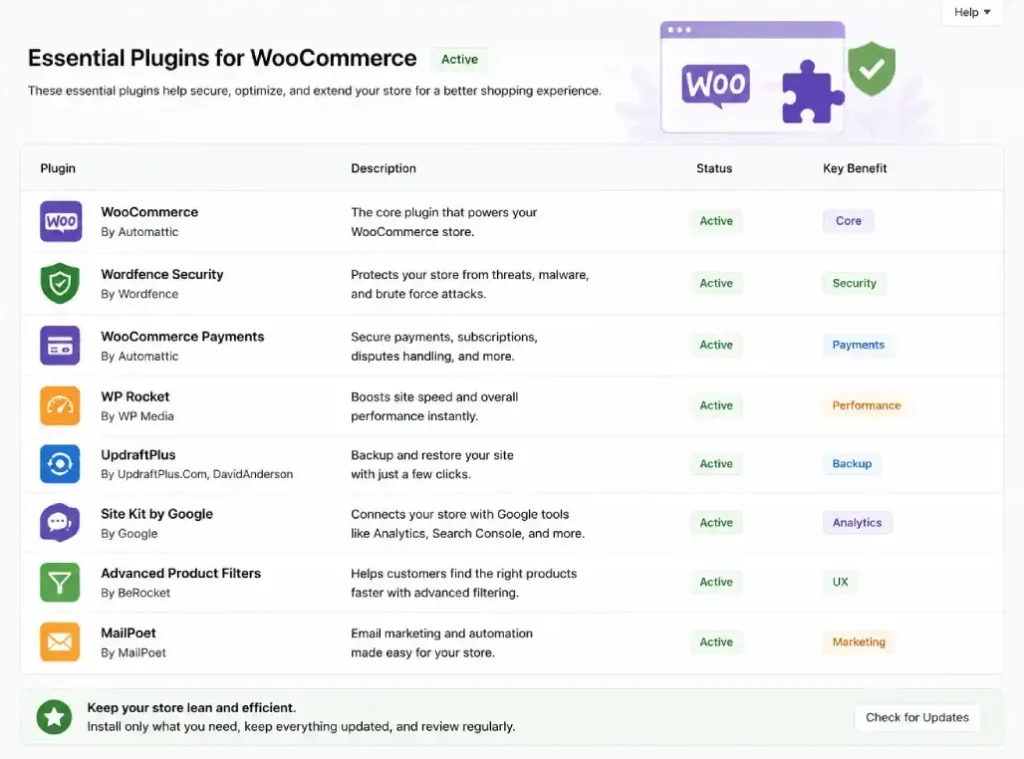
Essential WooCommerce Plugins: Install on Day One
These are not optional. Running a WooCommerce store without any of these is like opening a physical shop with no security system, no accounting software, and no way to send receipts. The failure modes are immediate and costly.
WP Mail SMTP: Best for Fixing Order Email Delivery
Most new WooCommerce store owners discover the email problem only after a customer complains about not receiving an order confirmation. WordPress’s default email function uses the PHP mail() function, which most hosting providers do not configure correctly, and some block it entirely. The result is transactional emails, order confirmations, shipping notifications, and password resets, that quietly drop into spam or never arrive at all.
WP Mail SMTP reroutes your store’s outgoing email through a dedicated SMTP relay (Gmail, SendLayer, Mailgun, and others).
Setup takes under 15 minutes, and the difference in deliverability is immediate.
Key Features
SMTP relay connection: Routes email through a properly authenticated sending server instead of PHP mail(). This passes spam filters that reject server-generated email without authentication credentials.
Email log: Keeps a record of every email your store attempts to send, with delivery status. When a customer claims they didn’t receive an order confirmation, you can verify in seconds whether it was sent and whether it was delivered.
Pre-built provider connections: One-click setup for Google Workspace, Microsoft 365, SendGrid, Mailgun, and others. No manual SMTP configuration unless you want it.
Email testing tool: Sends a test email from within the WordPress admin so you can confirm your relay is working before customers encounter the failure.
Conditional logic for routing: On the Pro plan, you can route different email types through different providers, useful if you want transactional email on Mailgun and marketing email on a separate service.
Pros
- The free version on Gmail or Google Workspace is genuinely functional for small stores. It solves the deliverability problem completely without a paid subscription.
- For stores sending more than 500 emails per day, the paid tiers unlock SMTP providers built for volume, reducing the risk of rate limiting or blacklisting.
Cons
- The free version does not include the email log, which means debugging deliverability issues is harder. If a customer reports not receiving a confirmation, you’re flying blind without it.
- The Pro plan at $49/year is required to unlock logging, a meaningful jump for a store at early stage.
Who It’s Best For
Every WooCommerce store. There is no scenario where relying on PHP mail() is preferable to a properly configured SMTP relay. This is the closest thing WooCommerce has to a mandatory plugin, and it should be installed before you take your first order.
Pricing
Free tier available. Pro plans start at $49/year for one site. The free version covers the core SMTP routing functionality. The Pro version adds email logging, smart routing, and priority support.
Wordfence Security: Best for Firewall and Malware Protection
WooCommerce stores hold payment data references, customer addresses, and order histories, which makes them targets.
WordPress security researcher Sucuri reports that WordPress sites face constant automated attacks at the login and xmlrpc endpoints, and WooCommerce stores running outdated plugins are the most common entry point.
Wordfence runs a web application firewall in front of your site and scans your file system for malware on a schedule you define.
The free version covers the core use case for most stores. The paid version adds real-time threat intelligence so you get firewall rules updated as new exploits emerge.
Key Features
Web application firewall: Inspects incoming requests before they reach WordPress and blocks known attack patterns, including SQL injection, cross-site scripting, and credential stuffing attacks.
Malware scanner: Scans WordPress core files, themes, and plugins against known clean versions and flags any modifications. Useful for detecting injected malware that may have been installed silently.
Login security: Limits login attempts, supports two-factor authentication, and allows you to block entire IP ranges or countries from the login page.
Live traffic view: Shows real-time requests hitting your site, including blocked attack attempts. Useful for identifying unusual traffic patterns before they cause problems.
Brute force protection: Automatically locks out IP addresses that attempt repeated failed logins, which is the most common form of automated credential attack on WordPress sites.
Pros
- The free tier runs both the firewall and scanner without a paid subscription, unlike some security plugins that lock the firewall behind a paywall.
- Over 5 million active installs means an active community, frequent updates, and fast vulnerability disclosures.
Cons
- The free version receives firewall rules on a 30-day delay. Paid users get real-time rules as new exploits are disclosed, a meaningful gap for stores in high-bot-traffic categories like supplements or electronics.
- The dashboard can feel overwhelming for non-technical store owners. The volume of blocked requests shown in the live traffic view is normal, but looks alarming at first glance.
Who It’s Best For
Every WooCommerce store. Security on a self-hosted platform is your responsibility. WooCommerce’s own support documentation lists security plugin installation as a required setup step, not an optional enhancement.
Pricing
Free tier includes firewall and scanner with delayed threat intelligence. Wordfence Premium is $119/year and adds real-time threat updates, country blocking, and premium support.
WP Rocket: Best for Caching and Core Web Vitals
WooCommerce sites are inherently slower than brochure sites because every cart page, account page, and checkout page must be served dynamically.
WooCommerce’s own troubleshooting documentation explicitly warns that dynamic pages cannot be cached without breaking checkout functionality.
WP Rocket is built with this constraint in mind: it automatically excludes cart, checkout, and account pages from caching while serving static cached versions of your shop, category, and product pages.
What most guides won’t tell you is that caching and lazy loading work differently on product pages with variable products.
If a product has multiple variants (size, color), the price and stock availability for each variant loads via JavaScript after the page renders.
Aggressive JavaScript deferral, which some caching plugins apply broadly, delays that script and can make product pages appear to have no price for several seconds. WP Rocket’s WooCommerce-specific exclusion list handles this correctly by default.
Key Features
Page caching with WooCommerce exclusions: Caches static pages while automatically excluding dynamic WooCommerce pages. No manual configuration required for standard setups.
Database optimization: Removes unnecessary post revisions, spam comments, and expired transients that accumulate in WooCommerce’s database and slow queries over time.
Lazy loading: Defers loading of off-screen images until the user scrolls toward them. Reduces initial page weight significantly on product pages with multiple images.
JavaScript deferral with smart exclusions: Delays non-critical JavaScript execution without breaking WooCommerce’s cart and checkout JavaScript.
CDN integration: Works with Cloudflare, Stackpath, and others to serve cached assets from edge locations closer to your customers.
Pros
- Setup is faster than any comparable free plugin. The performance improvement is visible in Google PageSpeed Insights within 24 hours of installation for most WooCommerce configurations.
- The built-in WooCommerce exclusions mean you don’t need to manually debug why your add-to-cart button stopped working after enabling caching.
Cons
- At $59/year for a single site, it costs more than many merchants expect from a caching plugin.
- If you’re on managed WooCommerce hosting (Kinsta, WP Engine), server-level caching may already be included, making WP Rocket redundant.
Who It’s Best For
WooCommerce store owners who want meaningful speed improvements without spending hours in caching plugin settings. Verify your host’s caching tier before purchasing, since some managed hosts provide equivalent functionality at the infrastructure level.
Pricing
$59/year for one website. All features are included across all tiers, with tier pricing based on number of sites.
Yoast SEO: Best for On-Page SEO and Product Schema
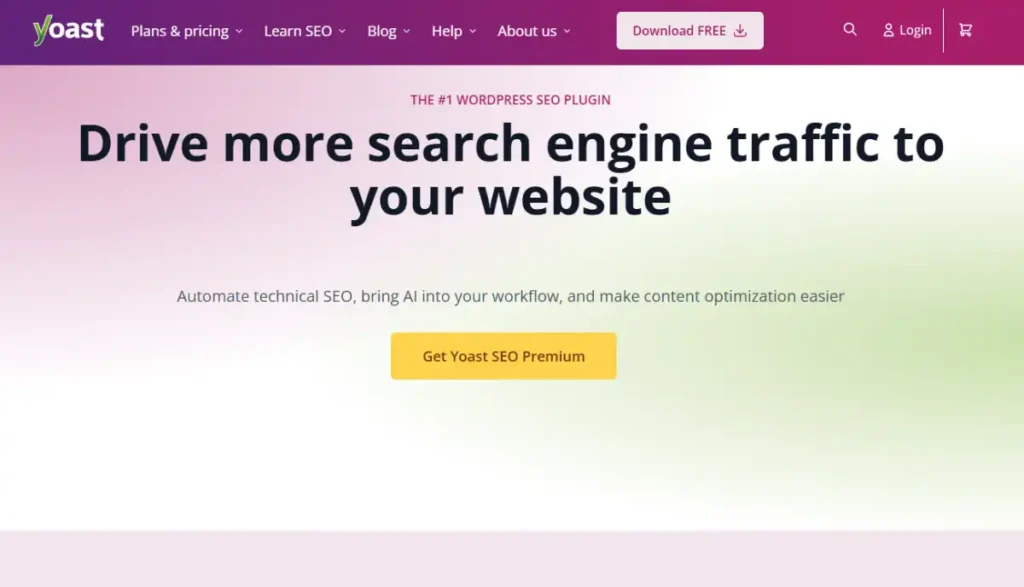
WooCommerce’s built-in SEO capabilities are minimal. Product pages get basic title and meta description fields, but there’s no structured data generation, no XML sitemap, and no readability analysis.
Yoast fills all of these gaps with a free tier that handles XML sitemap generation, basic product schema, and on-page analysis with a readability and keyword focus score.
The premium version ($89/year) adds the WooCommerce SEO extension, which enriches product schema with structured data for ratings, brand, and GTIN, increasing eligibility for rich results in Google Shopping.
For a deeper look at how WooCommerce’s SEO capabilities compare to platforms like Shopify, our WooCommerce review covers permalink control and duplicate content risks that no SEO plugin fully solves.
Key Features
XML sitemap: Automatically generates and updates sitemaps for products, categories, and pages. Submittable directly to Google Search Console.
Product schema: Adds structured data to product pages so Google can display price, availability, and rating in search results without a user clicking through.
On-page SEO analysis: Scores each product and page against a target keyword with specific, actionable recommendations (title length, keyword density, internal links).
Readability analysis: Flags overly long sentences and passive voice, which matters for product descriptions that need to convert as well as rank.
Redirect manager (premium): Allows you to set 301 redirects from within WordPress when you change product URLs or delete pages. Essential for stores that reorganize their catalog.
Pros
- The free version is sufficient for stores with under 500 products not competing for highly competitive keywords. Sitemaps, basic product schema, and on-page analysis are all included at no cost.
- The largest active installation base of any WordPress SEO plugin means extensive documentation, community support, and faster compatibility updates after WooCommerce major releases.
Cons
- Do not run Yoast alongside AIOSEO or Rank Math. Both generate competing XML sitemaps and inject conflicting schema markup, a combination that creates technical SEO problems that are time-consuming to clean up.
- The WooCommerce SEO add-on (for richer product schema) requires Yoast Premium, making the real cost for Google Shopping optimization closer to $89/year rather than free.
Who It’s Best For
WooCommerce stores at any stage. The free version covers new stores completely. The premium WooCommerce SEO extension is worth the upgrade for stores actively pursuing Google Shopping traffic or competing for high-value product keywords.
Pricing
Free tier fully functional for most stores. Yoast Premium is $89/year. The WooCommerce SEO add-on is bundled with Yoast Premium; check current pricing at Yoast’s site as bundle pricing changes periodically.
WooPayments or Stripe for WooCommerce: Best for Payment Processing
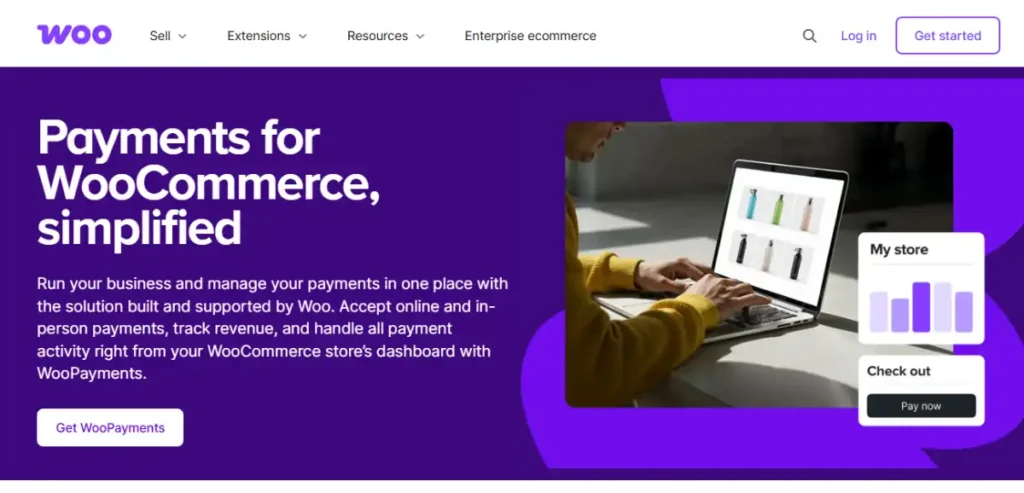
WooCommerce ships with a basic Stripe integration via WooPayments (Automattic’s branded payment layer built on Stripe) and a separate Stripe Payment Gateway plugin. For US merchants, WooPayments is the lower-friction option: it installs in minutes, requires no third-party Stripe account setup since Automattic manages the relationship, and charges the same transaction fee structure as Stripe directly (2.9% + $0.30 for US cards).
The plugin itself is free. You pay only gateway fees on successful transactions. For a complete comparison of what WooCommerce’s no-platform-fee model means at different revenue levels compared to Shopify, the WooCommerce vs Shopify analysis includes exact fee math at $5K, $20K, and $100K monthly revenue.
Key Features
Multi-payment method support: Accepts Visa, Mastercard, American Express, Apple Pay, Google Pay, and in select countries, local payment methods including iDEAL and SEPA.
Fraud protection: Built-in machine learning fraud detection using Stripe Radar. Automatically blocks transactions that match known fraud patterns without manual review.
Saved payment methods: Allows returning customers to pay with one click using previously saved cards. Reduces checkout friction and improves conversion on return visits.
Subscription support: Integrates with WooCommerce Subscriptions if you sell recurring products, handling automatic recurring charges and failed payment retries.
Dashboard integration: Order payments, refunds, and disputes are managed directly from your WooCommerce admin. No external Stripe dashboard required for basic operations.
Pros
- No monthly fee, no setup cost. You pay 2.9% + $0.30 per US transaction, the standard market rate, and WooCommerce itself adds no platform fee on top of this.
- Apple Pay and Google Pay are included natively, with no additional plugin or configuration required.
Cons
- Dispute resolution on WooPayments routes through Automattic’s support layer before reaching Stripe, which can slow response times compared to managing a direct Stripe account.
- WooPayments is not available in all countries. Merchants outside supported regions need the direct Stripe Payment Gateway plugin or a country-specific alternative.
Who It’s Best For
Every WooCommerce store needs a functional payment gateway. WooPayments suits merchants who want the simplest possible setup. For merchants who already have a Stripe account, or who want direct control over their Stripe dashboard, the Stripe Payment Gateway plugin is the alternative.
Pricing
Free to install. Standard processing: 2.9% + $0.30 per US card transaction. International cards add 1.5%. No platform fee from WooCommerce. Chargeback disputes may incur a $15 fee from the payment network.
UpdraftPlus: Best for Automated Backups
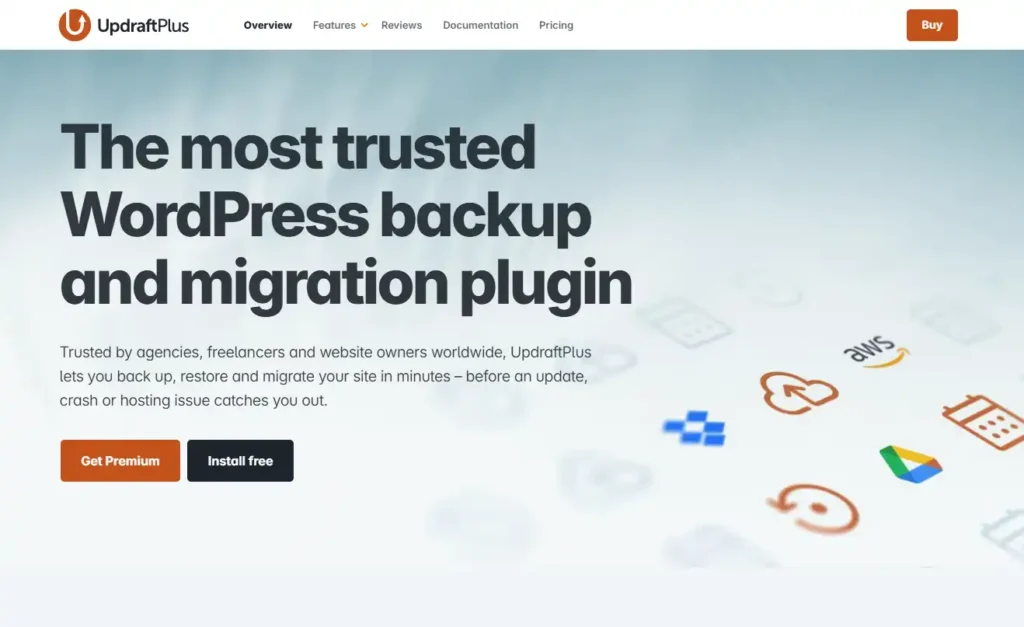
WooCommerce does not back up your store, and neither does WordPress. Your hosting provider may include daily snapshots (check your plan), but most shared and many managed hosts treat backup restoration as a billable service, not a default feature.
UpdraftPlus solves this by automating daily backups of your database, where orders and customer data live, and weekly backups of your files (themes, plugins, uploads).
Backups are sent offsite to cloud storage, including Google Drive, Dropbox, and Amazon S3, so a server failure doesn’t also destroy your backup.
The free version is fully functional for single-site stores running standard WooCommerce without heavy customization.
Pros
- Restoration from an UpdraftPlus backup takes under 10 minutes on a clean WordPress install, the difference between a few hours of downtime and days of rebuilding.
- Free tier sends full backups to cloud storage (Google Drive, Dropbox, S3) with no feature restriction on destination options.
Cons
- The free version runs full backups only, not incremental ones. For large stores with thousands of product images, backup operations consume significant server memory, so schedule them during overnight low-traffic hours.
- The free version does not include the migration or cloning tool, which is needed if you want to use UpdraftPlus to move your store to a new host.
Who It’s Best For
Every WooCommerce store. Your customer database, order history, product catalog, and store configuration exist only in your WordPress installation. Without a working backup, a single failed plugin update can require a complete rebuild.
Pricing
Free tier covers automated backups to cloud storage for a single site. UpdraftPlus Premium starts at $70/year and adds incremental backups, WooCommerce order backup optimization, and premium support.
WooCommerce Shipping and WooCommerce Tax: Best for Order Fulfillment and Compliance
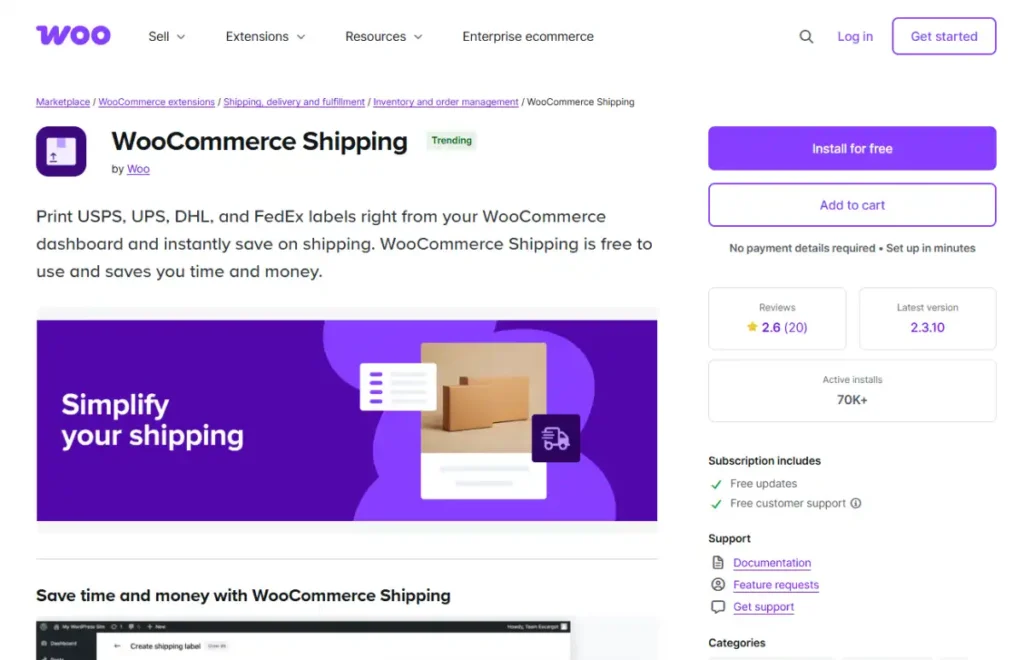
Shipping and sales tax are not optional business functions, and neither is handled by WooCommerce core out of the box. WooCommerce Shipping (US merchants) lets you buy and print carrier labels, including discounted USPS and DHL rates, directly from your WooCommerce dashboard instead of a separate carrier account.
WooCommerce Tax automatically calculates the correct sales tax at checkout based on your store’s address and the customer’s location, which matters given how often US sales tax rates and nexus rules change by state and county.
Both extensions are free, built and maintained by Automattic, and install directly from the WooCommerce marketplace with no separate account setup. Stores outside the US should use a carrier-specific plugin like ShipStation instead, since WooCommerce Shipping’s discounted rates are US-carrier specific.
Key Features
Discounted carrier rates: Access negotiated USPS and DHL rates without a separate shipping account, printed directly from order screens.
Automatic tax rate calculation: Calculates sales tax at checkout by address, removing the need to manually enter or update rate tables as tax rules change.
Order-level label printing: Print shipping labels in bulk or per order without leaving your WooCommerce admin.
Real-time rate display: Shows customers accurate shipping costs at checkout based on cart weight and destination, reducing abandoned carts from surprise shipping fees at checkout.
Pros
- Both extensions are free and remove two of the most common reasons new stores either overcharge, undercharge, or manually calculate shipping and tax.
- Discounted carrier rates on WooCommerce Shipping can meaningfully lower per-order fulfillment cost compared to retail shipping rates.
Cons
- WooCommerce Shipping’s discounted rates apply to US-based carriers only, so international merchants get limited value from this specific extension.
- WooCommerce Tax handles standard sales tax calculation but doesn’t replace a full tax filing and remittance service for stores with nexus in multiple states.
Who It’s Best For
Every US-based WooCommerce store that ships physical products and collects sales tax. International merchants should evaluate a carrier-specific shipping plugin and a tax solution suited to their local VAT or GST requirements instead.
Pricing
Both extensions are free. WooCommerce Shipping charges standard carrier rates (often discounted vs. retail) at time of label purchase. WooCommerce Tax has no separate fee beyond standard WooCommerce hosting.
MailPoet: Best for Email Marketing Inside WordPress
WooCommerce includes basic transactional email templates (order confirmation, shipping notification, refund confirmation), but it includes no system for building your email list, sending promotional campaigns, recovering abandoned carts, or automating post-purchase follow-ups. MailPoet is the lower-friction way to close that gap.
MailPoet lives directly in your WordPress admin, requires no external account for basic use, and covers all standard email marketing use cases, newsletters, automated sequences, and cart abandonment, on its free tier up to 1,000 subscribers.
For stores already managing WooCommerce inside WordPress, avoiding a second login is a genuine time-saving advantage.
The eCommerce email marketing guide covers the full strategy behind list-building and campaign timing.
Key Features
Drag-and-drop email builder: Build newsletters and automated emails from templates without leaving WordPress. No external app or account switching required.
WooCommerce automation triggers: Send targeted emails based on purchase behavior, including abandoned cart recovery and post-purchase follow-up sequences.
Built-in subscriber forms: Add signup forms to your site without a separate form-builder plugin, including exit-intent and embedded options.
Send-time reporting: Tracks opens, clicks, and revenue attributed to each campaign directly inside the WordPress dashboard.
Pros
- Free up to 1,000 subscribers with core automation and cart abandonment recovery included, not gated behind a paid tier.
- Runs inside your existing WordPress login, so there’s no separate platform to learn or manage.
Cons
- Automation and segmentation logic are noticeably simpler than dedicated email platforms once your list grows past a few thousand subscribers.
- No native SMS channel. Stores wanting SMS alongside email need a separate tool or a platform switch.
Who It’s Best For
Stores that want functional email marketing without adding another login or monthly subscription early on. It’s the right starting point for most new WooCommerce stores.
Pricing
Free up to 1,000 subscribers. Paid plans start at $10/month for up to 1,500 subscribers, scaling with list size.
Omnisend: Best for Multi-Channel Marketing Automation

Omnisend is built for stores that expect to outgrow basic newsletter tools quickly. Its free plan is narrower than MailPoet’s, supporting up to 250 contacts and 500 emails per month, but its automation, SMS, and segmentation capabilities are substantially more advanced once you’re on a paid tier.
The SMS channel (US and international), push notification support, and segmentation logic on Omnisend’s paid tier make it the stronger platform for stores moving into multi-channel marketing, where email alone isn’t recovering enough abandoned carts or repeat purchases.
Key Features
Multi-channel automation workflows: Combine email, SMS, and push notifications in a single automated sequence, such as an abandoned cart flow that emails first and follows up by text.
Advanced segmentation: Segment customers by purchase history, browsing behavior, and campaign engagement, not just list membership.
Pre-built WooCommerce workflows: Ships with ready-made automation templates for cart abandonment, welcome series, and post-purchase upsells specific to WooCommerce order data.
Product picker in campaigns: Pull live WooCommerce product data, including images and prices, directly into email campaigns without manual entry.
Pros
- Multi-channel automation (email plus SMS) in one workflow is a meaningful upgrade over email-only tools once cart abandonment recovery becomes a priority.
- Segmentation and reporting are built specifically around eCommerce behavior, not adapted from a generic newsletter tool.
Cons
- The free tier’s 250-contact cap is reached quickly by an active store, pushing most users onto a paid plan sooner than MailPoet requires.
- SMS credits are billed separately from the base subscription, which can make the real monthly cost harder to predict upfront.
Who It’s Best For
Growing stores that have outgrown basic newsletters and want SMS, push notifications, and behavior-based segmentation in one platform rather than stitching together multiple tools.
Pricing
Free up to 250 contacts and 500 emails/month. Standard plan starts at $16/month for 500 contacts. SMS credits and per-contact pricing scale separately from there.
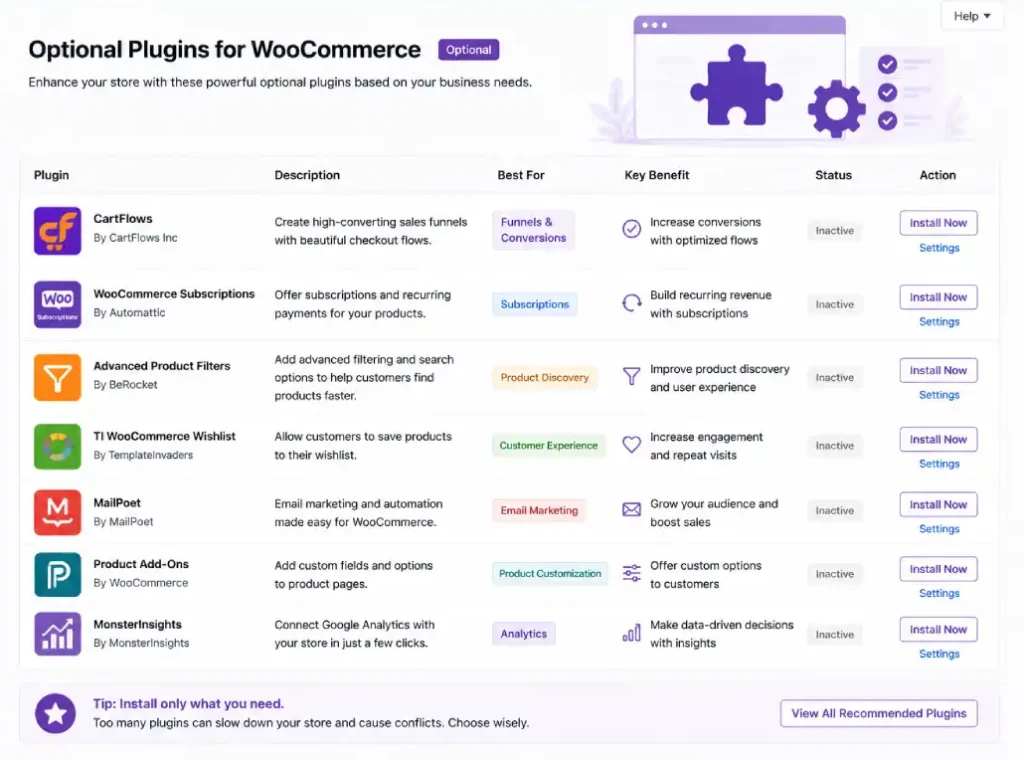
Optional WooCommerce Plugins: Only if You Have a Specific Need
These plugins solve real problems. But they are not universal problems. Install them only if your store has the specific use case they address.
CartFlows: Best for Sales Funnels and Checkout Upsells
CartFlows replaces WooCommerce’s default checkout flow with a customizable multi-step funnel. The primary use case is order bumps and one-click post-purchase upsells: the customer completes checkout and is immediately offered a related product they can add with a single click, without re-entering payment details.
For stores with a clear upsell structure, a main product, a natural add-on, and a higher-tier upgrade, CartFlows can measurably increase average order value. For stores that sell a single product at a fixed price with no logical upsell, CartFlows adds $299/year in cost and checkout complexity for zero additional revenue.
Before purchasing, run your current checkout conversion rate. If more than 75% of sessions that reach checkout do not complete purchase, the problem is likely checkout friction, not the lack of a funnel builder.
The average order value guide covers whether a funnel plugin is the right lever at your store’s current stage.
WooCommerce Subscriptions: Best for Recurring Revenue Models
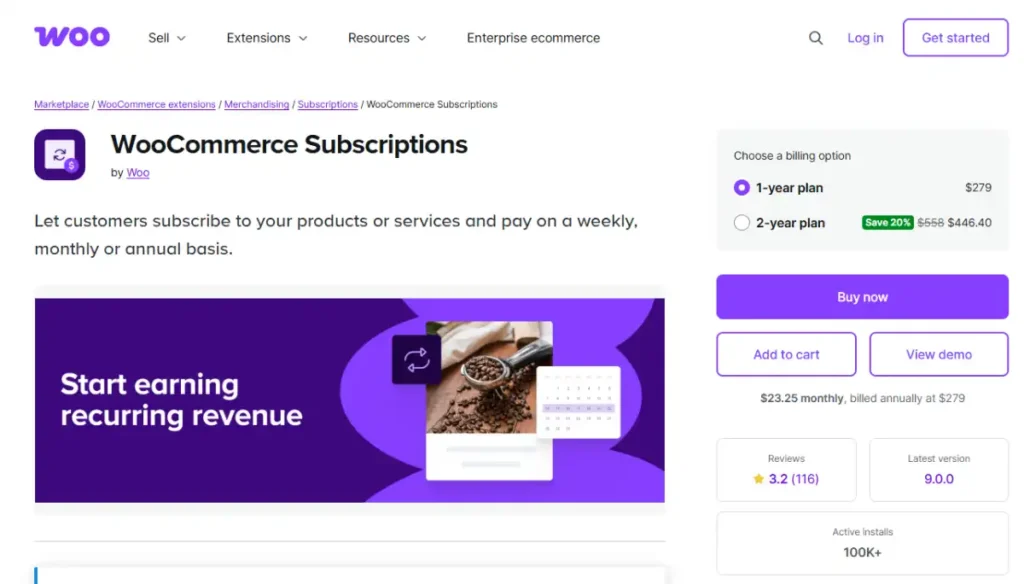
WooCommerce Subscriptions ($279/year from Automattic’s WooCommerce.com) enables recurring billing: monthly subscription boxes, membership fees, software licenses, and other products with repeating charges.
It handles automatic renewals, failed payment retries, customer subscription management (pause, cancel, upgrade), and pro-rated billing for mid-cycle changes.
This plugin is the most overinstalled paid extension in the WooCommerce ecosystem. Stores that do not sell recurring products have no reason to run it.
At $279/year, it is a meaningful ongoing cost that should only exist if recurring revenue is a core part of your business model.
For stores that do sell subscriptions, the WooCommerce subscription plugins comparison covers the official Woo Subscriptions extension against third-party alternatives like Sublium and YITH WooCommerce Subscriptions.
MonsterInsights: Best for WooCommerce-Specific Analytics
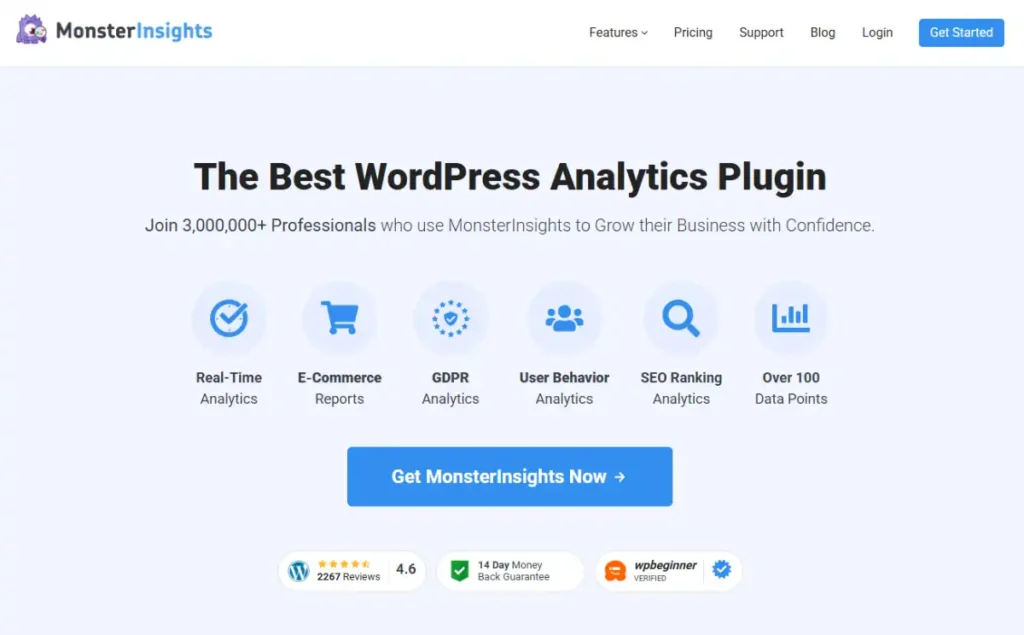
MonsterInsights connects WooCommerce to Google Analytics 4 and surfaces eCommerce-specific data inside your WordPress admin: which products are viewed most, where cart abandonment happens, and which traffic sources convert at the highest rate. The WooCommerce-specific tracking module requires the Plus plan at $99.50/year.
The honest case for skipping it: GA4’s native WooCommerce integration is functional if you’re willing to configure it directly. MonsterInsights’ value is in surfacing that data inside WordPress without requiring GA4 fluency.
If you’re comfortable in Google Analytics directly, install GA4 natively and skip the $99.50/year middleware. If GA4 is intimidating, MonsterInsights pays for itself in the time it saves you building reports.
YITH WooCommerce Wishlist: Best for Return Visit Encouragement
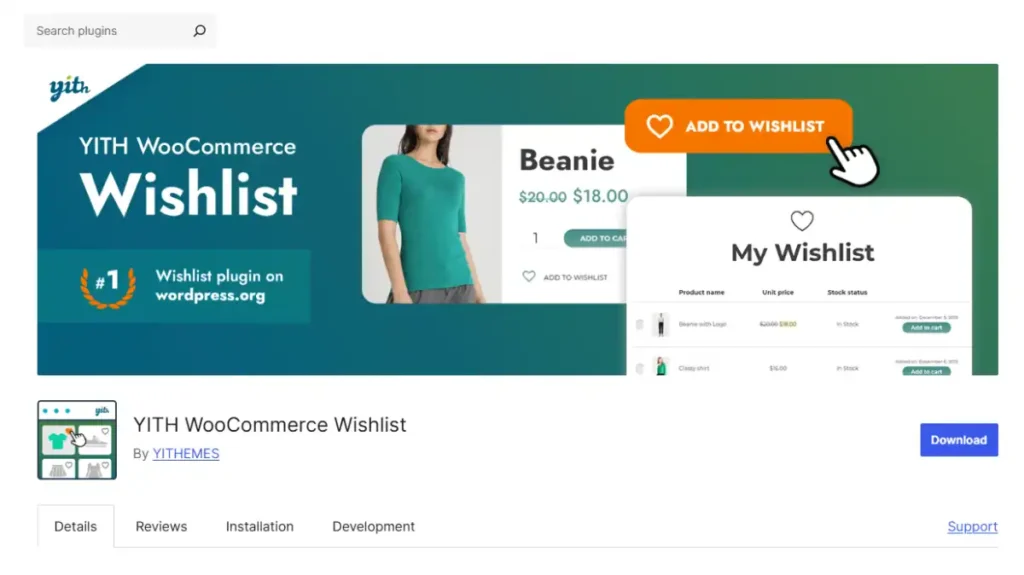
The wishlist use case is simple: customers who save products are meaningfully more likely to return and buy. YITH WooCommerce Wishlist is the most widely used free implementation, with an active installation base over 900,000. It adds an “Add to Wishlist” button to product pages and creates a dedicated wishlist page per customer.
This is optional because not all stores benefit equally. A store selling consumables repurchased frequently doesn’t need a wishlist.
A store selling higher-consideration purchases (furniture, apparel, electronics), where customers research over days or weeks, gets real value from giving visitors a way to bookmark items. Install it if your average time from first visit to purchase is more than a day.
YITH WooCommerce Product Reviews: Best for Social Proof
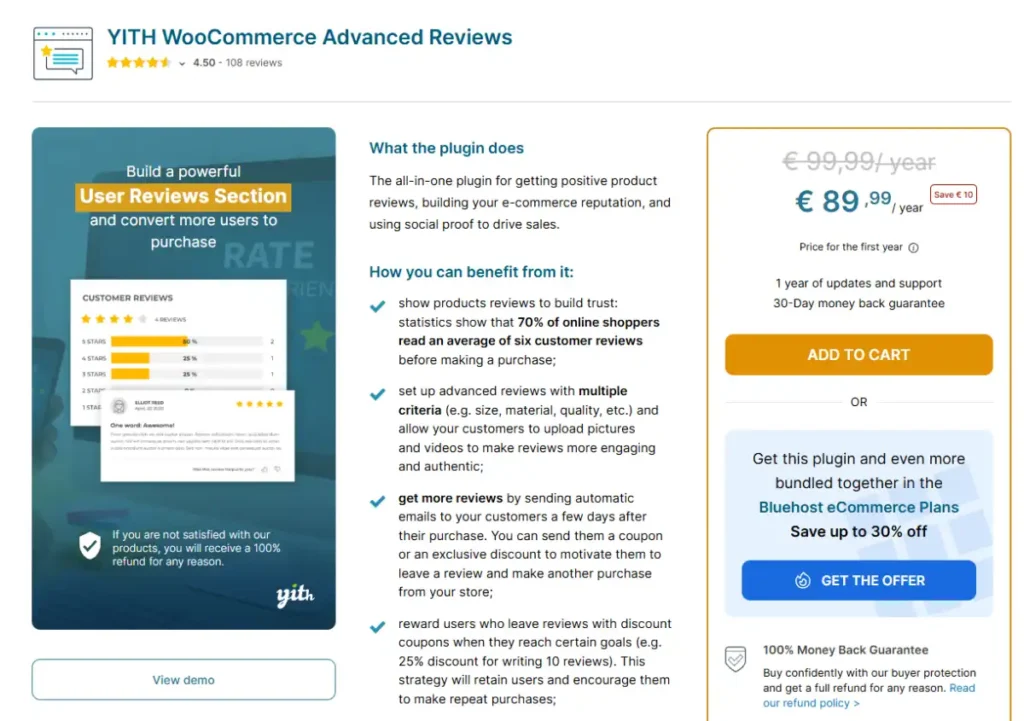
WooCommerce’s default review system is functional but minimal: a star rating and a text field, with no photo uploads, no review request automation, and no way to highlight reviews on category or homepage.
Stores with a 4-star average rating or higher generate meaningfully more revenue than lower-rated competitors, which makes a stronger review display and collection system worth considering once you have enough order volume to generate reviews consistently.
YITH WooCommerce Product Reviews adds automated review request emails sent a set number of days after delivery, photo and video review uploads, and review display widgets for product and category pages.
The free version covers automated review requests and basic display; the premium version ($79.99/year) adds review moderation tools, rich snippets for search result star ratings, and incentives like discount codes for photo reviews.
This is optional rather than essential because a new store with low order volume won’t have enough reviews yet to justify the cost, and WooCommerce’s native review field is enough until that changes.
Install it once you’re generating consistent monthly orders and want to systematically request and display reviews rather than relying on customers to leave them unprompted.
Plugins to Skip: Common Recommendations That Aren’t Worth It
Multiple Page Builders
Elementor, Divi, Beaver Builder, and similar page builders are not plugins in the traditional sense. They replace your WordPress theme’s templating system with their own, and they inject CSS and JavaScript across every page on your site regardless of whether the page uses their blocks. Running two page builders simultaneously, Elementor for landing pages and your theme’s native builder for product pages, is one of the most documented causes of Core Web Vitals failures on WooCommerce.
If you need a page builder, pick one and make it the architectural decision for your entire store. If you’re on a recent version of WordPress, the Gutenberg block editor with a WooCommerce-compatible block theme is a legitimate alternative that adds no additional JavaScript or CSS footprint.
Duplicate SEO Plugins
Running Yoast SEO alongside All-in-One SEO, Rank Math, or any other SEO plugin creates duplicate XML sitemaps, duplicate canonical tags, and conflicting schema markup. This does not improve your rankings. It creates technical SEO problems that take time to diagnose and clean up. Install one SEO plugin, configure it completely, and never add a second.
Popup and Notification Overload
OptinMonster, PushEngage, TrustPulse, Convertful, and similar “conversion optimization” plugins are frequently recommended together. Each adds JavaScript that executes on every page load. Running three simultaneously means your visitors see a cookie consent popup, an email capture popup, and a push notification prompt within seconds of landing, a pattern that increases bounce rate for new visitors, particularly on mobile.
If you’re going to run a popup tool, choose one and run it on a trigger, such as exit intent or after 30 seconds on page, rather than on arrival. A single well-configured popup outperforms three competing ones running simultaneously.
Product Sliders for Main Category Pages
Product sliders are popular because they visually resemble large retailer sites. They perform poorly for most WooCommerce stores because they require heavy JavaScript libraries, autoplay animations hurt Core Web Vitals scores (specifically the Cumulative Layout Shift metric), and usability research consistently shows that slider content after the first panel goes unseen. Most product slider plugins have low update cadences, meaning they’re commonly the source of PHP compatibility issues after WordPress major version updates. Static product grids convert better and load faster.
How to Choose the Right Plugin Stack for Your Store
The honest decision framework is less about which plugins are “best” and more about matching your plugin stack to your store’s actual stage.
If your store generates under $5,000 per month, your plugin budget should cover SMTP mail, security, caching, SEO, and backups. That’s five paid-or-free plugins. Add your payment gateway, shipping, and tax extensions (all free), plus an email marketing tool on its free tier. Your total annual plugin cost should still be under $250.
If your store generates between $5,000 and $20,000 per month, you’ve validated your product-market fit and can justify adding tools that improve conversion. This is the stage where MonsterInsights starts paying for itself, where a wishlist plugin drives real return-visit revenue, and where testing CartFlows makes sense if you have a clear upsell offer.
If your store generates over $20,000 per month, performance and reliability become more important than feature expansion.
At this stage, managed WooCommerce hosting (Kinsta, WP Engine) often replaces the need for WP Rocket, and Wordfence Premium’s real-time threat intelligence starts to justify its cost against the revenue risk of a successful attack.
The WooCommerce pros and cons analysis covers the broader platform trade-offs at scale.
The rule that doesn’t change at any stage: each plugin you add must solve a problem you currently have, not a problem you might have in the future. Pre-installing twenty plugins “just in case” is the most reliable way to create a slow, conflict-prone store that’s expensive to maintain and hard to debug.
FAQ
How many plugins should a WooCommerce store have?
There is no exact right number, but most production WooCommerce stores run between 10 and 20 active plugins, with five to seven of those being genuinely essential. Above 20 plugins, the cumulative performance impact typically becomes measurable. The better question is not the count but the performance footprint: test your store speed with GTmetrix or Google PageSpeed Insights before and after each new plugin installation to understand the actual impact.
Do WooCommerce plugins slow down your store?
Yes, every active plugin adds code that executes on page load. WooCommerce’s own performance documentation recommends deactivating all non-essential plugins and reactivating them one by one when troubleshooting slow load times. The impact varies significantly between plugins: a well-coded plugin may add 2ms of load time, while a poorly coded one with unoptimized database queries can add 300ms or more.
Are WooCommerce plugins free?
Many essential plugins have free tiers that are genuinely functional for new stores. However, the annual renewal cost for a full plugin stack on a growing WooCommerce store typically runs between $500 and $1,500 per year, depending on which paid tools you need. Premium plugins also frequently increase renewal pricing by 20-50% after the first year. Track your plugin renewals in a spreadsheet so the total doesn’t accumulate invisibly.
What’s the best WooCommerce SEO plugin?
Yoast SEO is the most widely tested and most compatible option across the broadest range of WooCommerce configurations. The free version is sufficient for most stores. Rank Math is a capable free alternative with slightly more features on the free tier. Do not run both simultaneously.
Do I need WooCommerce Subscriptions if I’m not selling subscriptions?
No. WooCommerce Subscriptions is a $279/year extension specifically for stores that sell products with recurring billing. It adds no functionality for stores that sell one-time purchases and creates unnecessary database overhead. If you’re considering adding a subscription product in the future, install the extension at that time, not preemptively.
What’s the difference between WooPayments and Stripe for WooCommerce?
Both process payments via Stripe’s infrastructure. WooPayments is Automattic’s managed layer, which simplifies initial setup and handles the Stripe account creation for you.
The direct Stripe Payment Gateway plugin connects to your own Stripe account, giving you full control over your Stripe dashboard, faster access to dispute resolution, and the ability to use Stripe features before they’re surfaced in WooPayments.
Transaction fees are identical. Choose WooPayments for simplicity; choose Stripe directly if you want full control or already have a Stripe account. More on the WooCommerce payment gateways options here.
Can I switch plugins later without losing data?
For most plugins, yes, but with caveats. Switching SEO plugins from Yoast to Rank Math involves a migration process that transfers your existing metadata. Switching email marketing platforms requires re-importing your subscriber list with opt-in verification to comply with GDPR and CAN-SPAM requirements. Switching subscription plugins mid-cycle is complex and can disrupt existing recurring billing if the new plugin doesn’t import existing subscription records correctly. For high-stakes plugin switches, always test on a staging environment first. The WooCommerce hosting guide covers which managed hosts include one-click staging.
Final Thoughts
The WooCommerce plugin ecosystem is enormous, and most guides treat that enormity as a feature rather than a challenge. The real work of running a WooCommerce store well is knowing what not to install.
Start with the essential plugins: SMTP mail, security, caching, SEO, payments, backups, and shipping and tax, and run a clean, fast store for your first few months. Add optional plugins only when a specific, measurable problem justifies the cost and performance trade-off. Skip the categories that look like conversion optimization but typically create more friction than they remove.
If you’re weighing whether WooCommerce is the right platform for your store before worrying about plugins at all, the WooCommerce vs Shopify comparison or the WooCommerce for beginners guide will help you make that foundational decision first.